A Swift Guide to Canceling iPhone App Store Subscriptions
We have all been there. You were excited about that new fitness app, or maybe you just wanted to try that premium news aggregator for a month. You tapped "buy," entered your Face ID, and moved on with your life. Then comes the email notification: your subscription has renewed. That sinking feeling in your gut is familiar, but the good news is that reversing it is far less painful than it used to be. In fact, Apple has made canceling iPhone App Store subscriptions relatively easy, provided you know where to look. It does, however, involve navigating a few menus that can feel slightly hidden if you haven’t done it in a while.
The most important thing to remember is that Apple processes these transactions, not the app developers themselves. This means you do not need to contact customer support for Spotify, Netflix, or any other service to stop the billing. You have direct control from your device. Understanding this distinction saves time and prevents you from sending useless emails to companies that have no power to stop Apple Pay from charging your card.
Canceling Directly from Your iPhone Settings
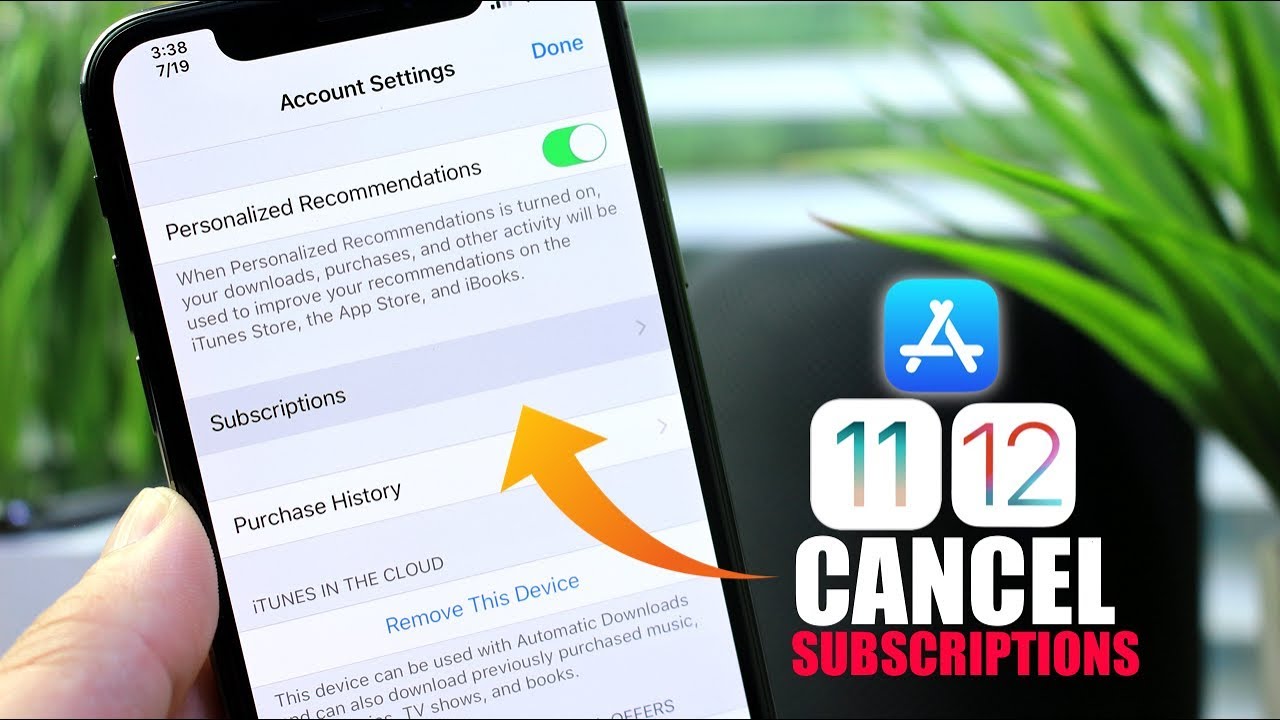
This is the most common method and works for almost everyone who pays through their Apple ID. You do not need to open the individual app to stop the renewal; everything is managed centrally. First, unlock your iPhone and tap the Settings app. Look for your name and Apple ID banner at the very top of the left-hand menu. Tap that, and you will see your personal information. From there, select Subscriptions.
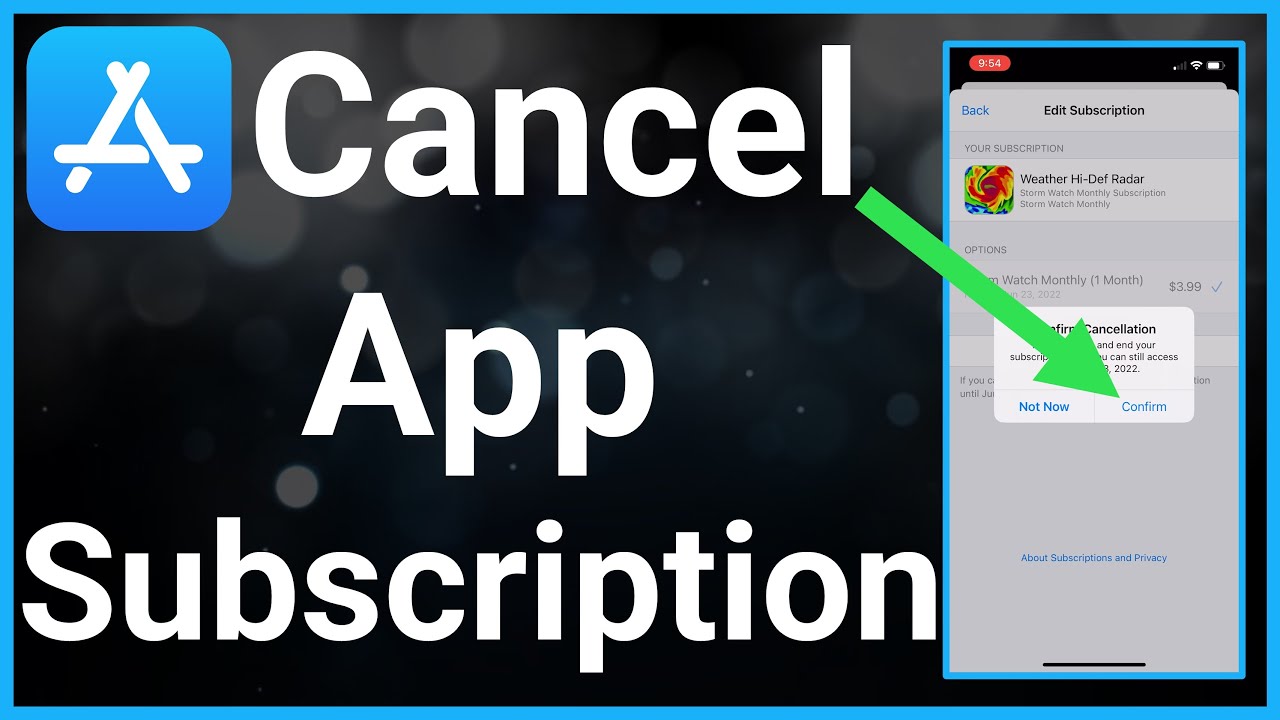
If you have active subscriptions, they will appear under an "Active" header. If you only see "Expired" or "None," then you do not have any auto-renewing purchases linked to that specific Apple account. Tap the subscription you wish to cancel. You will see details about the next billing date and the type of plan. Scroll to the bottom of that screen. If the app still allows cancellations through Apple, you will see a red button labeled Cancel Subscription. Tap it, confirm your choice, and you are done. The service will remain active until the end of your paid period, but it will not renew.
What if you don’t see the "Cancel Subscription" button? This usually happens if you subscribed through the company’s own website rather than through the in-app purchase flow. In those cases, Apple does not handle the billing. You will need to manage the cancellation directly with the service provider, such as logging into their website and ending the membership there.
Using the App Store Interface
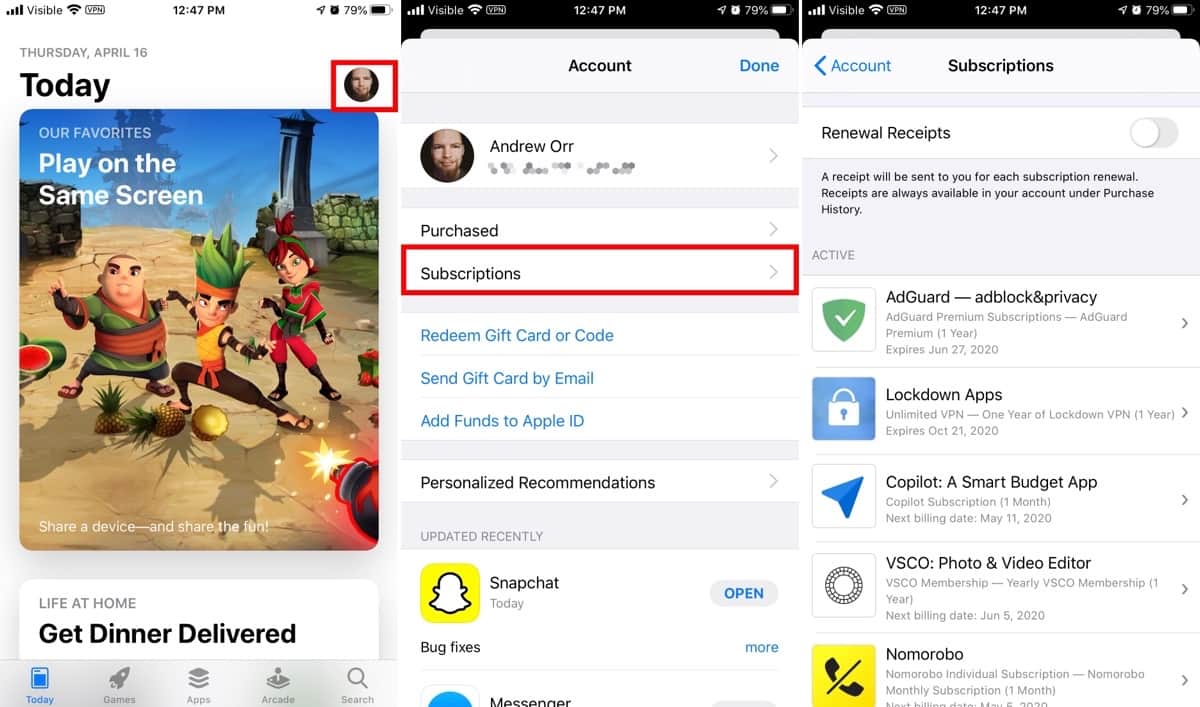
While Settings is the most straightforward route, some users prefer the visual layout of the App Store. This method is essentially a shortcut to the subscription management page. Open the App Store on your iPhone. Tap your profile picture in the top right corner. Your profile page will load, displaying recent downloads and account info. Near the top, you should see Subscriptions. Tap it, and you are back in the familiar management screen described earlier.
This approach can be quicker if you already have the App Store open, perhaps trying to find a replacement app for the one you are canceling. It is functionally identical to the Settings route, so choose whichever feels more intuitive for your workflow.
Why the Cancel Button Might Be Missing
It is frustrating when you follow the steps and the red button isn’t there. There are generally two reasons for this. First, you might have already canceled the subscription previously. Check the "Expired" list to see if the service is lingering there. Second, and more often, the subscription was not managed by Apple. This is common with services like HBO Max or Disney+, which sometimes direct you to their website to create a "soft match" account that handles billing.
If you are unsure whether Apple or the provider handles the billing, check your email for the original purchase receipt. If the receipt came from Apple, you can cancel via Settings. If it came directly from the company, you must visit their website. This distinction is crucial because Apple cannot cancel a subscription they did not facilitate.
Understanding Refunds and Grace Periods
Canceling a subscription does not automatically result in a refund. Apple’s policy is strict: once a transaction is processed, it is final. If you cancel on the same day you are billed, you might get a refund, but it is not guaranteed. You must request a refund through Apple’s report a problem page at reportapstore.apple.com. This process requires you to select the specific transaction and reason for the refund. It is heavily moderated, and Apple often denies refunds for services that have already been consumed.
It is also worth noting that some services offer a free trial. If you cancel before the trial ends, you will not be charged. However, if you wait until the last hour, there is a risk that the system processes the renewal before your cancellation request registers. To be safe, cancel trials as soon as you decide you don't want the service. Do not wait for the clock to run out.
FAQ
Will I lose access immediately after canceling?
No. When you cancel an iPhone App Store subscription, your access to the premium features remains active until the end of the current billing cycle. For example, if you cancel on the 1st of the month and your subscription was billed on the 1st, you retain access until the next 1st.
Does canceling delete the app from my iPhone?
Canceling a subscription does not delete the app. The app remains on your home screen and in your library. You can continue to use the free version of the app if one is available, or simply delete it manually if you no longer need it. Deleting the app does not cancel the subscription; you must follow the steps above to stop the payments.
How do I cancel a subscription that isn't showing up?
If a subscription is not visible in your Apple ID subscriptions, it means Apple is not handling the billing. You need to log into the service provider's website directly, find their billing or account settings, and cancel the subscription through their interface. Check your email for the original billing address to confirm who processed the payment.
Can I pause a subscription instead of canceling it?
Apple does not have a native "pause" subscription feature for most apps. However, some third-party developers may offer holiday holds or pauses within their own app settings. If the app does not offer this, you must cancel to stop billing, though you will lose your premium data if the service is account-based. Always check the specific app’s help center for pause options.