Download Netflix Movies and Shows in Minutes: A Simple Guide
Ever clicked “Play” on a Netflix title only to realize you won’t have Wi‑Fi later? Whether you’re gearing up for a long flight, a road trip, or just a weekend without broadband, having your favorite shows saved locally can be a lifesaver. The good news? Netflix lets you download content straight to your device, and the process is easier than you might think. Below is a straightforward walk‑through that covers the basics, troubleshooting tricks, and a few handy tips to get the most out of your offline library.
Who Can Download and What’s Available?
First off, not every device or title is eligible. Netflix supports downloads on most iOS and Android smartphones, tablets, Windows 10/11 PCs, and even some macOS systems via the Netflix app. The selection varies by region and licensing agreements, so you’ll notice a “download” icon (a downward arrow) next to many—but not all—movies and episodes.
- Devices: iPhone, iPad, Android phones/tablets, Windows 10/11 laptops, some Chromebooks.
- Content: Most Netflix Originals are downloadable, plus a sizable portion of licensed movies and series.
- Limits: Each title has a set number of allowed downloads (usually 2‑5), and you can store up to 5 GB on mobile devices and 100 GB on PCs.
Step‑by‑Step: Getting Downloads Up and Running
1. Verify Your Subscription
Only paid plans that include streaming (Standard, Premium, or Basic with Stream) allow downloads. If you’re on a free trial, you’ll still have access, but make sure the trial hasn’t expired before you start buffering titles.
2. Update the Netflix App
Outdated apps can miss the download button entirely. Head to the App Store, Google Play, or Microsoft Store, and install the latest version. A quick check: open the app, tap your profile icon, scroll to “App Settings,” and see if an update prompt appears.
3. Choose a Title
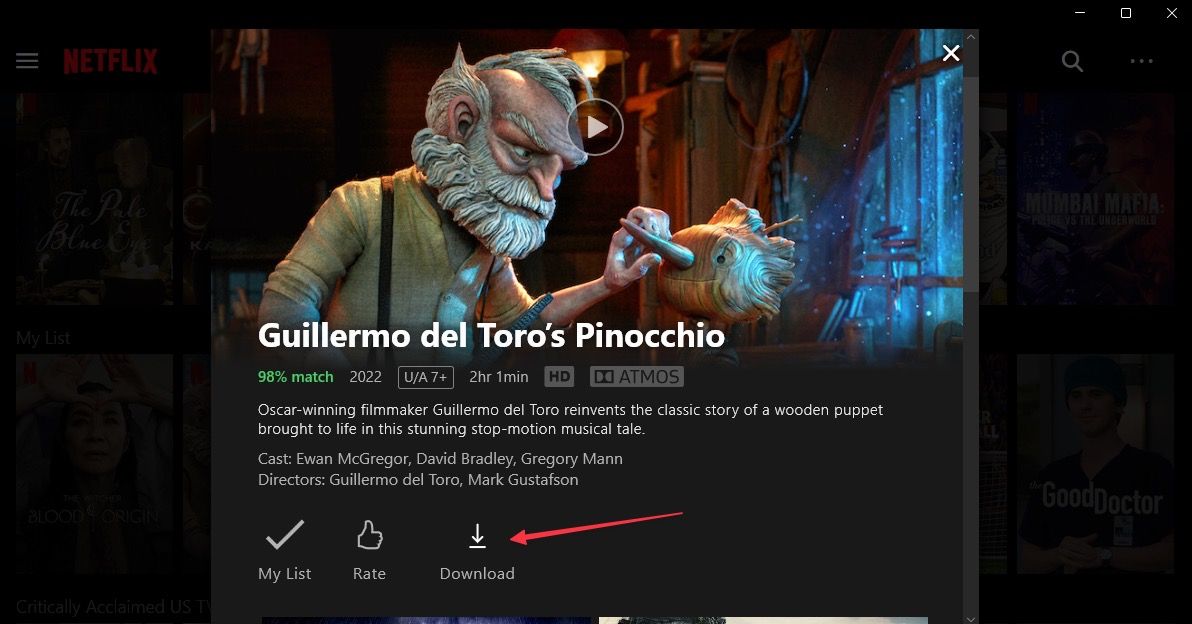
Browse as usual, and look for the downward‑arrow icon next to the title’s thumbnail. Hovering over it on a PC will also show “Download.” If you don’t see the icon, the title isn’t currently downloadable in your region.
4. Select Quality (Optional)
Go to App Settings > Download video quality. You can pick Low, Medium, or High. Higher quality consumes more storage and takes longer to download, but the picture looks sharper on larger screens. For most phones, Medium strikes a good balance.
5. Start the Download
Tap the arrow. A progress bar appears, showing how much of the file has transferred. On Wi‑Fi, downloads start instantly; on cellular, you might get a warning unless you’ve allowed mobile data for downloads in settings.
6. Find Your Offline Content
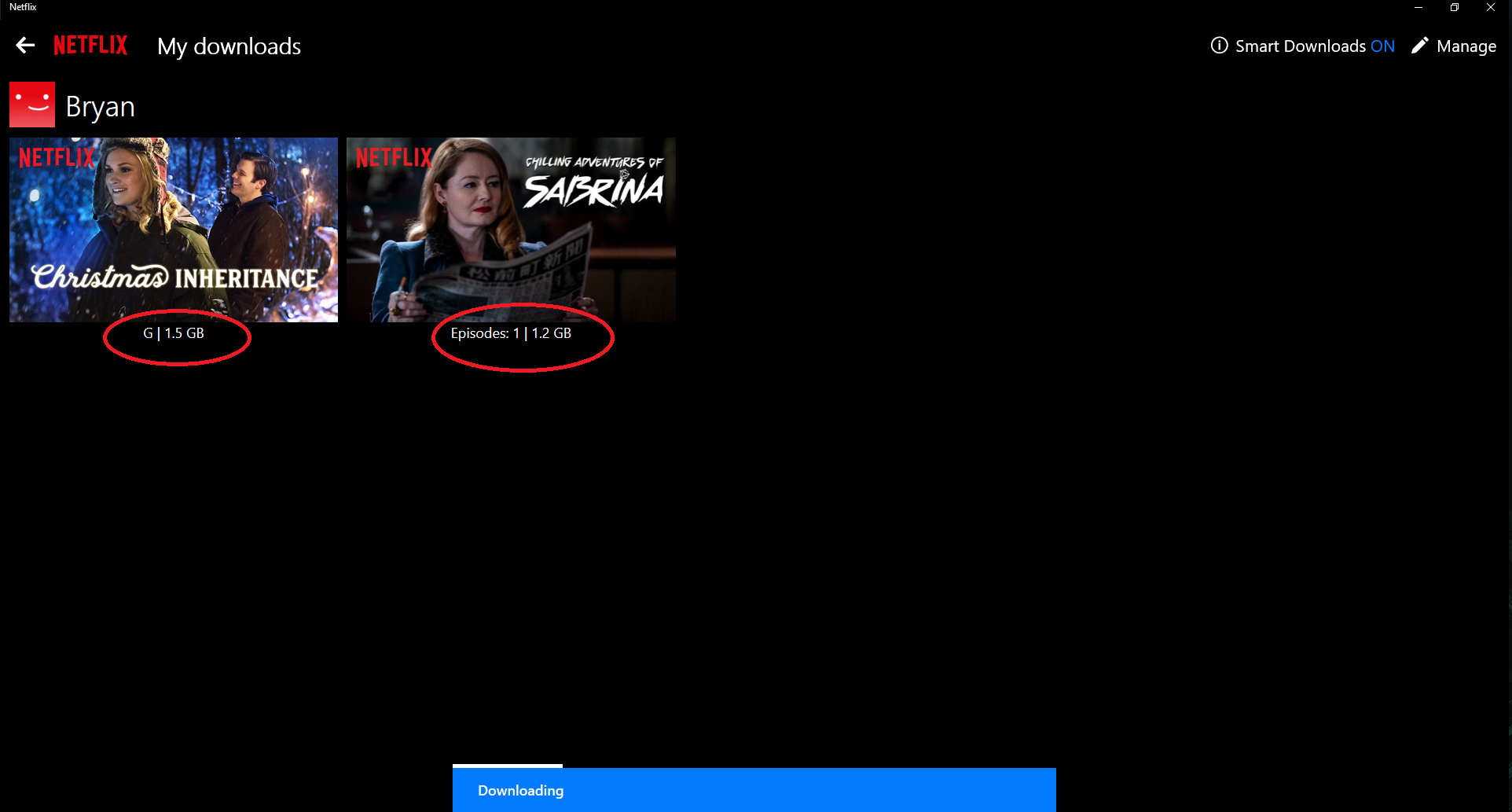
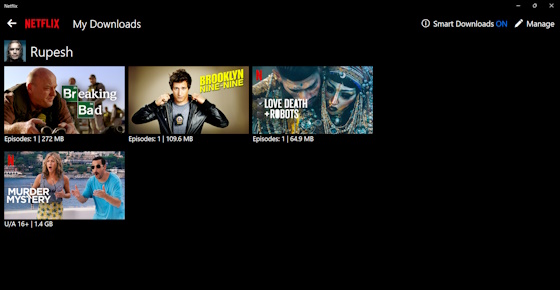
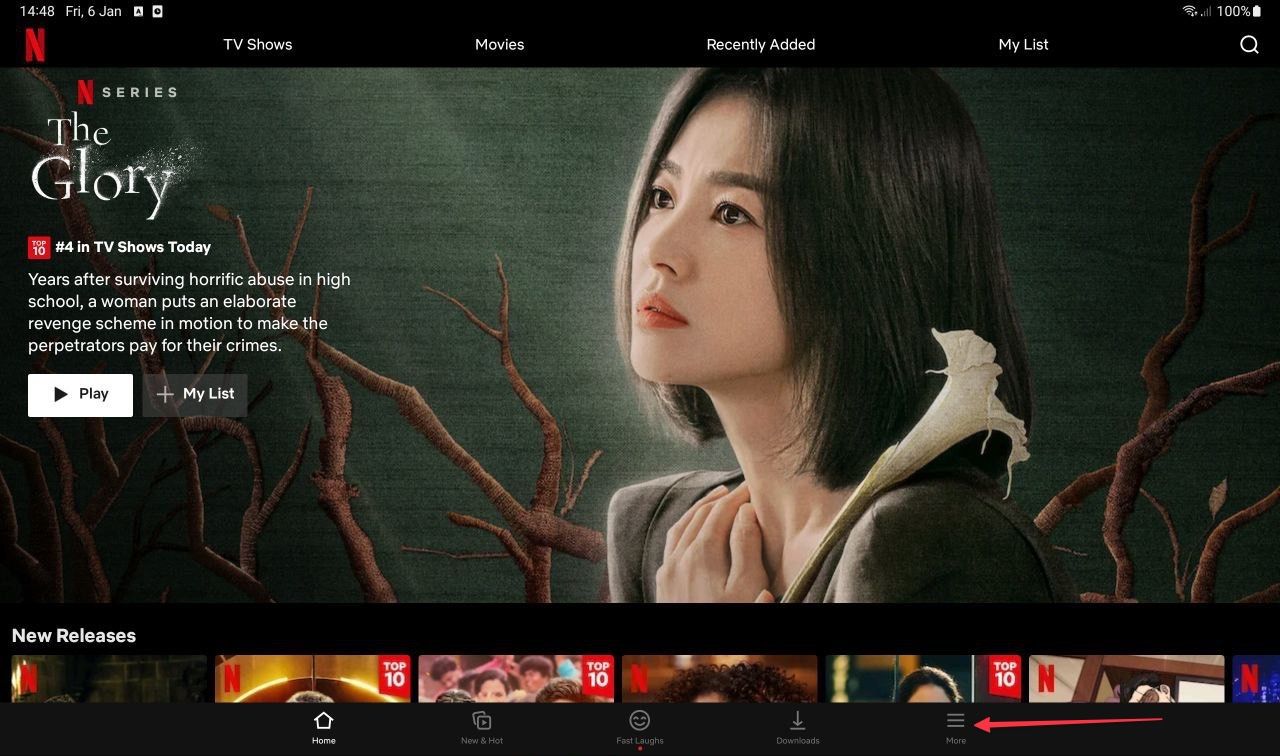
On mobile, hit the “Downloads” tab at the bottom of the screen. On Windows, click the three‑line menu and choose “My Downloads.” All saved titles appear here, ready to play without an internet connection.
Managing Storage and Expirations
Netflix isn’t a permanent locker. Most downloads stay usable for 48 hours after you start watching, and you have up to 30 days to begin playback after the download finishes. If you don’t watch within that window, the file expires and disappears.
- Free up space: Swipe left (iOS) or select the three‑dot menu (Android/PC) and hit “Delete.”
- Automatic deletions: Enable “Smart Downloads” in settings. Netflix will automatically replace watched episodes with the next in line, keeping your library fresh without manual cleanup.
Troubleshooting Common Hurdles
Download Won’t Start
Check your internet connection, ensure there’s enough free storage, and verify that you’ve allowed Netflix to use cellular data if you’re off Wi‑Fi. A quick app restart often resolves a stalled queue.
“Insufficient Space” Error
Even if you think you have room, the app sometimes misreads available space after a recent system update. Head to your device’s storage settings, clear cache, or delete a few old downloads, then try again.
Playback Says “Not Available Offline”
This usually means the licensing window closed while the file was stored. Netflix will automatically remove such titles, but you can re‑download if it reappears in the catalog.
Tips for Getting the Most Out of Offline Viewing
- Batch download before travel: Enable “Download on Wi‑Fi only” to avoid surprise data charges, then queue up a season or two while you’re at home.
- Use headphones for better compression: Some users report smoother playback when listening through wired earbuds, especially on older Android devices.
- Sync subtitles before you go offline: Open the title while online, select your subtitle language, then pause. This caches the text so you won’t see “Subtitle not available” later.
- Watch on multiple devices: Download a title on your phone, then transfer the file to a Windows PC using Netflix’s “Download to PC” feature for bigger-screen viewing.
What About Macs? A Workaround
Netflix’s native macOS app doesn’t support downloads, but there’s a simple solution: install iTunes (or the Apple TV app) on a Windows PC, download titles there, and then copy the files to your Mac via an external drive. Remember, the files remain encrypted and only play through the Netflix app, so this method is more about convenience than file portability.
Legal and Ethical Reminder
Downloading through the official Netflix app respects the platform’s licensing agreements and keeps you on the right side of copyright law. Third‑party tools that claim to “scrape” Netflix content often violate terms of service and can expose you to malware. Stick with the built‑in downloader for peace of mind.
Wrapping Up
With a few taps, you can transform a spotty internet connection into a personal cinema. By understanding device limits, quality settings, and expiration rules, you’ll avoid the surprise of a missing episode mid‑marathon. So next time you hear the familiar “Are you still watching?” prompt, you’ll already be a few steps ahead—offline, on‑demand, and ready for whatever the road throws your way.