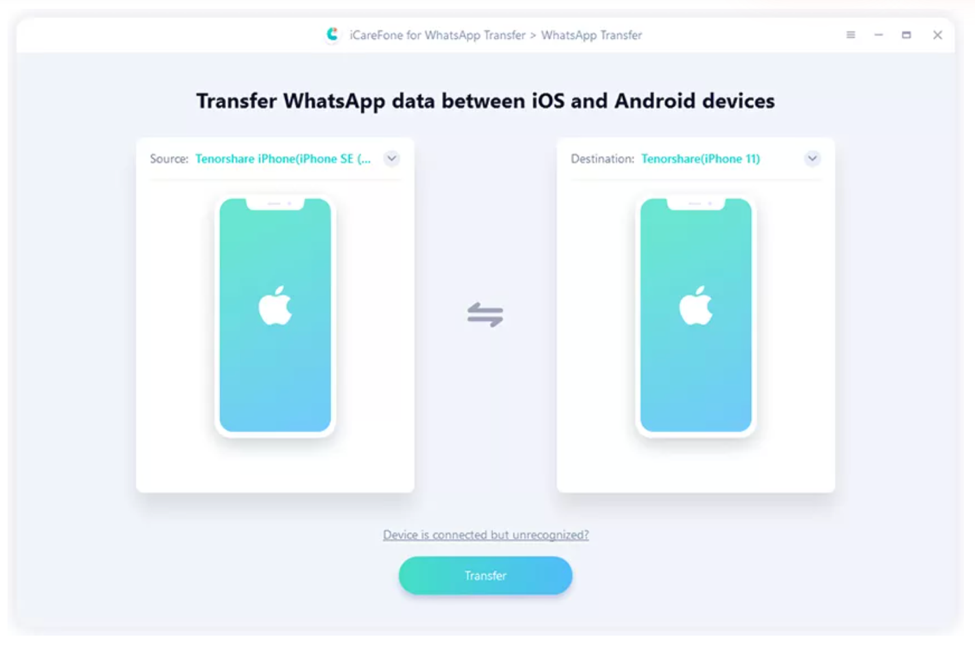
Easy Way To Transfer WhatsApp Contacts To A New Phone
Switching to a new smartphone often feels like a marathon of apps, settings, and that ever‑present anxiety about losing important data. Your WhatsApp contacts, the people you chat with daily, are among the first items you’ll want to bring along. Luckily, the process isn’t as daunting as it seems. Below you’ll find a straightforward guide that walks you through the preparation, the backup, and the actual transfer—no tech wizardry required.
Why Moving WhatsApp Contacts Matters
Unlike the phone’s native address book, WhatsApp builds its own list based on phone numbers that have the app installed. When you change devices, that list doesn’t automatically follow. If you skip the transfer, you’ll see a blank screen when you open the app, forcing you to re‑add each contact manually.
- Continuity: Keep conversations where you left off.
- Group chats: Avoid losing access to active groups.
- Privacy: Preserve encrypted chat history without exposing it.
Prep Work: What You Need Before Starting
First, make sure both your old and new phones are fully charged. A dropped connection midway through a backup can corrupt data, and nobody wants to start over.
Back Up Your Chat History
The backup is the safety net that also carries your contact list. Depending on your operating system, you’ll use either Google Drive (Android) or iCloud (iOS).
- Open WhatsApp > Settings > Chats > Chat backup.
- Tap Back Up and wait for the process to finish.
- Verify the backup timestamp to ensure it’s recent.
If you’ve already enabled automatic backups, just double‑check the last backup date. It’s a small step that saves a lot of hassle later.
Simple Methods To Move WhatsApp Contacts
There isn’t a one‑size‑fits‑all button that says “Transfer contacts now,” but three reliable approaches cover most scenarios.
Method 1: Google Drive (Android → Android)
This is the most common route for Android users. Your contacts ride along with the chat backup, so you only need to restore the backup on the new device.
- Install WhatsApp on the new phone and verify your number.
- When prompted, tap Restore and select the Google Drive backup you created.
- Wait for the restoration to complete; your contacts will appear automatically.
Make sure you’re logged into the same Google account on the new phone—otherwise, WhatsApp won’t find the backup.
Method 2: iCloud (iPhone → iPhone)
Apple’s ecosystem makes the process almost invisible. As long as iCloud Drive is enabled, your WhatsApp data, including contacts, syncs in the background.
- On the old iPhone, go to Settings > [your name] > iCloud > iCloud Drive and turn it on.
- Open WhatsApp > Settings > Chats > Chat Backup > Back Up Now.
- On the new iPhone, download WhatsApp, verify the same phone number, then hit Restore Chat History when asked.
If the restore option doesn’t appear, it usually means the iCloud backup is either missing or not associated with the current Apple ID.
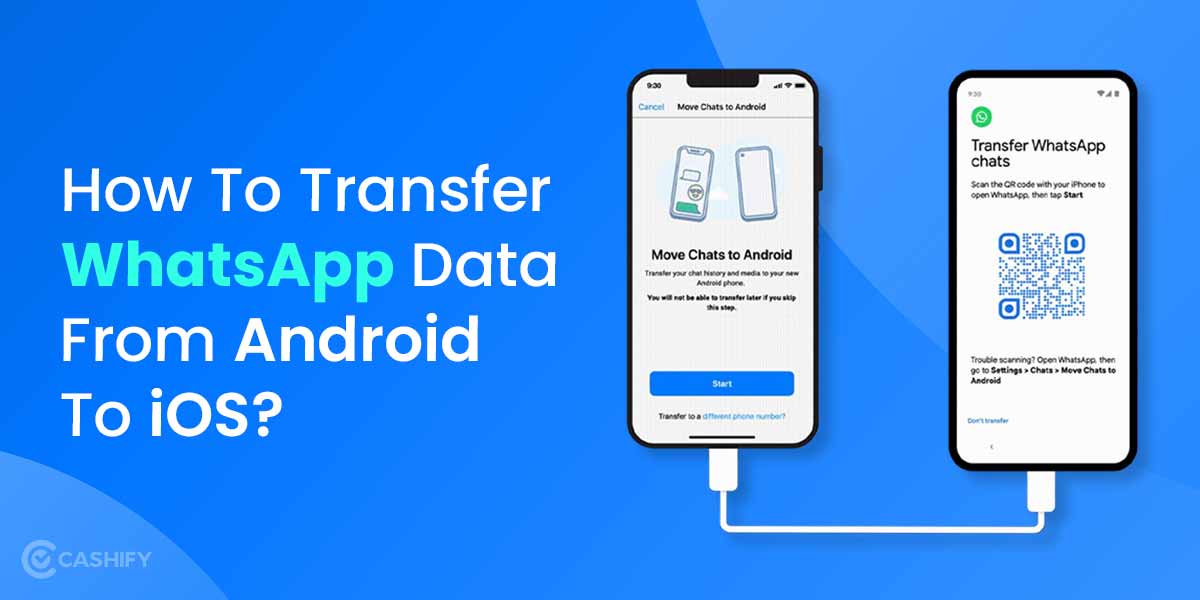
Method 3: Change Number Feature (Cross‑Platform)
When you’re moving between Android and iPhone, the built‑in “Change Number” tool can bridge the gap. It informs your contacts of the new number and moves the local address book entries, which WhatsApp then picks up.
- On the old phone, open WhatsApp > Settings > Account > Change Number.
- Enter your old number and the new one, then tap Next.
- Select Notify contacts if you want them to see the update.
- Complete the verification on the new device.
This method doesn’t transfer chat history, but it does keep the contact list intact, which many users find sufficient for a quick switch.
Extra Tips to Smooth the Transition
Even after a successful transfer, a few quirks can appear. Here’s a short checklist to tidy things up:
- Refresh contacts: Open your phone’s address book, pull down to refresh, then reopen WhatsApp.
- Re‑grant permissions: On Android, go to Settings > Apps > WhatsApp > Permissions and ensure contacts access is enabled.
- Check storage: WhatsApp needs enough free space to unpack the backup; a few hundred megabytes should do.
If a contact still shows up as “invite to WhatsApp,” it simply means that number isn’t registered on the platform yet—nothing to worry about.
What If Something Goes Wrong?
Technical hiccups happen. The most common roadblock is a mismatch between the backup account and the phone number you’re verifying. In that case, double‑check the Google or iCloud credentials, or try re‑initiating the backup on the old phone before restoring again.
Another occasional snag: corrupted backup files. If WhatsApp refuses to restore, delete the existing backup from Google Drive or iCloud, create a fresh one, and repeat the process. It feels like extra work, but it usually resolves the issue.
![[5-Min] Restore WhatsApp & Business Messages to New Phone](https://www.mobitrix.com/images/article/en/nn-estore-whatsapp-from-google-drive-to-iphone.jpg)
![[Guide] How to Import Contacts to WhatsApp](https://mobiletrans.wondershare.com/images/images2019/whatsapp-transfer-home.jpg)