Find Excel Autosave Location To Recover Files Fast
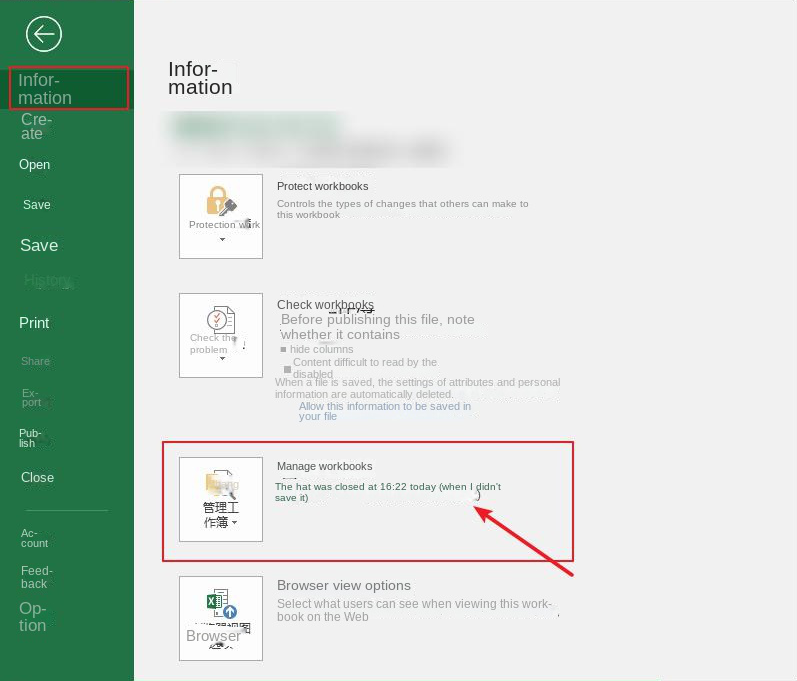
Ever been mid‑project and—bam—your Excel workbook disappears? It feels like the digital version of misplacing your keys, except the stakes involve formulas, charts, and hours of work. Before you succumb to panic, there’s a good chance Excel already tucked a copy of your file away in its autosave vault. Knowing where to look can shave minutes—or even hours—off the recovery process.
Why Autosave Matters
Microsoft introduced autosave to shield users from unexpected power cuts, crashes, or accidental closes. Unlike the manual “Save” button, autosave runs silently in the background, periodically writing a snapshot of your workbook. If something goes wrong, those snapshots become your lifeline. They’re not perfect—sometimes you’ll lose a few recent edits—but they’re far better than starting from scratch.
Typical Autosave Paths
The location varies by operating system and Office version. Below are the most common defaults you’ll encounter:
- Windows 10/11 (Office 365, 2019, 2016):
C:\Users\YourUserName\AppData\Local\Microsoft\Office\UnsavedFiles - Windows 7/8 (Office 2013, 2010):
C:\Users\YourUserName\AppData\Roaming\Microsoft\Excel - macOS (Office 365, 2019, 2016):
/Users/YourUserName/Library/Containers/com.microsoft.Excel/Data/Library/Preferences/AutoRecovery
Notice the “AppData” or “Library” folders are hidden by default. You’ll need to enable the view of hidden items before you can see them.
How to Locate the Autosave Folder Manually
Sometimes the default path isn’t where Excel dropped your file. The program can be configured to use a custom folder, especially in corporate environments with network drives. The following steps walk you through both the built‑in options and a quick file‑system hunt.
Using Excel Options
1. Open Excel (any workbook will do).
2. Click File → Options → Save.
3. Look for the field labeled “AutoRecover file location.” The text inside is the exact folder Excel is using.
Checking the Default Folder
If the path in Options looks empty or you suspect a fallback to the default, open the Run dialog (Windows + R) and paste the relevant path from the list above. Press Enter. Explorer will open directly to the folder, where you should see files named something like AutoRecovery save of Book1.xlsx.
Recovering a Lost Workbook
When you finally stand in front of those hidden files, here’s a quick roadmap to bring your workbook back to life:
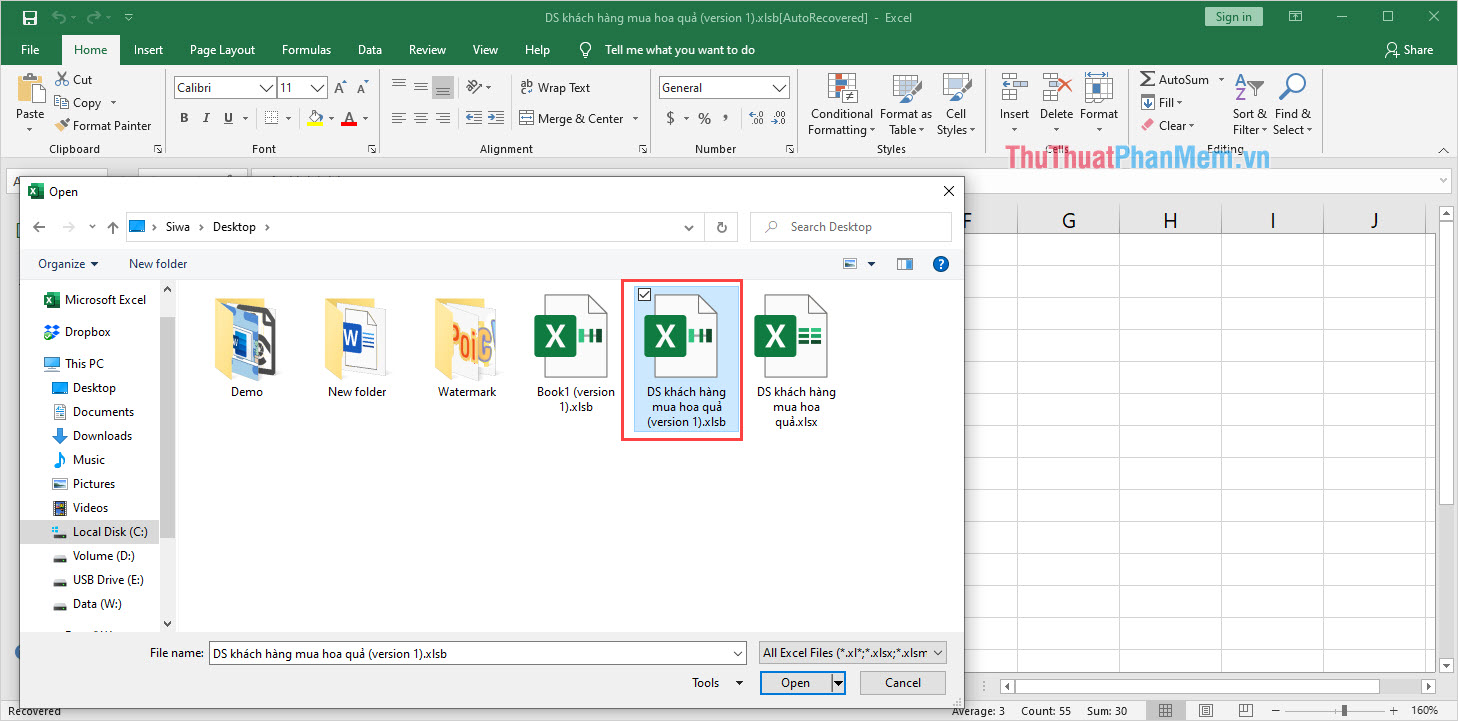
- Copy the
.xlsxor.xlsbfile to a familiar location (Desktop is easiest). - Rename it if it carries the “AutoRecovery” prefix—just give it a clean name.
- Open the file in Excel. If you see a warning about “Recovered file may contain errors,” click Yes to proceed.
- Save the workbook immediately under a new name, then verify that all expected data and formulas are intact.
Often you’ll discover the recovered version is a few minutes older than your last manual save. That’s still a massive win compared to a completely blank slate.
What to Do If You Can’t Find Anything
Sometimes the autosave folder is empty, or the files inside are corrupt. Before you toss your computer out the window, try these fallback tactics:
- Search by file type: In Windows Explorer, type
*.xlsxor*.xlsband hit Enter. Then sort by “Date Modified” to spot recent, unnamed files. - Check the Recycle Bin: Occasionally a crash forces Excel to move the temporary file to the bin.
- Look at OneDrive/SharePoint: If you work from a cloud‑synced folder, Excel may have stored an autosave version there instead of locally.
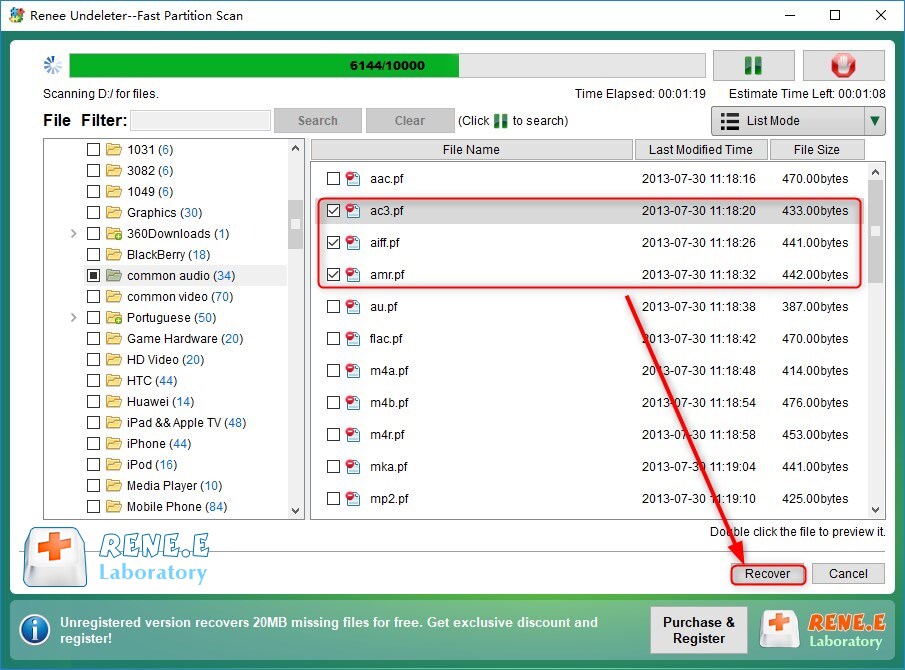
- Run a system restore point: As a last resort, reverting Windows to a point before the crash can recover hidden system files.
Remember, the next time you finish a big analysis, hit Ctrl+S a couple of times. It won’t replace autosave, but it adds a fresh manual snapshot to your safety net.
In the end, mastering where Excel hides its recovery gems transforms an annoying data loss scenario into a manageable hiccup. With the paths above bookmarked—or even pinned to your taskbar—you’ll spend less time hunting and more time polishing those charts and pivot tables.