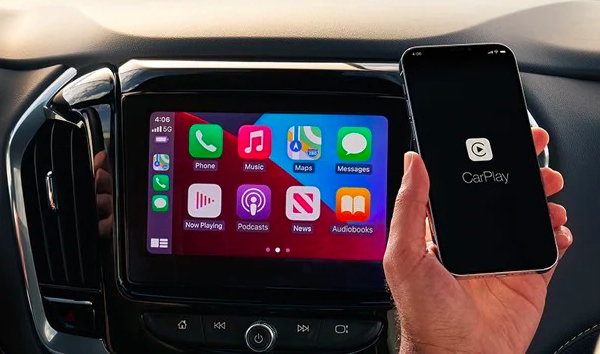
How Apple CarPlay Turns Chevy Dashboards Into Seamless Hubs
If you’ve ever wondered how Apple CarPlay in Chevy models creates a seamless connection between your iPhone and the vehicle’s infotainment system, you’re not alone. Chevrolet has been weaving Apple’s interface into its cabins for several years, but the experience feels fresher than ever thanks to wireless upgrades and software refinements. Below, we’ll unpack what makes the pairing feel natural, which Chevy models support it out of the box, and how to troubleshoot the occasional hiccup.
Apple CarPlay in Chevy: What Drivers Need to Know
First‑generation CarPlay required a Lightning cable, but most recent Chevrolet trucks and SUVs now offer a true wireless link. The system mirrors your phone’s maps, messages, and music, letting you stay focused on the road while still tapping into iOS features. Here’s a quick snapshot of the essentials:
- Compatibility: 2021 onward Silverado, Tahoe, Equinox, and Bolt EUV support wireless CarPlay; older models need a USB connection.
- Setup: Pairing takes under a minute—just enable Bluetooth and Wi‑Fi on your iPhone, then select “Apple CarPlay” from the infotainment menu.
- Voice control: Siri works through the car’s built‑in microphones, so you can ask for directions, send texts, or change the playlist without lifting a finger.
The magic lies in the way Chevrolet’s MyLink (or Infotainment 3) interface hands off control to CarPlay. Once you hit the CarPlay icon on the touchscreen, the system essentially becomes an extension of your phone, preserving the familiar icon layout while adapting to the vehicle’s larger display.
Wired vs. Wireless: Does It Matter?
Wired connections still have a place, especially if you own a model that predates the wireless update. A cable guarantees a stable data stream and can charge your iPhone simultaneously—a win for long road trips. However, wireless CarPlay frees up the USB port for other devices and eliminates the clutter of cords. In practice, the latency difference between the two is negligible for most daily uses.
Key Benefits of the Integration
Beyond the obvious convenience, CarPlay brings a few subtle advantages that Chevy owners often overlook:
- Consistent UI: Whether you’re in a compact Equinox or a full‑size Silverado, the CarPlay screen looks the same, reducing the learning curve when you switch vehicles.
- Third‑party apps: Navigation apps like Waze, audio platforms such as Spotify, and even audiobooks from Audible are all accessible without leaving the dashboard.
- Safety features: Siri can read incoming messages aloud, and you can reply with voice dictation, keeping eyes on the road.
Setting Up Apple CarPlay in a Chevy
Follow these steps to get the connection humming:
- Start the car and ensure the infotainment system is on.
- On your iPhone, go to Settings > General > CarPlay and tap “Available Cars.”
- Select your Chevrolet model from the list. If prompted, confirm the pairing code shown on the screen.
- Accept the “Enable CarPlay” prompt on the vehicle’s display.
- Adjust your preferences—choose whether Siri should launch automatically, set up “Do Not Disturb While Driving,” and reorder app icons if desired.
After these steps, CarPlay should appear automatically whenever you start the engine and have your phone nearby. If the wireless link fails, a quick reboot of both the car’s infotainment system and your iPhone often clears the issue.
Troubleshooting Common Snags
Even the smoothest integrations can stumble. Here are the most frequent roadblocks and how to fix them:
- CarPlay won’t launch: Verify that Siri is enabled on the iPhone; CarPlay disables itself if Siri is turned off.
- Audio drops out: Check that your phone’s Wi‑Fi isn’t connected to another network; CarPlay creates a direct Wi‑Fi link that can be overridden.
- Bluetooth not pairing: Delete the Chevy entry from your iPhone’s Bluetooth list, then re‑pair as if it were a new device.
- App icons missing: Update both iOS and the vehicle’s firmware. Chevrolet releases over‑the‑air updates that often expand CarPlay compatibility.
The Future of CarPlay in Chevrolet Vehicles
Chevrolet’s roadmap hints at deeper integration, including a “CarPlay Dashboard” view that blends native vehicle controls with Apple’s UI. Expect more granular vehicle data—fuel range, tire pressure, and climate settings—exposed to CarPlay apps, turning the system into a true command center. As Apple pushes CarPlay to support multiple screens, future Chevy models may display navigation on the instrument cluster while keeping media controls on the central touchscreen.
Frequently Asked Questions
Can I use Apple CarPlay with a used Chevy that didn’t ship with it?
Yes, many older Chevrolets can gain CarPlay via a retrofit kit that adds a compatible head unit. Installation costs vary, but the upgrade usually includes a wireless module.
Do I need a specific iPhone model?
CarPlay works with any iPhone 5 or newer running iOS 13 or later. For wireless CarPlay, iOS 14 or newer is recommended to ensure a stable Wi‑Fi handshake.
Is my data safe when CarPlay is active?
Apple routes all CarPlay traffic through a direct, encrypted connection between your phone and the vehicle. No personal data is stored on the car’s hardware.
What if my Chevrolet’s infotainment software is outdated?
Chevrolet often releases OTA updates that add CarPlay enhancements. Check the “System Update” menu in MyLink, or visit a dealership for a quick USB flash‑drive update.