How Gemini Code Assist Supercharges VS Code With AI
Developers who spend hours wrestling with boilerplate, hunting for snippets, or debugging repetitive errors know the feeling of a stalled workflow. Enter Gemini Code Assist, an AI‑driven extension that sits right inside Visual Studio Code and offers context‑aware suggestions as you type. In the next few minutes you’ll see why this tool feels less like a gimmick and more like a quiet co‑pilot that actually saves you time.
What Is Gemini Code Assist?
Gemini Code Assist is a plug‑in built on Google’s Gemini large‑language model, tailored specifically for software development. Unlike generic chat‑bots, it reads the file you’re editing, the surrounding project files, and even the open‑source libraries you’ve imported. From that context it generates code snippets, refactors functions, or explains error messages—all without you leaving the editor.
The extension works on Windows, macOS, and Linux, and supports the most common languages in VS Code, including JavaScript, Python, TypeScript, and Java. Because it runs as a service inside the editor, latency is low enough that suggestions appear almost instantly, keeping your thought process uninterrupted.
Why AI Matters in Coding
Artificial intelligence isn’t a novelty in development any more; it’s becoming a practical productivity layer. AI can spot patterns that a human might overlook—such as a missing null check or an inefficient loop—and propose a fix that follows the project’s style guidelines. This reduces the mental load of remembering every syntax rule, especially when you’re hopping between languages or frameworks.
Moreover, AI can surface community‑tested idioms. When you ask Gemini Code Assist for a “fetch request with error handling,” it pulls from a corpus of real‑world code, giving you a solution that’s both idiomatic and up‑to‑date. The net effect is fewer context switches and a smoother learning curve for newer team members.
Setting Up Gemini Code Assist in VS Code
Getting the extension running is straightforward, but a few steps help you unlock its full potential.
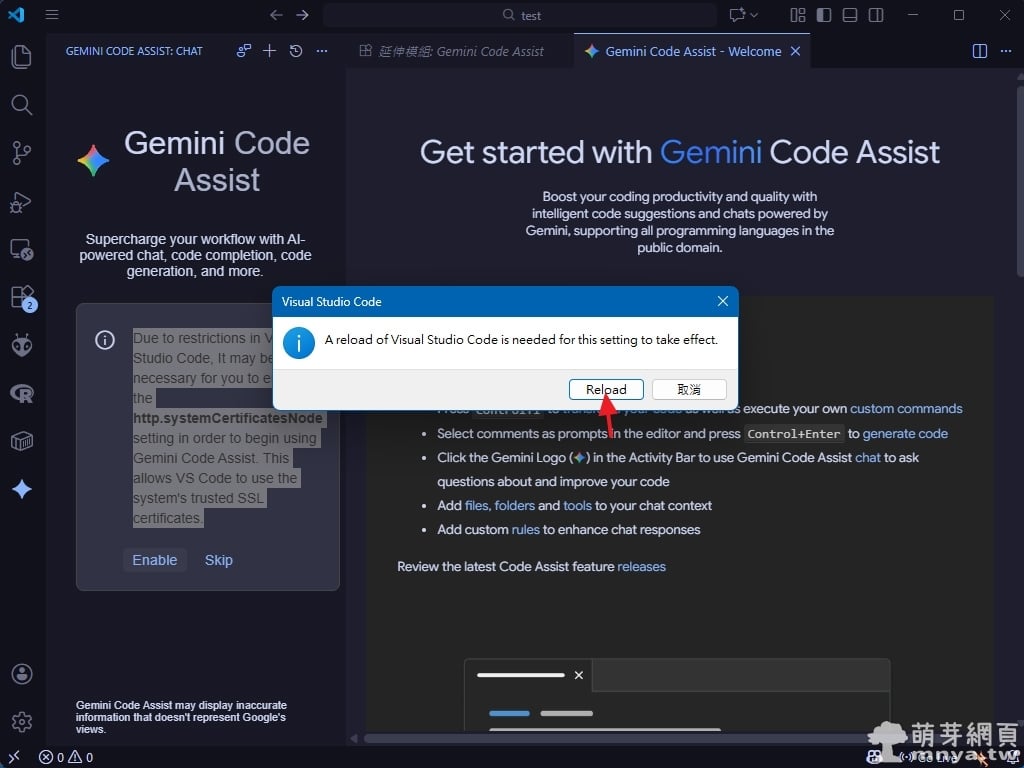
- Install the extension. Open the VS Code Marketplace, search for “Gemini Code Assist,” and click Install.
- Authenticate your Gemini account. After installation, the extension prompts you to sign in with a Google account that has access to Gemini API keys. Follow the OAuth flow and paste the generated key when asked.
- Configure language support. In Settings > Extensions > Gemini Code Assist, toggle the languages you use most. This reduces unnecessary processing and tailors suggestions to your stack.
- Adjust suggestion behavior. You can set the model’s “creativity” level—from concise fixes to exploratory code drafts—by moving the slider under “Response Style.”
- Enable inline documentation. Turn on “Explain on hover” to have the AI surface short, natural‑language explanations for any highlighted token.
Once those steps are complete, simply start typing. Press Ctrl+Space (or your custom shortcut) to invoke an AI suggestion, and watch the dialog box appear beside your cursor.
Key Features That Really Boost Productivity
Not every AI helper is created equal. Gemini Code Assist distinguishes itself with a handful of capabilities that feel genuinely useful in day‑to‑day coding.
- Context‑aware autocompletion. The model looks at imported modules, function signatures, and even recent git diffs to suggest code that fits the current state of the project.
- One‑click refactoring. Highlight a block of code and choose “Refactor with Gemini.” The AI can extract repeated logic into a helper function, rename variables consistently, or suggest a more performant algorithm.
- Inline error explanations. When the built‑in VS Code linter flags an issue, Gemini can expand the warning into a short paragraph that clarifies why the code is problematic and how to fix it.
- Test generation. Ask the assistant to “write unit tests for this function,” and it will output a test suite in the appropriate framework (e.g., Jest, PyTest) complete with mock data.
- Documentation snippets. Highlight a function and request a docstring; Gemini will generate a concise description, parameter list, and return type that matches your project’s doc style.
Best Practices for Using AI Assistance
Even the smartest assistant can mislead if you treat its output as gospel. Here are some habits that keep the collaboration healthy.
- Validate before committing. Run unit tests or linters on any AI‑generated code. The model may produce syntactically correct but logically flawed snippets.
- Provide clear prompts. The more specific you are—e.g., “Create a Redux slice for user authentication” versus “Write some Redux code”—the better the suggestions.
- Leverage incremental suggestions. Instead of asking for a whole module at once, request smaller pieces (a single function or a loop) and stitch them together manually.
- Watch for proprietary data leaks. Avoid feeding confidential code into the model unless your organization has approved a secure, self‑hosted Gemini instance.
- Iterate with the assistant. Treat the first output as a draft. Use follow‑up prompts like “Optimize this for performance” or “Make it more readable” to refine the result.
When you blend these habits with Gemini’s real‑time suggestions, you’ll notice a tangible drop in the time spent on repetitive tasks and a higher confidence level when tackling unfamiliar APIs.
FAQ
Can Gemini Code Assist replace a human code reviewer?
No. It’s a supplemental tool that catches obvious issues and offers quick fixes, but it lacks the nuanced judgment a senior developer brings to architectural decisions.
Is the AI model updated regularly?
Google releases updates to Gemini on a quarterly basis, improving language coverage and reducing hallucinations. The VS Code extension fetches the latest model automatically when you restart the editor.
Does Gemini Code Assist work offline?
Because the model runs on Google’s cloud infrastructure, an internet connection is required for most features. Some organizations deploy a private instance that can operate within a closed network, but the public extension does not support offline mode.
With Gemini Code Assist installed, your VS Code environment becomes more than a text editor—it turns into a collaborative partner that anticipates needs, explains decisions, and speeds up routine work. Give it a try on a small feature branch, and you’ll quickly see whether the AI boost feels like a genuine productivity upgrade.