How to Add OneDrive to File Explorer in a Few Simple Steps
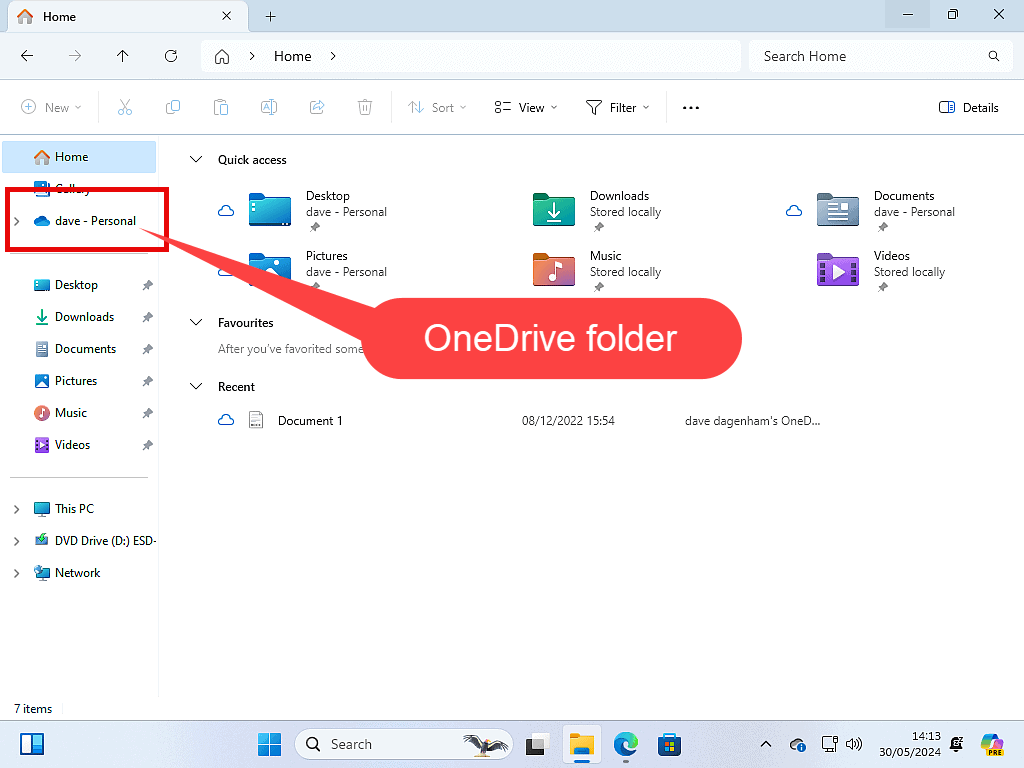
If you’ve ever fumbled through the cloud to find a document, you’ll know the convenience of seeing OneDrive right alongside your local folders. By default Windows often hides the OneDrive shortcut, leaving you a few extra clicks to reach your synced files. The good news? You can make OneDrive behave like any other drive in File Explorer with just a handful of tweaks.
Why Pin OneDrive in File Explorer?
Having OneDrive visible in the navigation pane does more than look tidy. It lets you drag‑and‑drop, use right‑click shortcuts, and quickly compare cloud and local versions without opening a separate web page. For power users who already juggle several synced folders, the visual cue can shave seconds off everyday tasks.
Step‑by‑Step: Enabling OneDrive in the Sidebar
1. Check That OneDrive Is Running
- Click the cloud icon in the system tray.
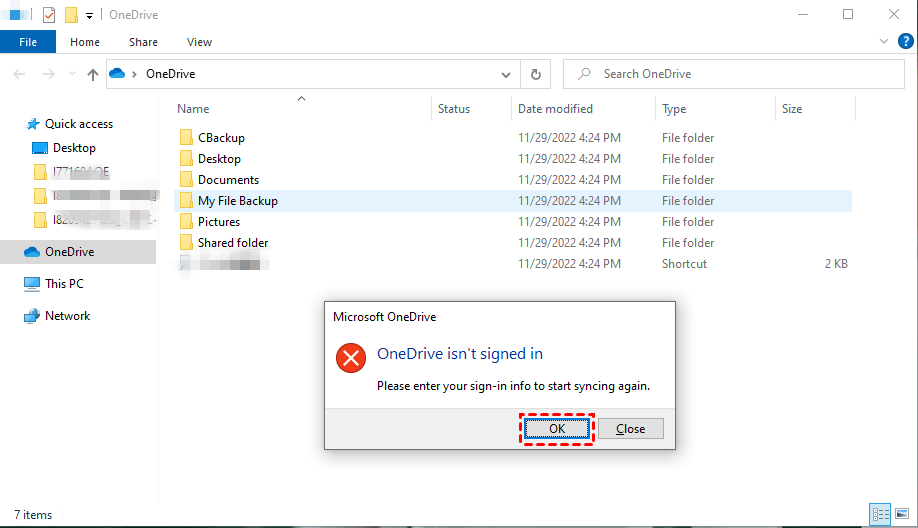
- If you see “Sign in” or “Get started,” log into your Microsoft account.
- Make sure the sync status reads “Up to date.”
OneDrive must be active before Windows will list it in Explorer.
2. Adjust the Windows Settings
Open the Settings app (Win + I) and navigate to Apps → Apps & features. Locate Microsoft OneDrive, click it, then select Advanced options. Scroll down to the Reset button – a quick reset often forces the shortcut to reappear.
3. Tweak the Registry (Only if Needed)
Most users won’t have to touch the registry, but if the sidebar still stays stubbornly empty, a small edit can do the trick.
- Press Win + R, type
regedit, and press Enter. - Navigate to
HKEY_CURRENT_USER\SOFTWARE\Microsoft\Windows\CurrentVersion\Explorer\Desktop\NameSpace. - Right‑click on the right pane, choose New → Key, and name it
{018D5C66-4533-4307-9B53-224DE2ED1FE6}. - Close Regedit and restart Explorer (right‑click the taskbar, open Task Manager, end
explorer.exe, then File → Run new task → typeexplorer).
That GUID points Windows to the OneDrive folder, making it pop up in the navigation tree.
4. Pin the Folder Manually (A Simpler Alternative)
If the registry route feels too risky, you can always pin the OneDrive folder directly:
- Open File Explorer and browse to
C:\Users\YourName\OneDrive. - Right‑click the OneDrive folder and select Pin to Quick access. It will appear at the top of the navigation pane for fast reach.
Keeping OneDrive Sync Smoothly
Once the shortcut is in place, a few habits keep the cloud happy:
- Limit folder depth. Deeply nested structures can slow sync.
- Check storage limits. Exceeding your OneDrive quota will pause syncing altogether.
- Watch for conflicting files. When two copies differ, Windows usually asks which version to keep—pay attention to those prompts.
Troubleshooting Common Hiccups
Shortcut Disappears After Windows Update
Updates sometimes reset Explorer’s view settings. Revisit the registry key or simply re‑pin the folder as described above.
OneDrive Shows “Available offline only”
This indicates the files are stored locally and not taking up cloud space. Right‑click the folder, choose Free up space to revert them to cloud‑only status while keeping them visible.
Sync Stuck on “Connecting”
Try these quick fixes:
- Reset the network adapter.
- Sign out of OneDrive, then sign back in.
- Run the built‑in
OneDrive.exe /resetcommand from Run.
Beyond the Basics: Custom Views and Shortcuts
Power users love customizing how OneDrive appears. You can:
- Change the icon by right‑clicking the OneDrive shortcut, selecting Properties → Change Icon, and picking a familiar folder symbol.
- Set a different default view (Details, Tiles, etc.) by opening OneDrive, clicking the View tab, and choosing your preference. The setting sticks across all Explorer windows.
Quick Recap
- Ensure OneDrive is signed in and synced.
- Use Settings → Apps to reset if the shortcut is missing.
- Apply a registry tweak only as a last resort.
- Alternatively, pin the OneDrive folder to Quick Access.
- Maintain sync health with sensible storage habits.
![[Easiest] How to Add OneDrive Files to File Explorer](https://www.multcloud.com/screenshot/en/others-1/onedrive/add-onedrive-to-file-explorer.png)