How To Add Transparent Creeper And TNT Textures In Minecraft
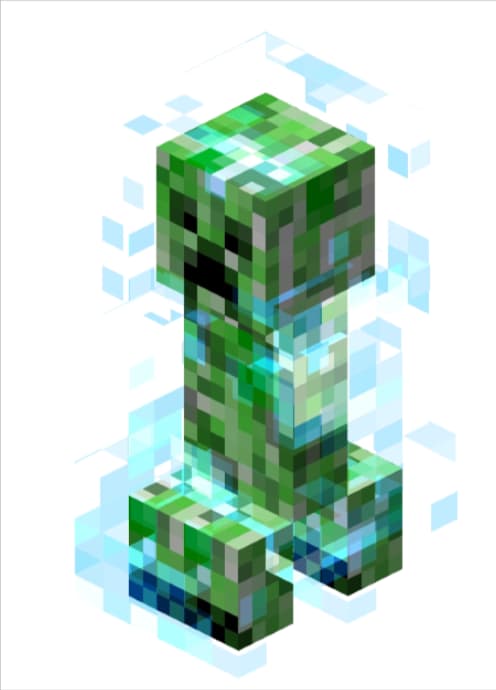
Ever wondered why the classic green creeper looks so solid when you’re building a sleek, modern base? A little texture tweaking can turn that iconic mob into a barely‑there hazard, and the same goes for TNT blocks. Below is a practical walk‑through that shows you how to inject transparency into those files, where to source the right packs, and a few gotchas to keep in mind.
Getting Started: Tools You’ll Need
Before diving into the pixel‑by‑pixel edit, make sure your workstation is equipped with the basics:
- File explorer – any OS will do, just the ability to navigate zip archives.
- Image editor – GIMP (free) or Photoshop works equally well for PNG editing.
- Resource pack manager – the built‑in Minecraft options menu is fine, but tools like MCreator can speed up testing.
- Backup of your worlds – you never know when a rogue texture will cause a crash.
Understanding Minecraft’s Texture System
Each block or entity in Minecraft is represented by a 16×16 pixel PNG file. The game reads an alpha channel (the fourth channel) to determine transparency. If a pixel’s alpha value is set to 0, that spot becomes fully invisible; anything above 0 appears, with higher values looking more solid.
The default files for the creeper and TNT live inside minecraft.jar under assets/minecraft/textures/entity/creeper and assets/minecraft/textures/block/tnt. Extract those, edit, then re‑package the folder as a zip resource pack.
Step‑by‑Step: Making the Creeper Transparent
- Locate
creeper.pngin the extracted folder. - Open it in your image editor. Turn on the “layers” or “alpha” view so you can see the checkerboard background.
- Select the portions you want to vanish – typically the outer green shell. Use a soft brush with a low opacity to blend edges, avoiding a harsh cut‑out.
- Save the file, ensuring PNG format is retained.
- Drop the edited
creeper.pngback into the same path inside your resource pack.
Step‑by‑Step: Adding Transparency to TNT
- Pull
tnt_side.pngandtnt_top.pngfrom the block textures. - For a “ghost” TNT effect, reduce the opacity of the red stripes to about 30‑40 %.
- If you prefer a “window” look, erase sections of the side texture entirely, letting the environment show through.
- Remember to edit
tnt_bottom.pngas well, or the block may appear oddly solid from underneath. - Save and replace the originals in your pack.
Applying the Custom Pack In‑Game
Once your edited PNGs sit in a correctly structured zip (the root should contain a pack.mcmeta file), drop the file into the resourcepacks folder. Launch Minecraft, head to Options → Resource Packs, and move your pack to the active column.
If everything went smoothly, you’ll notice a subtle see‑through effect on creepers and TNT the next time you encounter them. The change isn’t just cosmetic – it can also help you spot dangerous blocks faster, especially in low‑light builds.
Tips, Tricks, and Common Pitfalls
Transparency can be a delicate balance. Here are a few pointers to keep the look polished:
- Don’t over‑do it. Too much see‑through makes mobs hard to recognize, which can be frustrating in survival mode.
- Check lighting. Transparent textures still react to light levels; a very faint creeper may become invisible in darkness.
- Test on a fresh world. Some packs conflict with other mods that also edit entity textures.
- Remember the alpha channel. Saving as JPEG will strip transparency, reverting your changes.
Where to Find Ready‑Made Transparent Packs
If editing isn’t your jam, the community offers several polished packs that already feature see‑through creepers and TNT. A quick search on sites like Planet Minecraft or CurseForge yields options such as “Ghostly Mobs” or “Phantom Explosives”. Always read the description to confirm the pack includes the specific textures you want, and verify that it’s compatible with your Minecraft version.
Whether you choose to craft your own transparent textures or download a pre‑made pack, the result is a fresh visual twist on familiar foes. A little patience with PNG layers, and you’ll have a world where creepers hover like apparitions and TNT looks almost like stained glass—perfect for players who love a dash of style with their explosions.