How to Add YouTube to Your LG Smart TV in Minutes
Ever found yourself scrolling on your phone for a video, only to wish it could play straight from the living‑room TV? The good news is that most LG Smart TVs already have the tools you need. A few clicks, a short internet connection, and you’ll be watching your favorite channels on the big screen without the extra dongles.
Check Compatibility and Prepare Your TV
Before diving into the steps, make sure your TV meets the basic requirements. LG’s webOS platform, introduced in 2014, includes a built‑in app store that hosts YouTube. If you own a model from 2015 onward, you’re virtually guaranteed to have the necessary software. Older sets might still work, but you may need a firmware update first.
- Locate the model number on the back panel or in the Settings > All Settings > General > About This TV menu.
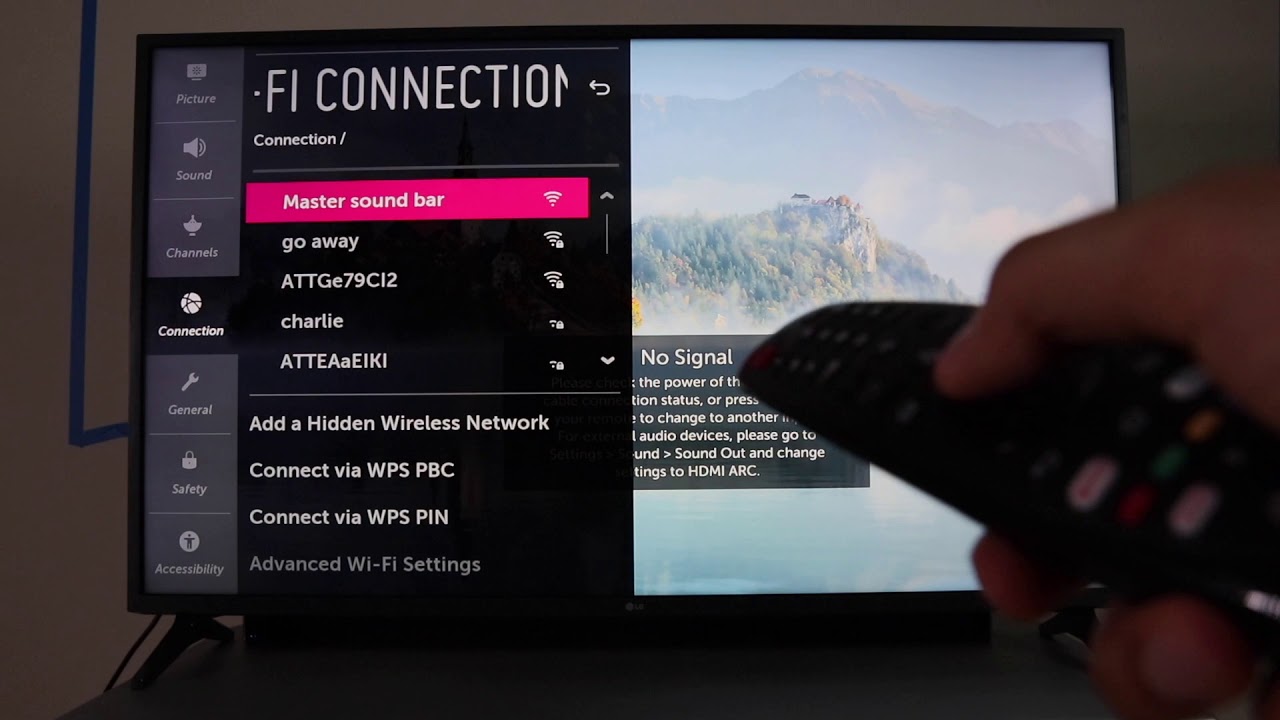
- Connect the TV to the internet – wired Ethernet is the most reliable, though Wi‑Fi works fine for most households.
- Navigate to Settings > General > About This TV and select Check for Updates. Install any pending updates, then restart the TV.
Once the update finishes, the TV’s app catalogue will be up to date, and you’re ready to hunt for YouTube.
Installing the YouTube App
The actual installation is painless. Here’s a quick rundown:
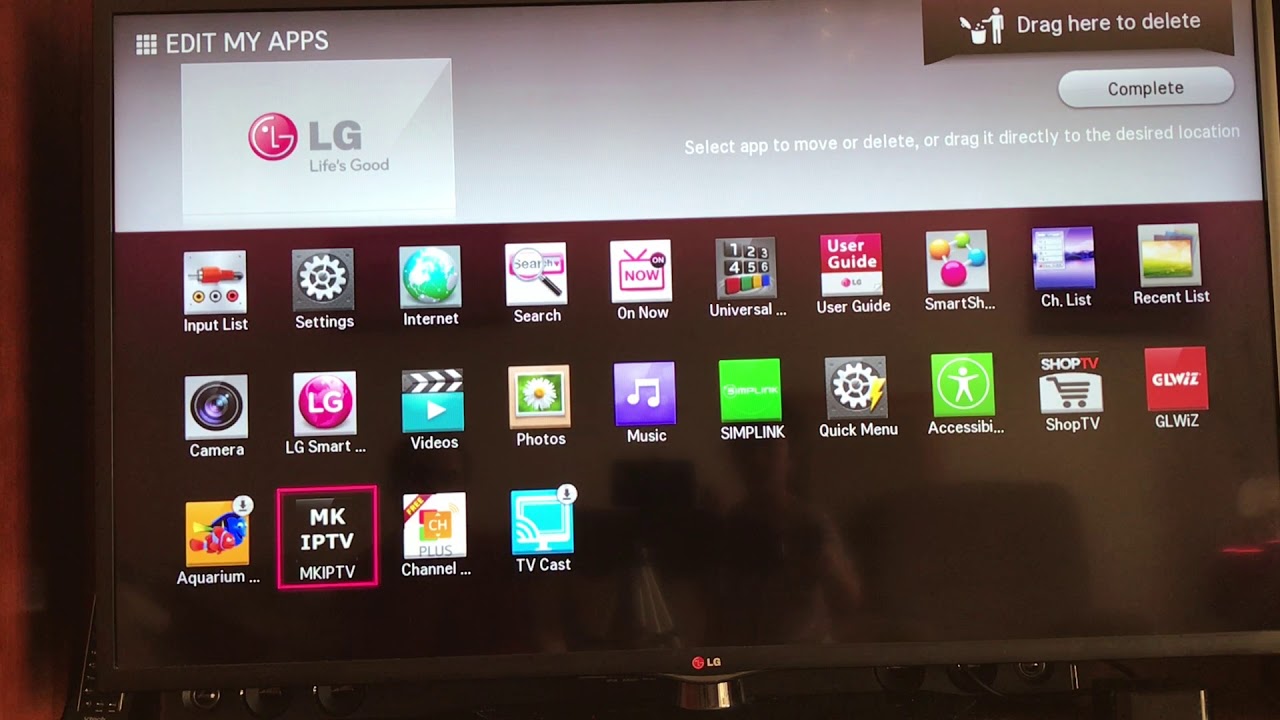
- Press the Home button on your remote to bring up the launcher.
- Select LG Content Store. It looks like a shopping bag icon.
- At the top, tap Apps & Games, then scroll down to the Entertainment section.
- Find YouTube. You can also type “YouTube” into the search bar for faster results.
- Select Install. The progress bar should disappear in a few seconds.
- When the button changes to Open, click it to launch the app.
If the “Install” button is greyed out, it usually means the app is already present but hidden. Press and hold the remote’s OK button while highlighting the YouTube icon, then choose Show on Home.
Sign In and Personalize Your Experience
Launching YouTube will prompt you to sign in, which lets you sync subscriptions, watchlists, and recommendations with your Google account. The process mirrors what you’d do on a phone or computer:
- Choose Sign In on the welcome screen.
- A six‑digit code appears. Switch to your phone, open the YouTube app (or a browser), and go to youtube.com/activate.
- Enter the code, select the Google account you want to link, and confirm.
- The TV automatically recognizes the authorization and logs you in.
Prefer not to sign in? You can still browse videos anonymously, but personalized suggestions won’t appear.
Common Hiccups and Quick Fixes
App Won’t Launch
Sometimes the YouTube icon flashes briefly but never opens. A simple power cycle often does the trick: unplug the TV, wait 30 seconds, then plug it back in. If the problem persists, head to Settings > General > Reset to Initial Settings. Be aware this wipes custom shortcuts, but it rarely harms installed apps.
Video Buffering or Low Quality
Streaming quality depends heavily on your network. Try these adjustments:
- Switch to a 5 GHz Wi‑Fi band if your router supports it.
- Reduce the number of active devices on the same network during playback.
- In the YouTube app, go to Settings > Playback and set the default quality to 720p or lower.
Remote Doesn’t Respond Inside the App
A common quirk is the remote’s OK or navigation buttons failing to move the cursor. Press the Home button to exit, then re‑open YouTube. If that doesn’t help, open Settings > All Settings > General > Remote Control and run a Remote Test. Re‑pairing the remote (remove battery briefly, then reinsert) often resolves the issue.
Enjoying YouTube on a Bigger Canvas
Now that YouTube lives on your LG Smart TV, there are a few tricks to make the most of the experience:
- Use Voice Commands: If your remote has a microphone, say “Open YouTube” or “Play the latest video from TED”.
- Leverage Playlists: Create a “Living Room” playlist on your phone; it syncs instantly, letting you queue videos without typing on the TV.
- Picture‑in‑Picture (PiP): Some newer webOS versions let you pop a video into a small window while browsing other apps—a handy feature for multitasking.
And don’t forget the occasional firmware update; LG often adds performance tweaks that keep streaming smooth.
With the app installed, signed in, and a reliable connection, you’ve essentially turned your TV into a personal cinema. Happy watching!