How to Boost Your Gaming PC’s Performance and Cooling
Why Performance and Temps Go Hand‑in‑Hand
When a GPU or CPU starts to overheat, it throttles back to protect itself. The result? Lower frame rates, stutter, and that dreaded “game over” feeling before you even finish a level. Keeping temperatures down isn’t just about silence; it’s the fastest route to steady performance.
Quick Wins Before You Open the Case
Sometimes the simplest tweaks deliver the biggest gains. Give these a try first; they cost nothing and take minutes.
- Update Drivers. Nvidia, AMD, and Intel roll out optimizations that can shave off a few percent of lag.
- Adjust In‑Game Settings. Lowering shadow quality or turning off motion blur reduces heat generation.
- Enable Windows Game Mode. It reallocates resources to your foreground game, limiting background noise.
Hardware Upgrades That Matter
Not all components influence heat equally. Below is a hierarchy of upgrades, from most impact to nice‑to‑have.
1. Faster CPU or GPU
Modern chips are built on smaller processes, so they can run hotter but also more efficiently. If you’re still on a decade‑old processor, a jump to a newer generation will not only boost raw power but often improve thermal design power (TDP) management.
2. More RAM – and Faster RAM
Insufficient memory forces the system to swap to the page file, spiking CPU usage and temperature. Upgrading to 16 GB or 32 GB of DDR4/DDR5 with higher MHz can keep the CPU breathing easy.
3. SSD Over HDD
Solid‑state drives eliminate the mechanical noise of spinning platters, but they also reduce overall system heat. A 1 TB NVMe drive is fast, compact, and runs cooler than a 2 TB SATA HDD.
Cooling Solutions That Actually Work
Now that the fundamentals are covered, let’s dive into the cooling arsenal.
Air Cooling – The Classic Choice
Good air coolers combine a large heatsink with a quality fan. Look for:
- Heat pipes (preferably copper)
- PWM fans for dynamic speed control
- Low‑noise adapters if you’re sensitive to whine
Installation is straightforward: mount the cooler on the CPU, attach the fan, and make sure the case has at least two intake and one exhaust vent.
All‑in‑One (AIO) Liquid Coolers
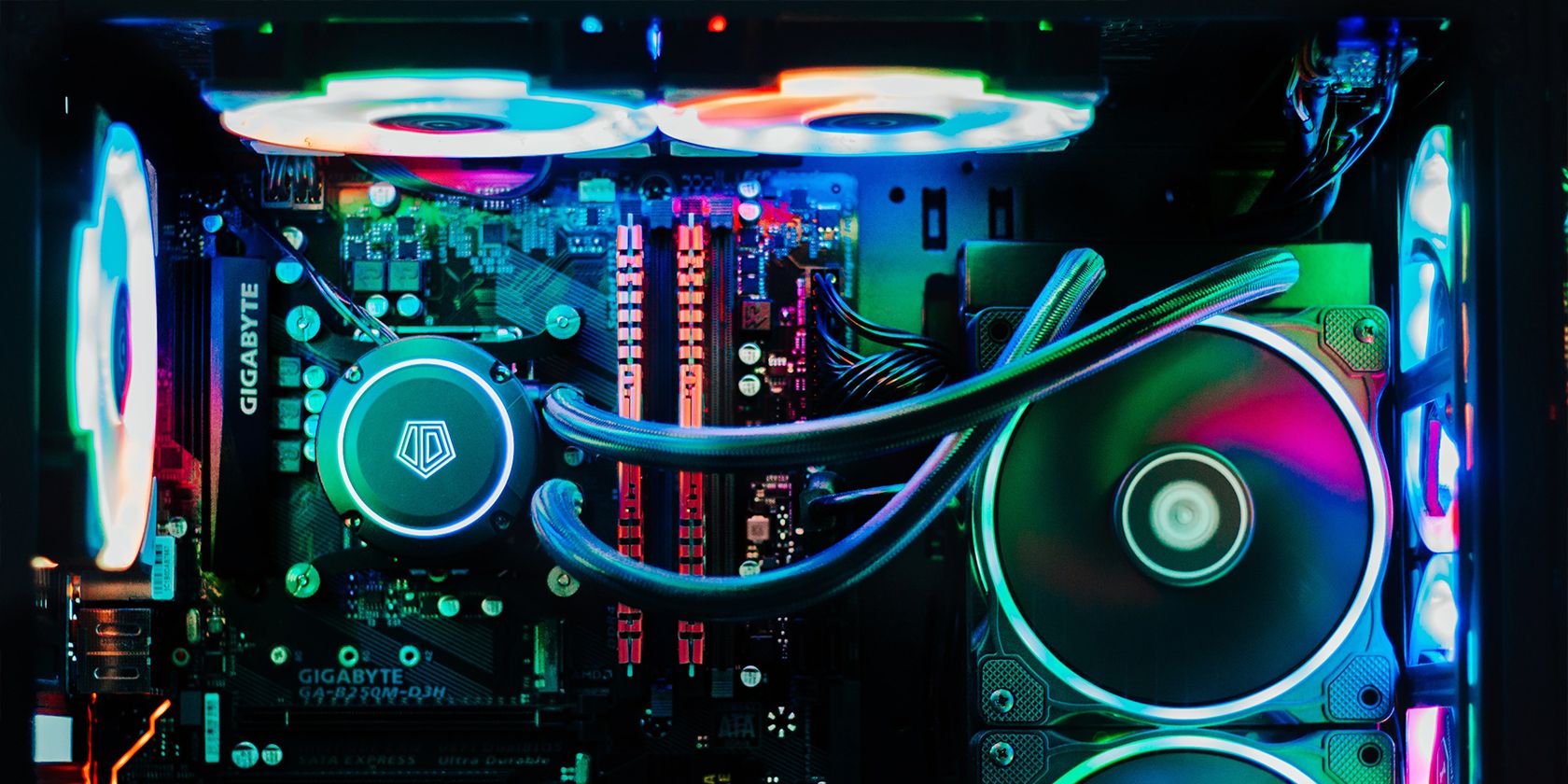
If you’re chasing sub‑70 °C temps under load, an AIO is a logical step. The sealed loop reduces maintenance, and the radiator can be positioned either front‑or‑top depending on case airflow.
Beware of cheap kits that leak or have low‑quality pumps. Spending a bit more for a reputable brand pays off in both cooling and longevity.
Custom Water Loops – For the Enthusiast
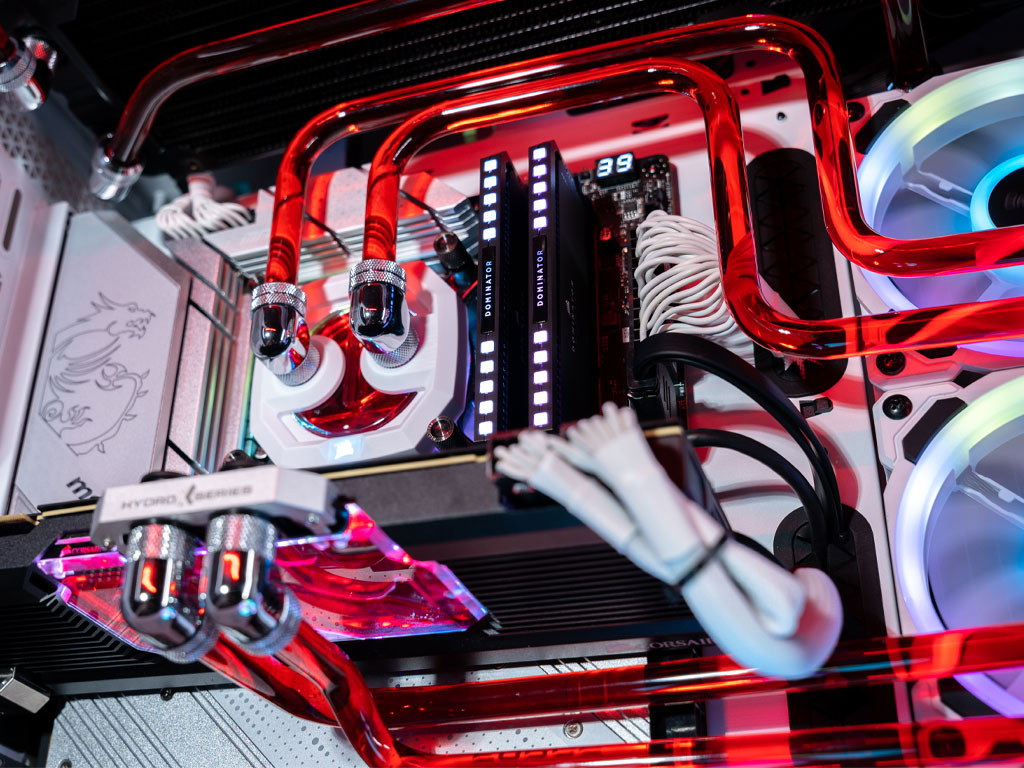
When silence, aesthetics, and extreme overclocking matter, you’ll consider a bespoke loop. This involves:
- CPU and GPU water blocks
- Radiators (120 mm, 240 mm, or larger)
- Pumps, reservoirs, and fittings
- Coolant (distilled water + additives)
The learning curve is steep, but the result can be sub‑50 °C CPUs even with a hefty overclock.
Case Airflow – The Unsung Hero
No amount of heatsinks can compensate for a cramped case. Follow these basics:
- Place intakes at the front and bottom; exhausts at the rear and top.
- Use dust filters to keep grime from clogging fins.
- Avoid stacking cables; use zip ties or Velcro straps.
A well‑ventilated chassis can lower GPU temps by 5‑10 °C without extra hardware.
Software Tweaks to Keep Temps Low
Hardware does the heavy lifting, but software fine‑tunes the balance.
Fan Curves
Open your motherboard’s BIOS or a utility like MSI Afterburner. Plot a curve that ramps fans up sooner rather than later; a 40 °C start can be a good baseline.
Undervolting
Reducing voltage while keeping the clock stable shrinks power draw, which directly translates to less heat. Tools such as Ryzen Master (AMD) or Intel XTU let you experiment safely.
Power Plans
Windows’ “High Performance” mode keeps the CPU at max frequency, but “Balanced” lets it throttle when idle, cutting heat. For gaming sessions, switch to a custom plan that boosts performance only when the GPU is active.
Maintenance – Keep the System Fresh
Even the best cooling kit loses its edge if neglected.
- Clean dust every 3‑4 months with compressed air.
- Reapply thermal paste every couple of years; old paste can dry out and act as an insulator.
- Check fan bearings; a wobbling fan often means it’s time for a replacement.
Balancing Noise and Cool
If you game late at night, silence matters. Here’s a quick rule of thumb: set fan curves so they stay below 30 % speed under typical loads; add a larger radiator or an extra intake fan if temps creep up.
Bottom Line
Boosting your gaming PC isn’t about a single magic upgrade. It’s a blend of sensible software settings, strategic hardware choices, and diligent airflow management. Start with the low‑cost tweaks, upgrade cooling where it counts, and keep the system clean. Before you know it, those frame‑rate dips and overheating warnings will be a thing of the past.