How to Boost Your Photos with the Best Online Lightroom Presets
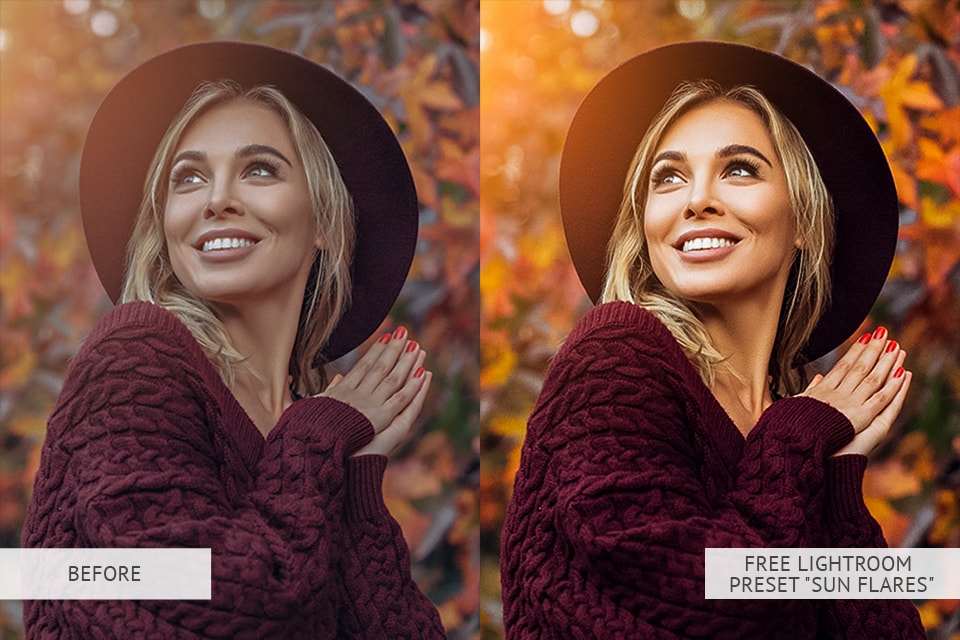
Ever opened a raw file only to feel it looks flat, dull, or just “meh”? The good news is you don’t need to spend hours grading each image from scratch. A well‑crafted online Lightroom preset can add punch, color, and mood in a single click, letting you focus on the story behind the shot. Below we’ll walk through why presets matter, which collections stand out, and how to fine‑tune them so every picture feels uniquely yours.
Why Presets Have Become a Photographer’s Shortcut
Presets are essentially a bundle of adjustment settings—exposure, contrast, hue shifts, and more—saved as a reusable file. When you apply one, Lightroom instantly replicates the look across the entire edit pane. This speed is invaluable for professionals juggling dozens of images, but it also empowers hobbyists who want consistent results without a steep learning curve.
Beyond speed, presets can serve as creative inspiration. Seeing a dramatic teal‑orange split tone on a landscape, for instance, might spark ideas you wouldn’t have explored otherwise. The key is selecting presets that enhance, not mask, the strengths of your original capture.
Top Online Lightroom Preset Collections for Different Styles
Not all presets are created equal. Some aim for cinematic drama, while others prioritize natural tones. Below is a quick look at three reputable sources that cater to a range of aesthetics.
- Preset Pro Lab – Offers a mix of free and premium packs, with a focus on portrait-friendly skin tones and subtle color grading.
- VSCO’s Lightroom Presets – Known for their film‑inspired looks, these packs work well for street and travel photography that needs a vintage vibe.
- Photonify – Provides themed bundles (e.g., “Moody Mountains” or “Sunny Beach”) that are especially handy for landscape shooters seeking a cohesive series.
All three platforms let you preview a before‑and‑after on a sample image, which helps you gauge whether the preset matches your vision before committing to a purchase.
How to Choose the Right Preset for Your Workflow
Start by evaluating the lighting conditions you shoot most often. If you spend a lot of time in golden‑hour light, look for presets that emphasize warm hues and soft contrast. For indoor or low‑light work, a cooler, high‑detail pack might preserve shadow detail better.
Next, consider the level of customization you want. Some creators bundle dozens of variations in a single file, allowing you to tweak the intensity with a simple slider. Others deliver a “one‑click” result that’s ready to share straight out of Lightroom. Test a few free versions before buying a full bundle; this trial period reveals whether the preset’s tonal curve aligns with your camera’s sensor profile.
Applying Presets in Lightroom Mobile and Desktop
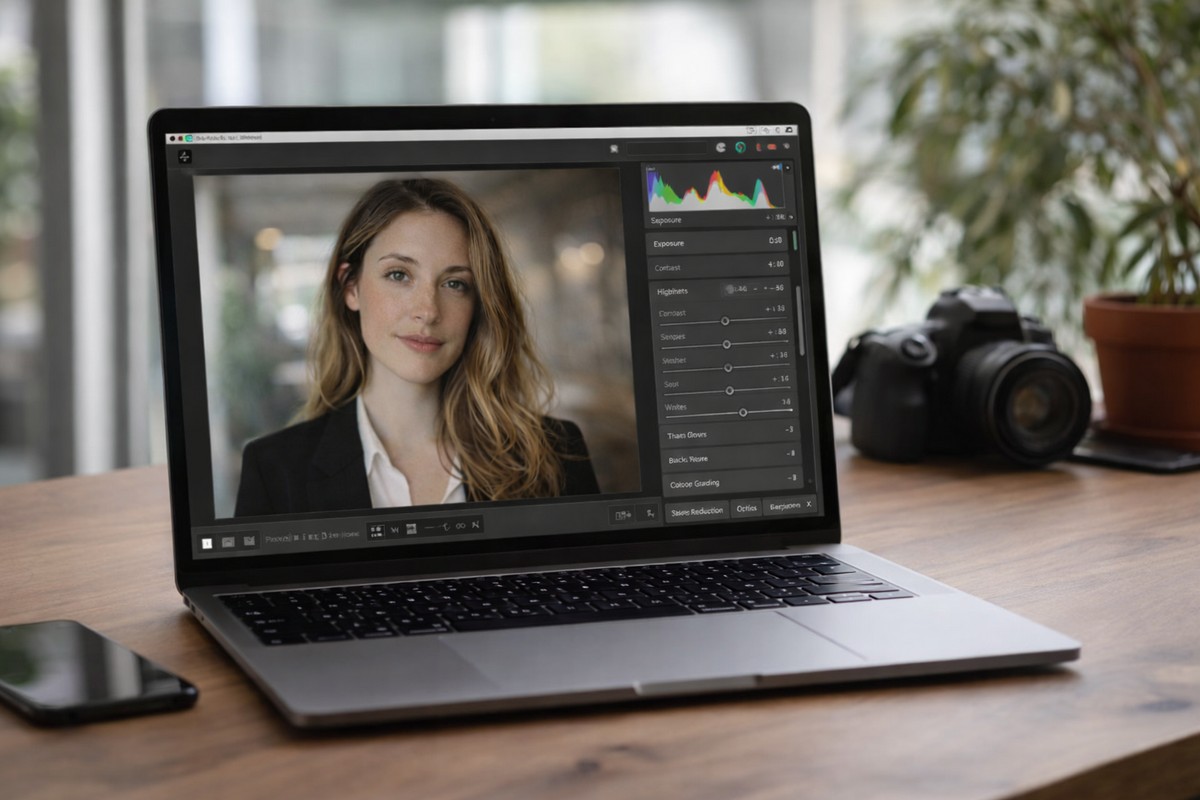
Whether you edit on a laptop or a phone, the process is straightforward. In the desktop version, import the .xmp or .lrtemplate file via the “Develop” module’s Presets panel, then click to apply. On mobile, tap the “Presets” tab, hit the “+” icon to import, and select the desired look.
After applying, take a moment to scan the image for any clipping in highlights or shadows. A quick adjustment of the exposure slider can often salvage detail without undoing the preset’s overall feel. Remember, the preset is a starting point, not a final verdict.
Tips for Tweaking Presets to Fit Your Vision
Even the best presets may need minor tweaks to suit a particular scene. Here are three adjustments that make a big difference:
- Exposure and contrast – Slightly raise exposure if the image feels too dark; dip contrast if skin tones look overly harsh.
- White balance – Use the temperature and tint sliders to correct any color cast introduced by the preset.
- Local adjustments – The brush tool lets you brighten a subject’s eyes or deepen the sky’s blues without affecting the whole frame.
By making these small changes, you retain the preset’s signature style while ensuring each photo remains true to its own lighting and composition.
Free vs. Paid Presets: What’s Worth the Investment?
Free presets are a great entry point, especially for beginners who want to experiment. They often come from community creators who share their work on platforms like Behance or Instagram. However, paid packs usually undergo more rigorous testing across multiple camera models and lighting scenarios, offering a higher degree of consistency.
If you find yourself reaching for the same free preset repeatedly, it may be time to invest in a premium bundle. The added flexibility—such as customizable intensity sliders and comprehensive support—can streamline your workflow and reduce the need for post‑preset editing.
Keeping Your Preset Library Organized
A cluttered preset folder can slow you down. Create subfolders based on genre (e.g., “Portrait,” “Landscape,” “Urban”) or mood (“Moody,” “Bright”). Lightroom lets you rename presets, so add a short descriptor like “Warm Sunset – High Contrast” to quickly identify the right tool.
Regularly prune presets you rarely use. An organized library not only speeds up selection but also encourages you to explore new styles without feeling overwhelmed.
FAQ
Can I use the same preset on RAW and JPEG files?
Yes. Presets affect the raw data in the Develop module, so they work equally well on RAW, JPEG, or even TIFF files. The final look may vary slightly because JPEGs have less latitude for tonal adjustments.
Do presets affect image resolution?
No. Presets only modify exposure, color, and tonal settings; they do not change the pixel dimensions or sharpness of the original file.
How often should I update my preset collection?
It depends on how your style evolves. Many photographers refresh their library every few months to incorporate new trends or to replace presets that no longer match their aesthetic.