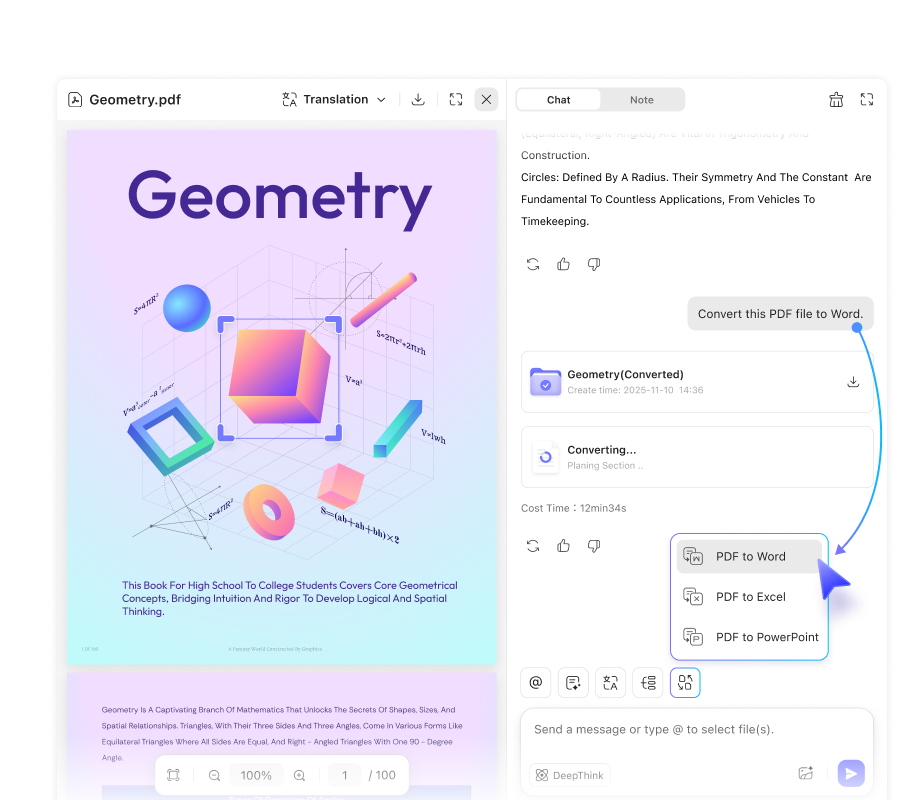
How to Convert PDFs to Word Seamlessly with AI‑Powered Online Tools
Ever opened a PDF and thought, “I wish I could edit this like a Word document”? You’re not alone. PDFs are great for preserving layout, but they become a hassle when you need to tweak text, swap images, or reformat sections. Fortunately, AI‑driven converters have turned a once‑clunky process into something almost effortless. Below we’ll walk through what makes AI‑powered PDF‑to‑Word conversion tick, highlight the most practical features, and give you a step‑by‑step guide to getting the best results online.
Why AI Makes a Difference
Traditional converters relied on static rules: they looked for patterns in the PDF and tried to map them onto Word’s structure. That approach often stumbled on complex layouts, multi‑column text, or embedded graphics. AI changes the game by:
- Understanding context – Machine‑learning models recognize headings, tables, and footnotes, preserving their intent rather than just copying raw characters.
- Adapting to fonts – Even when a PDF uses a custom font, AI can approximate it or suggest a close match in Word.
- Learning from feedback – Many services improve over time, refining their algorithms based on user corrections.
Key Features to Look For
1. Layout Fidelity
A good converter keeps columns, indents, and spacing intact. Check sample conversions on the provider’s site; the closer the preview matches your original PDF, the better the engine.
2. Image and Table Handling
Images often get warped or dropped altogether. Look for tools that embed pictures directly into the Word file and rebuild tables as editable cells rather than flat images.
3. Speed and Security
Most AI tools process files in seconds, but large documents may take a minute or two. Verify that the service uses SSL encryption and deletes uploaded files after a short period – privacy matters, especially with contracts or invoices.
4. Batch Conversion
If you have dozens of PDFs, a batch feature saves time. Some platforms let you drop an entire folder, then zip the resulting Word files for easy download.
Step‑by‑Step Guide: Converting a PDF Online
Below is a generic workflow that works with most AI‑powered converters. The exact buttons may differ, but the logic stays the same.
- Choose a reputable website. Look for user reviews, clear privacy policies, and a free trial or limited‑size conversion.
- Upload your PDF. Drag‑and‑drop or click “Browse.” For sensitive documents, consider a service that offers password protection.
- Select output format. Choose “Microsoft Word (.docx)” – it preserves formatting better than the older .doc format.
- Adjust optional settings. Some tools let you specify whether to keep images, extract text only, or preserve hyperlinks.
- Start the conversion. Click “Convert” and wait. Most AI engines finish within 30 seconds for a 5‑page file.
- Review and download. Open the Word file on your computer, skim for any anomalies, then save it wherever you need.
Common Pitfalls and How to Fix Them
- Missing Fonts. If the Word doc shows garbled characters, install the missing font on your PC or let the converter substitute a similar one.
- Broken Tables. Occasionally, a table splits into separate text blocks. Use Word’s “Convert Text to Table” feature to rebuild it quickly.
- Extra Line Breaks. AI sometimes inserts line breaks at the end of each PDF line. A simple Find‑Replace (Ctrl + H) for “^p” (paragraph mark) can clean it up.
Free vs. Paid Options
Many sites offer a handful of free conversions per day, which is perfect for occasional users. However, if you regularly handle large PDFs or need batch processing, a subscription often unlocks:
- Higher file‑size limits (up to 100 MB or more)
- Priority processing, reducing wait times
- Advanced OCR for scanned PDFs, turning images of text into editable Word content
- API access for automating conversions in business workflows
Choosing the Right Service for You
Here’s a quick checklist to narrow down your options:
- Does the tool support scanned PDFs with OCR?
- What’s the maximum file size for the free tier?
- Are there any watermarks on the converted document?
- How transparent is the privacy policy?
- Is there a desktop or mobile app if you need offline conversion?
Take a few minutes to test two or three services with a sample PDF. The one that returns the cleanest Word file with the least manual tweaking is your best bet.
Beyond Conversion: What to Do Next
Once you have a Word version, the possibilities open up:
- Collaborate in real time via cloud platforms like Google Docs or Microsoft 365.
- Translate the content using built‑in Word translation tools, then re‑format as needed.
- Extract data for spreadsheets, especially if the PDF contained tables of financial or survey data.
In short, an AI‑powered converter isn’t just a one‑off trick; it’s a gateway to richer document workflows.
Final Thoughts
AI has turned PDF‑to‑Word conversion from a frustrating guessing game into a reliable, almost instantaneous task. By picking a tool that respects layout, handles images and tables, and safeguards your data, you’ll spend less time cleaning up files and more time polishing the actual content. Give one of the recommended online converters a try, and you might find yourself editing PDFs as easily as you would a native Word document.