How to Create a Simple Login Form With HTML, CSS, CodePen
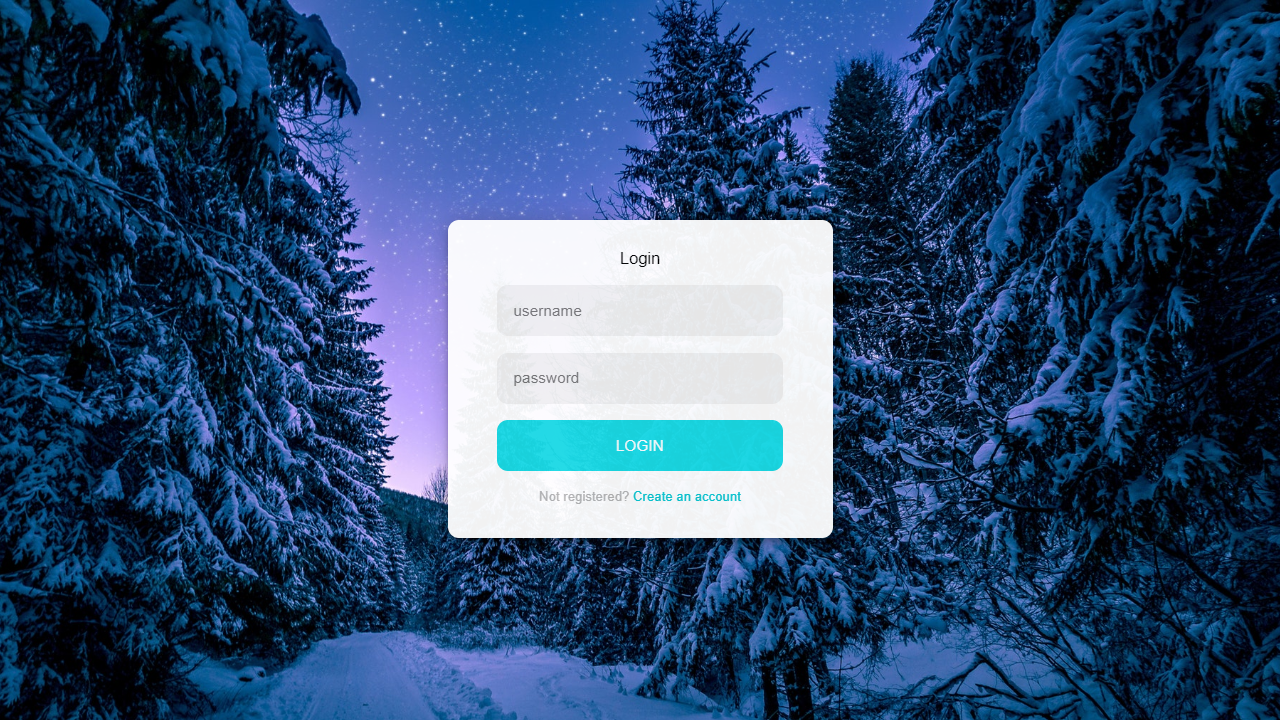
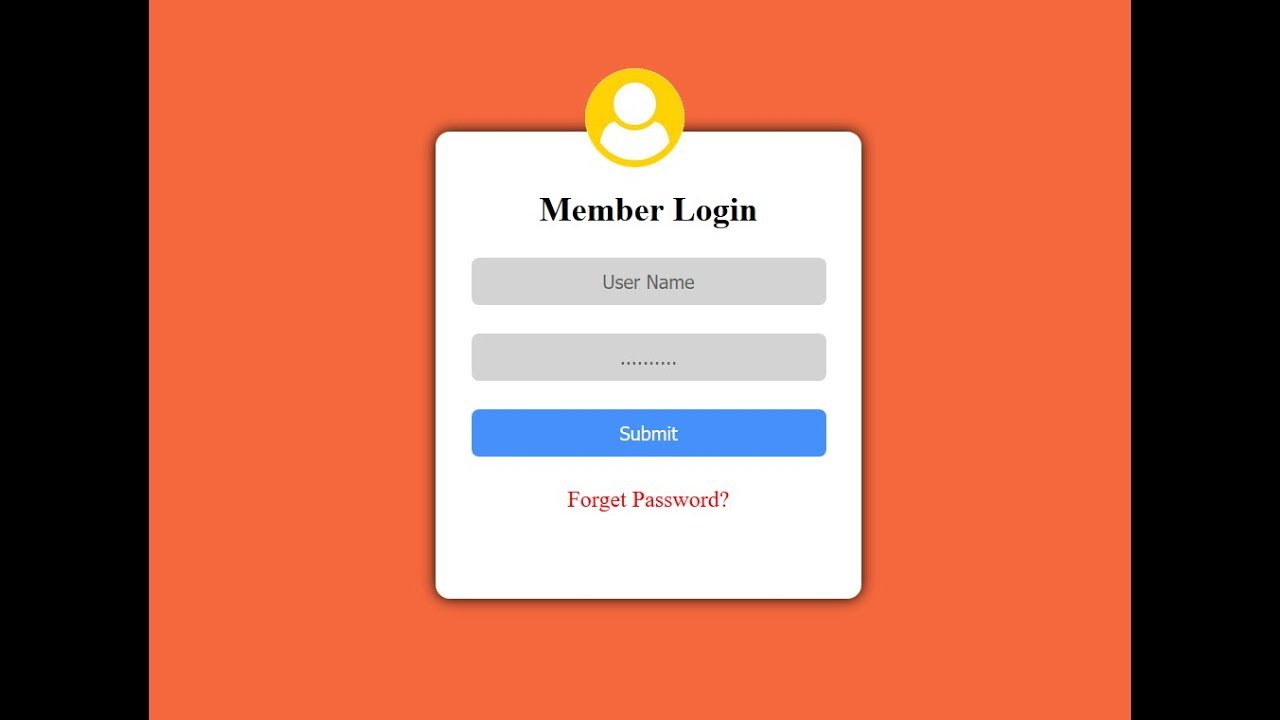
When you need a quick demo of a login screen, CodePen saves you a lot of hassle. You can spin up a clean, responsive form in minutes, then tweak the look and feel right in your browser. Let’s walk through the steps, from setting up the pen to polishing the final design.
Setting Up the CodePen Project
First, log into CodePen (or create an account if you haven’t yet). Click New Pen and you’ll see three panels: HTML, CSS, and JavaScript. For a basic login page we’ll only need the first two, but keep the JS pane handy for future enhancements.
- Give the Pen a clear name, like “Simple Login Form”.
- Make sure the HTML panel is on the left for easy reference.
- Optionally, select a CSS pre‑processor (Sass, SCSS) if you’re comfortable with it.
HTML Structure of the Login Form
The markup is intentionally minimal. A <form> element wraps two input fields and a submit button. Here’s a concise template you can paste into the HTML pane:
<form class="login-form"><h2>Sign In</h2>
<label for="email">Email</label>
<input type="email" id="email" name="email" placeholder="you@example.com" required>
<label for="password">Password</label>
<input type="password" id="password" name="password" placeholder="••••••••" required>
<button type="submit">Login</button>
</form>
Notice the use of required attributes; they provide a quick client‑side check without any JavaScript.
Styling With CSS
Now for the fun part—making it look decent. Below is a straightforward CSS block that gives the form a centered layout, subtle shadows, and a friendly color palette.
.login-form {max-width: 320px;
margin: 4rem auto;
padding: 2rem;
background: #fafafa;
border-radius: 8px;
box-shadow: 0 4px 12px rgba(0,0,0,0.1);
font-family: Arial, sans-serif;
}
.login-form h2 {
text-align: center;
margin-bottom: 1.5rem;
color: #333;
}
.login-form label {
display: block;
margin-top: 0.8rem;
font-size: 0.9rem;
color: #555;
}
.login-form input {
width: 100%;
padding: 0.6rem;
margin-top: 0.3rem;
border: 1px solid #ccc;
border-radius: 4px;
font-size: 1rem;
}
.login-form button {
width: 100%;
margin-top: 1.5rem;
padding: 0.7rem;
background: #007bff;
color: #fff;
border: none;
border-radius: 4px;
cursor: pointer;
}
.login-form button:hover {
background: #0056b3;
}
Feel free to play with the colors or font‑size; the goal is to keep the CSS readable, not overly compact.
Adding a Tiny Touch of Interactivity
If you want the form to react when users type, you can drop a small JavaScript snippet into the JS pane. It isn’t required for a static demo, but it adds a nice polish.
document.querySelector('.login-form').addEventListener('submit', function(e) {e.preventDefault(); // stop actual submission
alert('Login attempt recorded! (This is just a demo.)');
});
The preventDefault call stops the browser from refreshing the page, letting you keep the pen tidy.
Testing and Tweaking
Hit the Run button (or simply type—CodePen updates live). Check the following:
- Fields accept data and show the required validation messages.
- The form stays centered on both desktop and mobile widths.
- Hovering the button changes its shade, confirming the CSS hover rule works.
If something looks off, inspect the element using the browser’s dev tools. Minor adjustments—like a larger margin-top on the button—can instantly improve the visual balance.
Saving and Sharing Your Work
When you’re satisfied, click Save and give the Pen a descriptive tagline. You can then grab the share URL or embed code to paste into a blog post or a portfolio. Remember, this login form is purely illustrative; it doesn’t connect to a backend.
Next Steps for Real‑World Use
Should you decide to evolve the demo into a functional login page, consider these additions:
- Integrate fetch or Axios calls to an authentication API.
- Store JWT tokens securely (avoid localStorage for sensitive data).
- Implement proper server‑side validation to prevent security loopholes.
Each of these steps introduces complexity, but the foundation you built here will make the transition smoother.