How to Create an Apple ID on iPhone 5s – Easy Step‑by‑Step Guide
Why You’ll Need an Apple ID
Before you dive into the settings, it helps to know what the Apple ID actually does. It’s the key that unlocks the App Store, iCloud, iMessage, FaceTime and a whole suite of services. Without one, your iPhone 5s is basically a glorified music player.
Prerequisites: What to Have Ready
- A stable Wi‑Fi connection (cellular data works too, but Wi‑Fi is cheaper).
- An email address you can access right now.
- Optional: a credit or debit card if you plan to buy apps later.
Starting the Creation Process
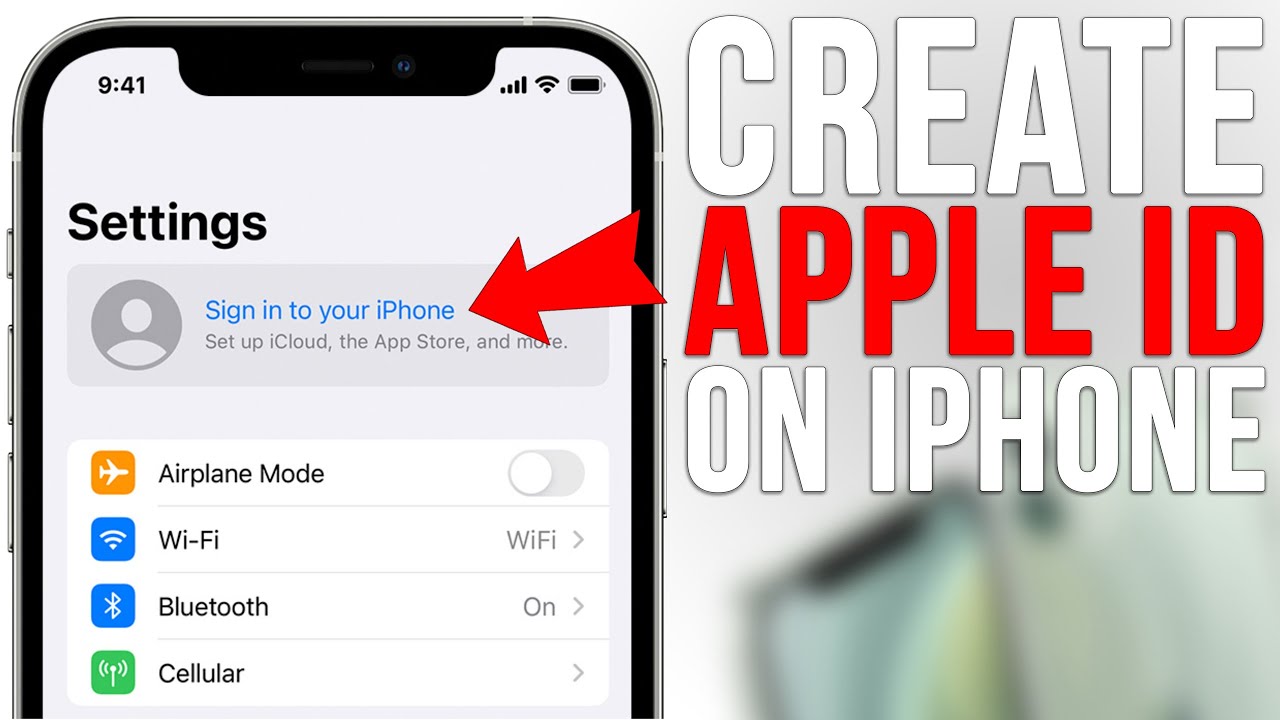
Turn on your iPhone 5s and head to the home screen. If you’ve already set it up without an Apple ID, you’ll see a gray bubble that says “Sign in to your iPhone.” Tap it. If the phone is brand‑new, you’ll encounter the same prompt during the initial setup wizard.
1. Open Settings
In the Settings app, scroll down until you find iCloud. Older iOS versions label it “iCloud” or “iTunes & App Store.” Tap whichever appears.
2. Choose “Create New Apple ID”
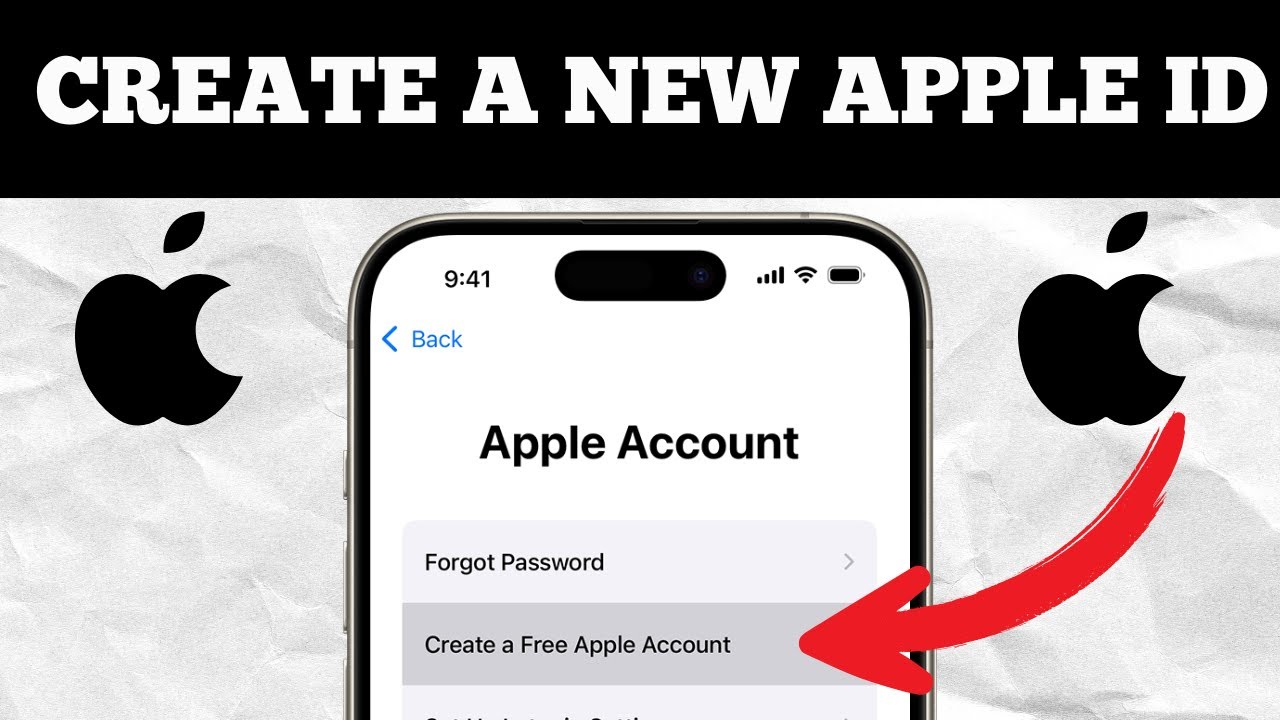
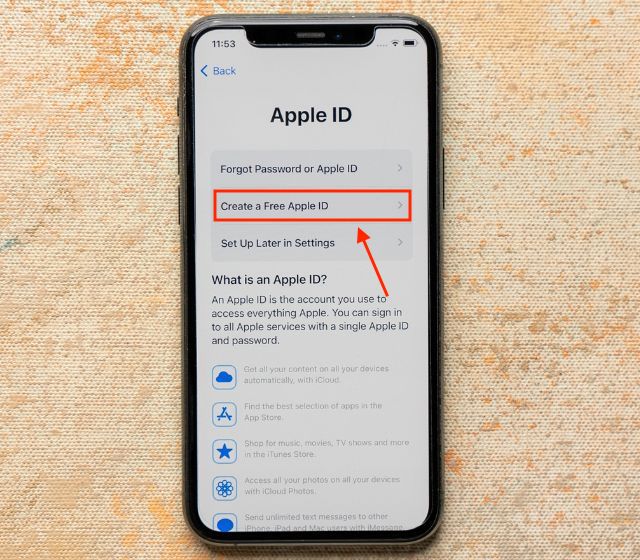
Look for the option that reads Create New Apple ID. It’s usually right at the top. Tap it, and you’ll be guided through a series of screens.
Step‑by‑Step Walkthrough
Follow these steps; they’re designed for iOS 9‑12, the range that ships on most iPhone 5s devices.
Enter Your Birthdate
Apple asks for your date of birth to comply with age‑related policies. Pick the correct date, then hit “Next.” If you’re under 13, you’ll need a parent’s Apple ID to set up Family Sharing.
Provide Your Email
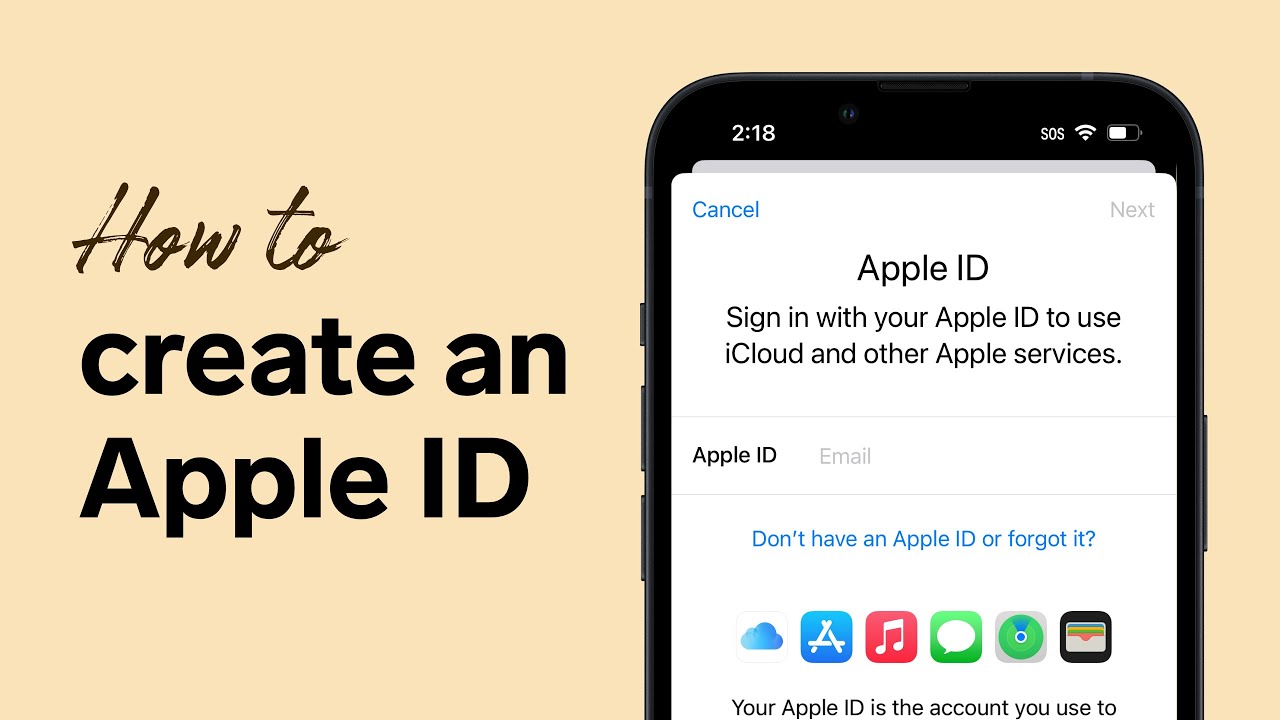
Type in the email address you want to associate with the account. You can also choose “Get a free iCloud email address” if you’d rather use an @icloud.com address.
Create a Strong Password
Your password must be at least eight characters, include a number and a capital letter. Avoid obvious choices like “password123.” A tip: think of a favorite phrase and replace some letters with numbers.
Answer Security Questions
Pick three questions you’ll remember the answers to. These are your safety net if you ever need to reset the password.
Agree to Terms and Conditions
Read (or skim) the terms, then tap “Agree.” If a pop‑up asks for verification, enter the code sent to your email.
Verification: The Final Hurdle
Apple will send a verification code to the email you just entered. Open that email on another device, copy the six‑digit code, and type it back into the iPhone. Once it’s accepted, your Apple ID is officially active.
Signing In Everywhere
Now that the ID exists, you’ll want to make sure it’s logged in across the core services:
- iCloud: Settings > iCloud – toggle the switches for Mail, Contacts, Photos, etc.
- iTunes & App Store: Settings > iTunes & App Store – sign in with the same Apple ID.
- iMessage & FaceTime: Settings > Messages / FaceTime – enable and use the same credentials.
Common Pitfalls and How to Fix Them
Even a simple process can hit a snag. Here are a few things users often stumble on.
“This Apple ID is already in use”
If you see this message, the email you entered is linked to an existing account. Try signing in with it first, or use a different email address.
Verification Email Not Arriving
Check your spam folder. Also, make sure the device has an active internet connection; a weak Wi‑Fi signal can delay delivery.
Forgot Your Password
Head to iforgot.apple.com, enter your Apple ID, and follow the prompts. The security questions you set earlier will be crucial here.
Tips for a Smooth Experience
- Use a password manager to store the new credentials safely.
- Enable two‑factor authentication for extra security; it’s a simple extra step during sign‑in.
- Keep your iPhone’s iOS updated. Newer versions improve the Apple ID workflow and security.
What If You Want to Delete the Apple ID Later?
Apple lets you remove an account, but it’s a bit of a process. You’ll need to back up any data tied to iCloud, sign out of every service, then contact Apple Support to request deletion. It’s rarely needed, but good to know.
Wrapping Up
Creating an Apple ID on an iPhone 5s doesn’t have to feel like a tech‑support call. With Wi‑Fi, an email, and a few minutes, you’re set to download apps, sync photos, and stay connected across Apple’s ecosystem. The steps above walk you through every screen, plus a few troubleshooting notes, so you can get back to using your phone the way it was meant to be used.