How to Digitize Your Vintage Photos with the Top Scanning Apps
Those dusty photo albums in the attic hold more than just memories; they’re a piece of family history waiting to be shared. Scanning every print by hand can feel like a never‑ending chore, but the right mobile app can turn a weekend project into a streamlined experience. Below you’ll find a practical rundown of the most reliable apps, plus tips on getting the clearest digital copies without breaking the bank.
What to Look for in a Photo‑Scanning App
Before diving into the list, it helps to know which features really matter:
- Image quality controls – automatic edge detection, color correction, and dust removal.
- File format options – JPEG for quick sharing, TIFF or PNG for archival‑grade preservation.
- Batch processing – the ability to scan several pictures in one go saves time.
- Cloud integration – direct upload to Google Drive, iCloud, Dropbox, or a dedicated backup service.
- Cost structure – free versions may suffice for occasional use, while power users often need a modest subscription.
Top Picks for Android and iOS
1. Google PhotoScan (Free)
If you need a no‑frills solution that does the job well, PhotoScan is hard to beat. The app guides you through a simple four‑step capture process, automatically removes glare with smart reflections, and stitches the edges together for a crisp, border‑less image. Files are saved directly to Google Photos, making organization a breeze.
2. Adobe Scan (Free with optional upgrades)
Adobe’s reputation for document handling carries over to photo scanning. Its AI‑driven engine enhances contrast and sharpness while preserving the original tones. You can export as PDF for a quick album or choose JPEG for social sharing. The premium plan unlocks OCR (handy for scanned captions) and higher‑resolution output.
3. Microsoft Lens (Free)
Often overlooked for photos, Microsoft Lens offers solid edge detection and built‑in filters that brighten faded prints. The app syncs seamlessly with OneDrive and even allows you to create PowerPoint slideshows directly from your scans – a fun way to showcase family milestones.
4. Photomyne (Freemium)
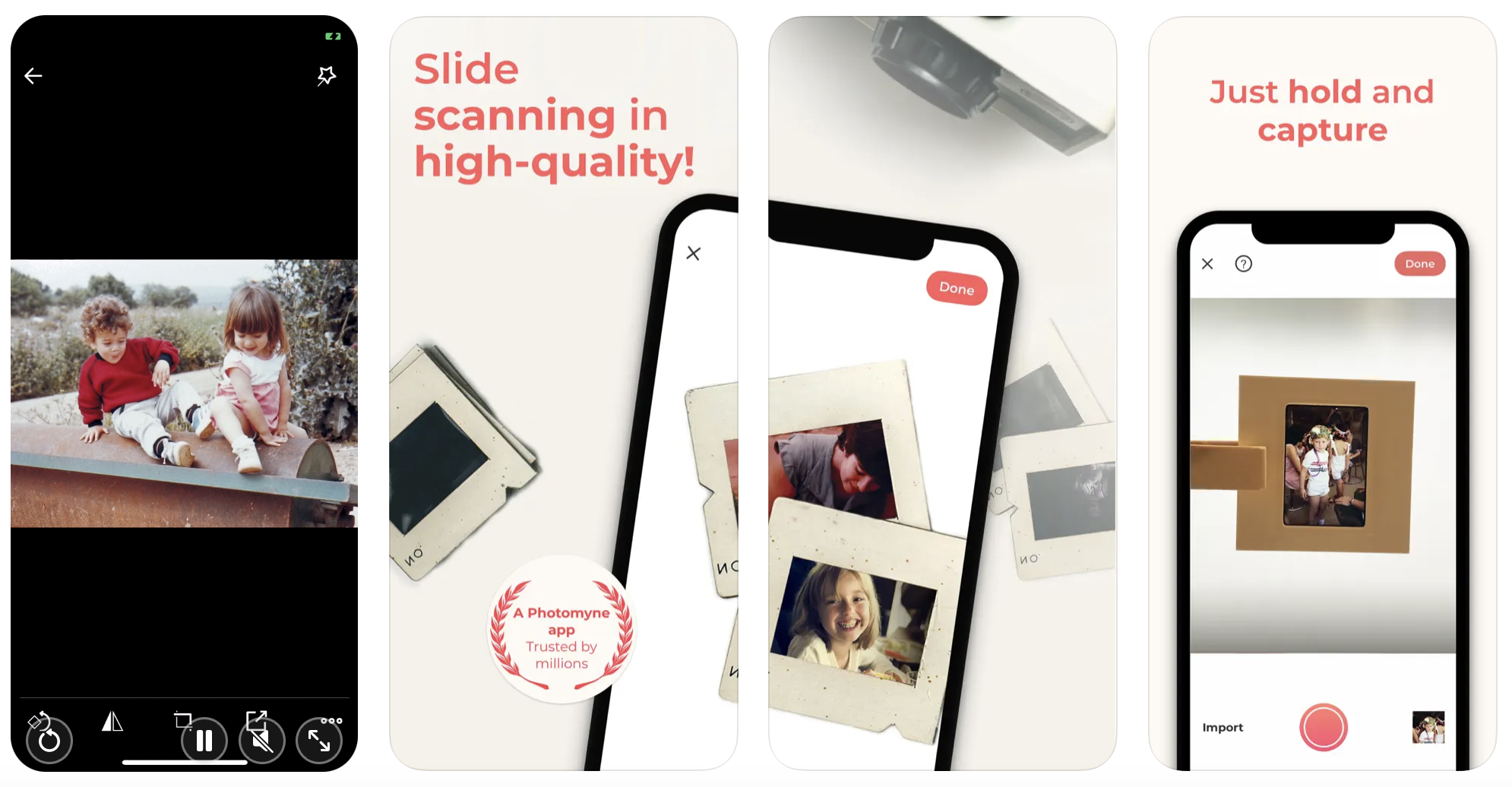
Designed specifically for old photos, Photomyne can capture multiple prints at once using a single swipe. Its “SmartCrop” feature isolates each image, while AI‑based restoration reduces scratches and dust. The subscription unlocks higher resolution (up to 12 MP) and unlimited cloud backup.
5. Scanner Pro (Paid, iOS only)
Scanner Pro earns its reputation for precision. It offers manual focus, exposure adjustment, and a “Magic Scan” mode that automatically corrects perspective distortion. You can send scans to Evernote, Dropbox, or export as PDFs. Though it costs a one‑time $4.99, the lack of recurring fees appeals to many iPhone users.
6. CamScanner (Freemium)
CamScanner’s “Auto Enhance” algorithm works well with sepia‑toned photos, and the app supports batch uploads to its own cloud service or any of the major platforms. Beware of occasional ads in the free version, but the paid tier removes them and adds watermark‑free exports.
Quick Tips for Better Results
- Use natural light – a bright, evenly lit area reduces shadows and glare.
- Keep the camera parallel – tilting introduces distortion that even the best software can’t fully correct.
- Clean the originals gently – a soft brush removes dust without damaging the emulsion.
- Scan at the highest available resolution – you can downsize later, but you can’t recover lost detail.
- Name folders by year or event – a consistent naming scheme saves hours when you search years later.
When to Choose a Dedicated Desktop Scanner
Even the best apps have limits. If you’re dealing with fragile negatives, large format prints, or need archival‑grade color fidelity, a flatbed scanner with a 4800 dpi capability may be worth the investment. In those cases, use the app merely for quick previews before committing to a full‑resolution scan on the desktop.
Putting It All Together: A Sample Workflow
- Gather prints on a clean, matte surface.
- Open your chosen app (e.g., PhotoScan) and follow the on‑screen guide.
- Review each capture; tap “retake” if the edges look off.
- Apply any built‑in enhancements (brightness, contrast).
- Save to your preferred cloud folder, naming the file with date and description.
- Periodically back up the entire folder to an external hard drive.
Final Thoughts
Digitizing old photographs doesn’t have to be a daunting project. With a few clicks on a smartphone, you can preserve memories for future generations while freeing up space in the attic. Whether you opt for a free app like Google PhotoScan or invest in a premium solution such as Photomyne, the key is to stay consistent and back up your files. Your family’s visual history will thank you.