How To Download 7-Zip For Windows 8.1 Correctly
It’s strange but true: legacy operating systems still run a massive portion of the world’s computers. Windows 8.1 isn’t exactly new, but it’s far from dead. And if you’re stuck on it—or simply prefer its interface—finding reliable, safe software can feel like digging through a junk drawer. You just want the tool to work, no ads, no bloat, no "installation helper" that changes your homepage. That’s where 7-Zip comes in.
7-Zip is arguably the most trusted archiving tool out there. It’s open-source, lightweight, and incredibly efficient with compression algorithms like 7z and LZMA2. But because it’s free and famous, it’s also the target of countless rip-off sites. Finding the actual, official 7-Zip download for Windows 8.1 isn’t as straightforward as it should be. Let’s walk through exactly how to get it right, avoid the malware traps, and keep your system clean.
Why 7-Zip Remains The Gold Standard
Before we dive into the download links, it’s worth reminding ourselves why people still prefer 7-Zip over WinRAR or the built-in Windows features. Sure, Windows handles basic .zip files just fine. But the moment you encounter a .rar, .7z, .tar, or .gz file, the native capabilities fall short. 7-Zip opens them all without breaking a sweat.
The compression ratio is significantly better than standard zip formats. If you’re archiving old documents from a Windows 8.1 machine to save space, 7-Zip will shrink those files down more effectively than most alternatives. Plus, it’s completely free. No trial periods, nags, or ads. Just pure functionality. The interface might look like it stepped out of the 90s, but that’s by design. It’s built to do one job exceptionally well and get out of the way.
The Danger Zone: Fake Download Sites
This is where most people stumble. You type “7-Zip download” into a search engine, and the top results are often not the official site. They are ad-farms, repackaged installers, or worse, bundlers that try to slip browser toolbars onto your PC. These sites exist because 7-Zip is so popular that they can generate massive ad revenue by tricking users.
Here’s the hard truth: The official 7-Zip website is www.7-zip.org. That’s it. No other domain is legitimate. If you see a site offering “7-Zip Pro,” “7-Zip Crack,” or a version labeled specifically as “optimized for Windows 8.1” with a fancy modern UI, you are looking at a scam or malware. The official site looks sparse. It’s boring. That’s a good sign. It means no one is spending money on flashy ads to sell you something that costs nothing.
Never download 7-Zip from third-party software directories like Softpedia, CNET, or Download.com unless you strictly know how to disable their optional offerware during installation. It’s safer to go direct. Always.
Step-By-Step: Getting The Right Version
Windows 8.1 is a 32-bit or 64-bit environment. Most modern systems running 8.1 are likely 64-bit, but it’s crucial to check. 7-Zip offers separate installers and portable versions for both architectures. Using the wrong one isn’t dangerous, but it’s inefficient. The 32-bit version can actually run on 64-bit systems, but the 64-bit version cannot run on a 32-bit system. Similarly, Zip and rar are 64-bit only.
Here is how to navigate the official site to get exactly what you need:
- Visit the URL directly: Go to www.7-zip.org. Verify the address bar. No typos.
- Check your system type: If you aren’t sure if your Windows 8.1 is 32-bit or 64-bit, right-click "Computer" on the desktop, select Properties, and look for "System type."
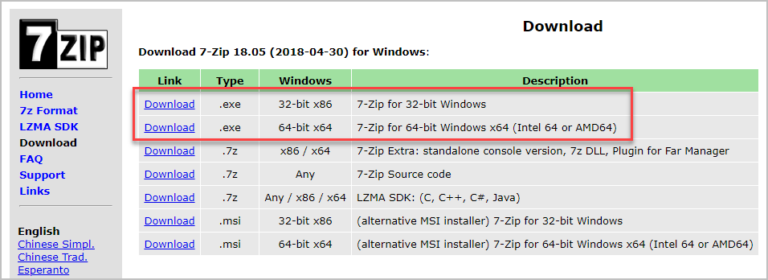
- Choose the installer: Under the "Download" section, you’ll see links like "7z1900-x64.exe" for 64-bit or "7z1900.exe" for 32-bit. The "x64" stand for 64-bit. Pick the one that matches your system.
- Consider the portable version: If you don’t want to install anything to your registry, look for the "Portable" section. This lets you run 7-Zip straight from a USB drive.
Installation Tips For Windows 8.1 Users
Once the executable is downloaded, the installation is remarkably straightforward. There are no sneaky checkboxes asking if you want to install additional toolbars, antivirus trials, or game boosters. This is one of the reasons the community loves it.
During the setup, you’ll see a few options:
Context menu integration: You’ll be asked if you want to associate .7z files with the program and add a command to the context menu. Keep both checked. This allows you to right-click any file and select "7-Zip" to compress or extract quickly. It’s the core feature that makes the tool useful.
Start Menu folder: You can change the installation directory if you prefer, but sticking with the default Program Files is fine. Create a Start Menu folder is also standard behavior.
Click "Install," wait for the progress bar, and you’re done. It’s refreshingly simple in a world where installing software usually feels like playing whack-a-mole with pre-checked boxes.
Troubleshooting Common Issues
Some users on Windows 8.1 report issues where 7-Zip fails to open certain archives. This is rarely a problem with the software itself. More often, it’s due to corrupted files or incompatible passwords. 7-Zip supports AES-256 encryption, which is robust, but if the sender used a different compression utility with unique encryption standards, you might hit a wall.
If you’re having trouble integrating 7-Zip into the Explorer context menu, try re-running the installer. Sometimes, group policies on corporate Windows 8.1 machines restrict shell extensions. In that case, running 7-Zip as an administrator might temporarily help, or you might need to request IT support to whitelist the extension.
Remember, updates are infrequent but important. The developer doesn’t release weekly patches, but new versions do come out to address security vulnerabilities. Keep an eye on the official site for these updates, especially if you’re handling sensitive documents.
Frequently Asked Questions
Is 7-Zip safe to download for Windows 8.1?
Only if you download it from the official website, www.7-zip.org. Third-party sites often bundle adware. The official build is open-source and widely audited for safety.
Will 7-Zip run on Windows 8.1?
Yes. 7-Zip is compatible with Windows 8.1, as well as Windows 10, 11, and even older versions like Windows 7. It is highly lightweight and does not require modern dependencies.
Do I need to pay to use 7-Zip?
No. 7-Zip is completely free and open-source under the GPL license. You should never be asked to pay for it. If a site asks for money, it’s not the real 7-Zip.
Can 7-Zip open RAR files?
Yes, 7-Zip can extract RAR files. However, due to licensing restrictions, it cannot create RAR archives. It can only open and extract them.