How to Download and Set Up Samsung Health Monitor App
Ever wondered if your Samsung phone could double as a personal health hub? The Samsung Health Monitor app promises exactly that—real‑time tracking of heart rate, blood pressure, and more, right from your wrist‑compatible smartwatch. Let’s walk through the download, installation, and initial configuration, so you can start seeing your vitals without the hassle.
Why the Health Monitor App Deserves a Spot on Your Phone
At first glance, it might look like just another fitness tracker companion. In practice, it flips the script by offering:
- Medical‑grade measurements (when paired with a compatible Samsung watch).
- Seamless syncing with Samsung Health for a unified health dashboard.
- Custom alerts for abnormal readings, helping you stay proactive.
All of these features sit behind a fairly straightforward setup.
Prerequisites Before You Click ‘Install’
Skipping the checklist is easy, but you’ll thank yourself for confirming them first.
Device Compatibility
The app works with Samsung Galaxy smartphones running Android 8.0 (Oreo) or newer. It also requires a compatible smartwatch—typically a Galaxy Watch 3, Watch 4, or newer models equipped with the necessary sensors.
Samsung Account & Permissions
You’ll need a Samsung account to sync data across devices. Once logged in, be ready to grant the app access to:
- Location (for certain health services).
- Bluetooth (to talk to the watch).
- Body sensors (heart rate, blood pressure).
Step‑by‑Step: Downloading the App
Even if you’ve never ventured into the Galaxy Store, the process is almost identical to any other app install.
- Open the Galaxy Store on your phone. (If you prefer Google Play, the app is also listed there, but the Galaxy Store version gets the latest updates first.)
- Tap the search icon and type “Samsung Health Monitor”.
- Look for the official listing—recognizable by the Samsung logo and a rating above 4 stars.
- Press Install. The download size hovers around 12 MB, so it should finish in a flash on Wi‑Fi.
- Once installed, tap Open to launch the setup wizard.
Initial Configuration: Getting the App Ready
Launching the app for the first time will feel like a brief health questionnaire—nothing overly invasive, just enough to calibrate the sensors.
Sign In & Sync
If you aren’t already signed into your Samsung account, the app will prompt you now. After signing in, you’ll see a sync screen asking if you’d like to merge existing Samsung Health data. Most users benefit from saying “Yes,” but you can skip if you prefer a fresh start.
Pairing Your Smartwatch
Connecting the watch is the crux of the setup:
- Make sure Bluetooth is turned on.
- Navigate to the Device Connection step within the app.
- Select your watch model from the list and follow the on‑screen pairing instructions.
- Allow the watch to install any firmware updates—this can take a few minutes.
When the connection is successful, the app will display a green checkmark and a short summary of the sensors now available (e.g., heart rate, ECG).
Calibration and Baseline Measurements
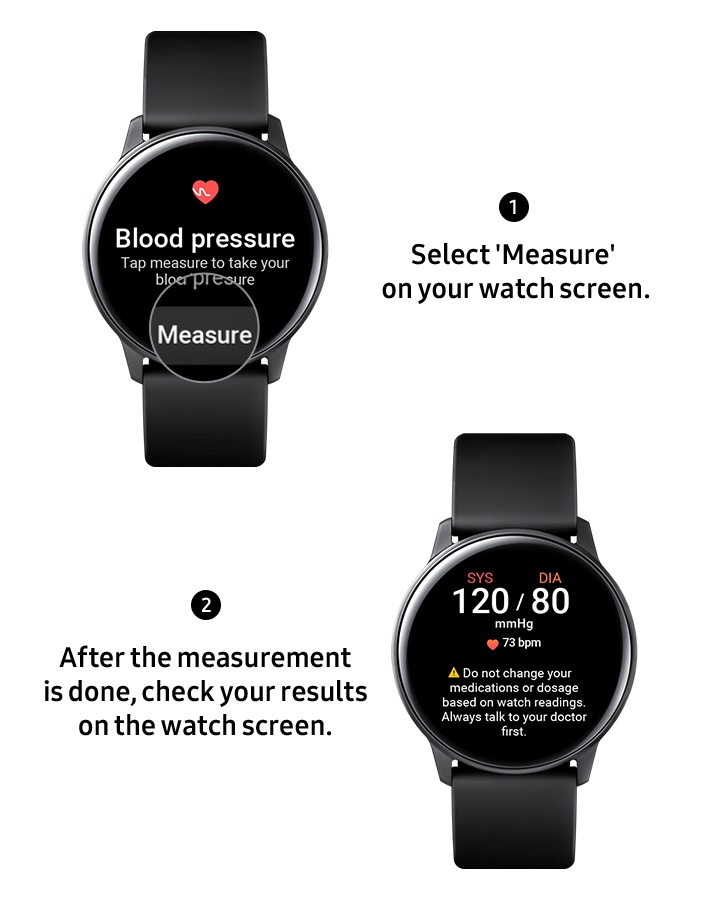
For accurate readings, the app asks you to take a few baseline measurements:
- Sit calmly for a minute.
- Place your finger on the watch’s sensor area as instructed.
- Press “Start Measurement” and let the device capture your resting heart rate.
Repeat the same steps for blood pressure if your watch supports it. The app stores these baselines and uses them to flag any future anomalies.
Customizing Alerts and Data Views
Now that everything is linked, you can fine‑tune what you see and when you’re notified.
Notification Settings
Tap the gear icon at the top‑right corner, then choose Notifications. Here you can:
- Set thresholds for high or low heart rate.
- Enable vibration or sound alerts for out‑of‑range readings.
- Schedule “Do Not Disturb” windows (useful at night).
Dashboard Layout
The default dashboard shows a quick glance: heart rate, steps, and recent blood pressure. If you favor a cleaner view, hit Customize and drag widgets into your preferred order. You can even hide metrics you rarely check.
Troubleshooting Common Hiccups
Even the smoothest tech can stumble. Below are a few quick fixes that save you from endless Googling.
- App won’t detect the watch: Restart Bluetooth on both devices, then try pairing again. A quick reboot of the phone often clears hidden cache conflicts.
- Measurements seem off: Ensure the watch is snug but not too tight. Clean the sensor area from sweat or dust; a damp cloth works wonders.
- Data not syncing with Samsung Health: Open Samsung Health, go to Settings → Connected services, and verify that “Health Monitor” is toggled on.
Making the Most of Your Health Data
Collecting numbers is only half the story. Use the app’s built‑in trends to spot patterns—like a gradual rise in resting heart rate over weeks, which could signal overtraining or stress. Exporting data as a CSV file (found under Settings → Export) lets you import the numbers into spreadsheets for deeper analysis or share them with a healthcare professional.
Final Thoughts
With the Samsung Health Monitor app on your phone, a smartwatch becomes more than a timepiece; it transforms into a personal health station you can trust. The download and setup process is straightforward, but taking a moment to calibrate, customize alerts, and understand the data will pay dividends in everyday wellness. Give it a try, and let your wrist do the talking.