How to Download, Set Up, and Master WeatherLink App
Why WeatherLink Stands Out
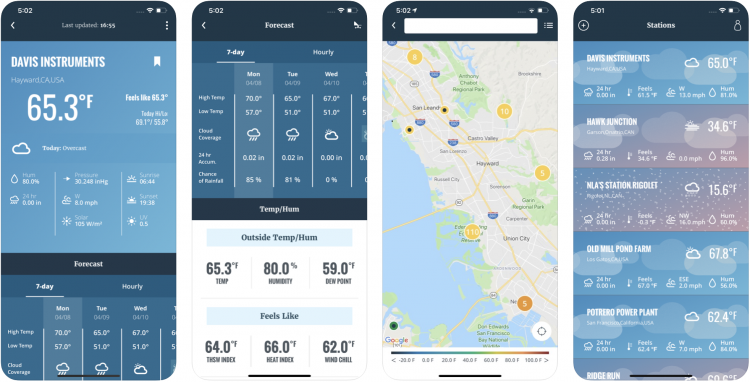
The WeatherLink suite is more than a simple temperature read‑out; it aggregates data from Davis weather stations, presents it in real‑time dashboards, and pushes alerts to your phone. Because the app talks directly to the hardware via the internet or a local network, you get a level of granularity that most consumer weather widgets lack. In short, it’s the bridge between raw sensor output and actionable insight.
Getting the App onto Your Device
The first hurdle is the download. Whether you run iOS or Android, head to the official App Store, type “WeatherLink” and look for the version published by Davis Instruments. Tap “Install” and wait a minute or two while the package settles onto your screen.
- iOS users may need to enable background refresh in Settings → General → Background App Refresh.
- Android users should verify the “Install unknown apps” permission only if you’re pulling the APK from Davis’s site, not the Play Store.
Once the icon appears, launch the app and sign in with the Davis Account you created during hardware registration. If you haven’t set one up yet, the app will guide you through a quick email verification.
Initial Configuration Walkthrough
When you open WeatherLink for the first time, you’ll see a “Add Station” button. Press it, then select either “Wi‑Fi” or “Cellular” depending on how your Davis hub connects to the internet. The app will scan for nearby stations; pick yours from the list and confirm.
Next, name the station something memorable—your backyard, the farm, or “Rooftop Lab.” This label will show up in every chart, so a clear name saves headaches later. The app then asks you to set the time zone and measurement units; choose what you’re comfortable reading, whether Celsius or Fahrenheit.
Fine‑Tuning Sensors and Alerts
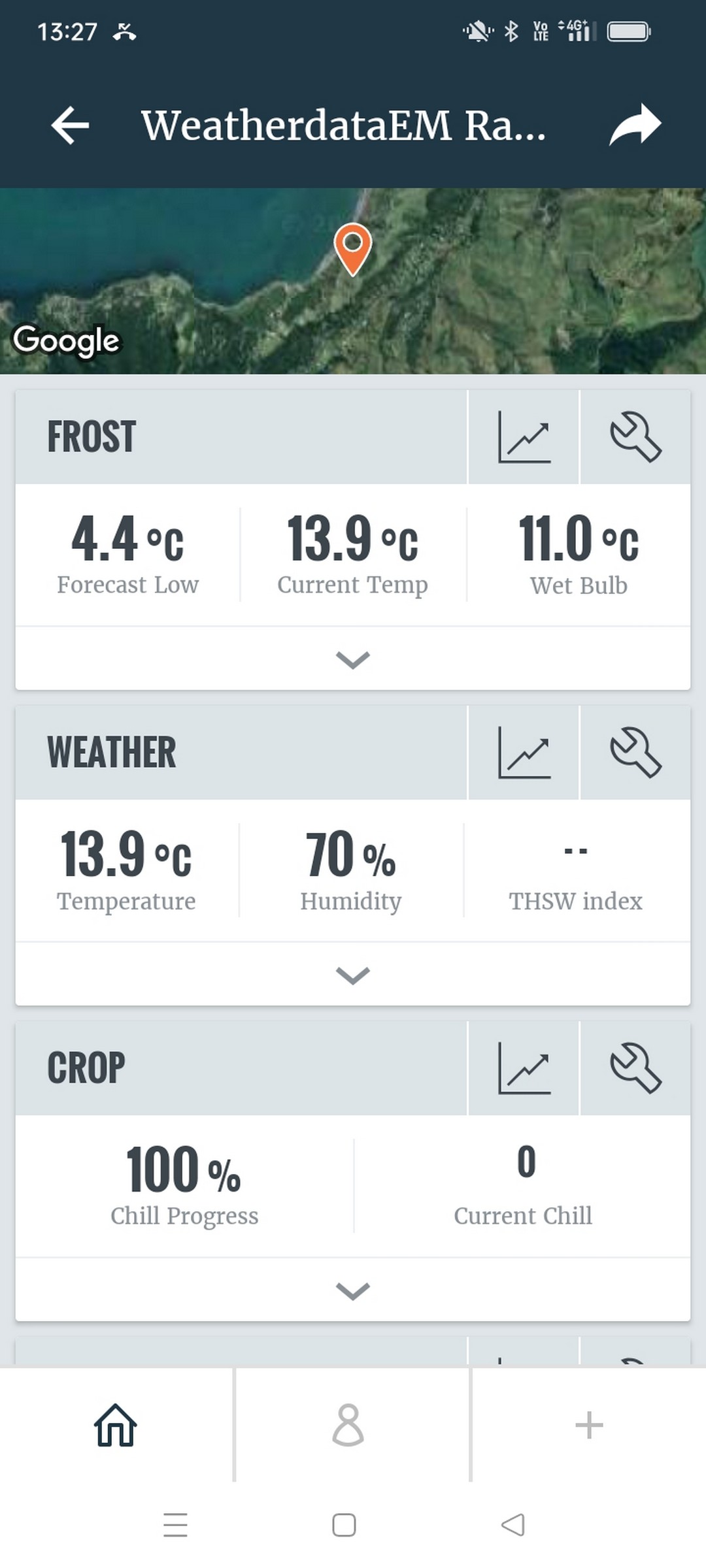
WeatherLink supports a suite of sensors: temperature, humidity, wind speed, UV, solar radiation, and even soil moisture. Dive into the “Sensors” tab to toggle each one on or off. For sensors you rarely need—say a leaf‑wetness probe—you can disable data logging to conserve battery life.
Alerts are where the app shines. In the “Notifications” menu, set thresholds like “Temperature drops below 32 °F” or “Wind gusts exceed 25 mph.” Choose how you want to be warned—push notification, email, or SMS—then test the trigger to make sure the signal reaches you.
Digging Deeper: Custom Reports and Integrations
The free tier shows live graphs, but the “Reports” section unlocks historical analysis. Pick a date range, select the variables you care about, and the app generates a PDF you can share with teammates or embed in a spreadsheet.
If you run a farm or a research site, you’ll likely want the data in your own system. WeatherLink offers API access with a simple key you can find under “Developer Settings.” With a few lines of code you can pull JSON feeds into platforms like Home Assistant, Grafana, or even a custom Python script.
Tips for Reliable Long‑Term Data
Hardware placement matters. Ensure your sensor array has an unobstructed view of the sky, away from heat‑reflecting surfaces. Periodically check the battery level—most Davis stations report charge status in the app, and a low‑battery warning appears as a red dot beside the station name.
Network stability is another silent killer. If you notice gaps in the timeline, try assigning a static IP to the hub or switching from Wi‑Fi to a dedicated cellular plan. A stable connection keeps the timestamp accurate and prevents data loss during storms—the very moments you need it most.
Making the Most of Seasonal Shifts
As seasons change, your data priorities shift. In summer, solar radiation and UV alerts become useful, while winter calls for frost warnings and soil temperature tracking. The app lets you clone an existing alert set, rename it, and adjust thresholds, so you’re never starting from scratch when the calendar flips.
Don’t forget to calibrate sensors annually. The “Calibration” button under each sensor opens a guided wizard that walks you through comparing the station’s reading to a known reference—like a certified thermometer. A quick calibration can shave off a degree of error that compounds over months of logging.
Sharing Insights with a Community
WeatherLink includes a “Community” tab where you can publish your station’s data to a public map. Fellow hobbyists and professionals can compare trends, spot micro‑climates, and even collaborate on research projects. Opt‑in is voluntary, but contributing data often leads to useful feedback on sensor placement and alert settings.
Finally, keep the app itself up to date. Davis rolls out firmware patches for both the hub and the mobile client. Ignoring updates can leave you without the latest bug fixes or new data visualizations, and in worst cases, it may break API compatibility.