How to Easily Convert Word Docs to PDF on iPhone
Why You Might Need a PDF on Your Phone
PDFs are the universal handshake of digital documents. Whether you’re sending a résumé, sharing a contract, or archiving a report, a PDF guarantees the layout stays exactly the way you designed it. On an iPhone, however, the conversion step isn’t always obvious, especially if you’re used to doing it on a computer.
Method 1: Using the Built‑In Files App
The Files app on iOS can handle a simple conversion without any extra downloads.
Step‑by‑step
- Open the Files app and locate the Word document you want to convert.
- Tap and hold the file until a context menu appears.
- Select Share, then choose Print from the share sheet.
- On the Printer Options screen, perform a pinch‑out gesture on the preview. This transforms the preview into a PDF.
- Tap the share icon again and choose where to save or send the new PDF.
This trick works because iOS treats the print preview as a PDF under the hood. It’s quick, requires no third‑party software, and keeps everything on your device.
Method 2: Converting Directly in Microsoft Word for iOS
If you already have the Word app installed, you can export to PDF from within the document itself.
Steps
- Launch the Microsoft Word app and open the desired file.
- Tap the … (more options) button in the upper‑right corner.
- Choose Export → PDF.
- Pick a destination: Save to Files, Send via Mail, or any other app that appears.
The advantage here is fidelity—Word knows exactly how to render the document’s fonts, tables, and images, so the resulting PDF looks just like the original.
Method 3: Free Third‑Party Apps Worth Trying
When the built‑in options feel limiting, a handful of reputable apps can do the job with a few extra taps.
Top Picks
- Adobe Acrobat Reader – free version lets you create PDFs from Word, plus it offers basic annotation tools.
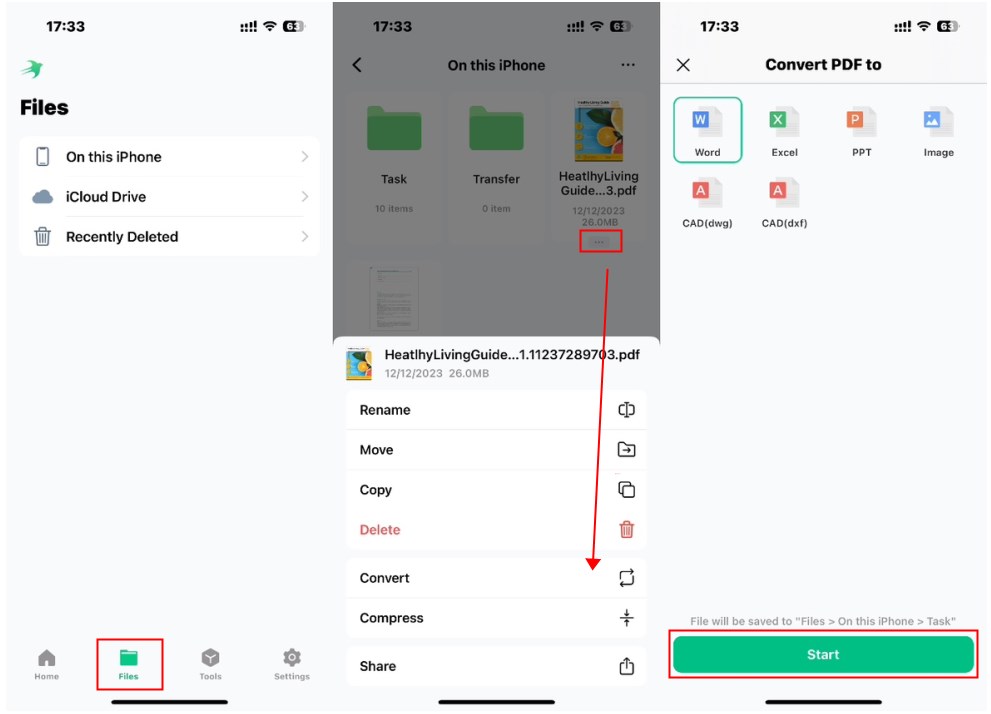
- PDF Converter by Readdle – an intuitive interface and batch conversion support.
- Documents by iKarus – a file manager that includes a handy “Convert to PDF” shortcut.
All three apps are available on the App Store, and each guides you through selecting a Word file, tapping “Convert,” and choosing a save location. Just be mindful of any in‑app purchases if you need advanced features.
Quick Tips to Ensure a Clean Conversion
- Check the layout first. Complex tables or custom fonts may shift slightly; preview the PDF before sharing.
- Keep your iOS updated. Newer versions improve file handling and add extra share‑sheet options.
- Use iCloud Drive. Storing the original Word file in iCloud lets you access it from any device, making conversion on the iPhone a breeze.
- Compress if needed. If the PDF is large, the Files app’s “Save to Files” screen offers a “Reduce File Size” toggle (available in iOS 16+).
Troubleshooting Common Hiccups
If the PDF doesn’t look right, try these fixes before resorting to a computer.
Missing Images or Odd Formatting
Sometimes the print‑preview method drops images. Re‑open the document in Word, ensure all pictures are embedded (not linked), then repeat the conversion.
Share Sheet Doesn’t Show “Print”
Make sure you’re actually selecting a Word file and not a shortcut. If the option is still missing, a quick restart of the Files app or the iPhone often restores the missing actions.
App Crashes During Export
Free apps can be finicky with large files. Split the document into smaller sections, convert each part, and merge the PDFs using the “Combine PDFs” feature found in most PDF readers.
When to Stick With a Desktop Solution
For legal contracts, extensive graphics, or heavily formatted reports, a desktop conversion tool still offers the highest accuracy. The iPhone methods are perfect for everyday tasks like turning a meeting agenda or a short article into a share‑ready PDF, but they’re not a replacement for professional publishing software.