How to Export Your Twitter Data in a Few Simple Steps
Ever wondered what’s hiding in the archives of your Twitter account? Whether you’re hunting for old photos, tracking a personal timeline, or just tidying up before a platform switch, pulling your data out of Twitter isn’t as mystical as it sounds. Below you’ll find a step‑by‑step walkthrough, plus a handful of tips to keep the process smooth.
Why You Might Want a Copy of Your Tweets
People download their Twitter history for all sorts of reasons:
- Memory lane – reminiscing about the first retweet that went viral.
- Research – journalists and marketers often need a record of their own posts.
- Compliance – some professions require a backup of all public communications.
- Platform migration – moving to another social network and wanting to keep a personal archive.
Whatever your motivation, having a local copy means you’re not at the mercy of a platform’s future policy changes.
Preparing Your Account
Before you dive into the export wizard, make sure you’ve cleared a few hurdles:
- Double‑check that the email attached to your Twitter profile is current – the download link will be sent there.
- If you use two‑factor authentication, keep your phone handy; you might get a verification prompt.
- Decide where you want the final zip file to live. A cloud folder works well for easy access across devices.
Step‑by‑Step Guide to Exporting
1. Open Your Settings
Log into Twitter on a desktop browser – the mobile app doesn’t expose every option you’ll need. Click the “More” icon (three dots) on the left sidebar, then choose Settings and privacy.
2. Navigate to “Your Account”
Inside Settings, find the Your account section. It houses everything from security to download options.
3. Request Your Archive
Click Download an archive of your data. Twitter will ask you to confirm your password; this extra step helps protect against unauthorized downloads.
4. Choose a Time Frame (Optional)
If you only need data from a specific period, click Set date range. Otherwise, leave it blank to grab the full history – tweets, DMs, media, and even your account’s settings.
5. Submit the Request
Hit the Request archive button. Twitter will display a message saying the file will be prepared, which can take anywhere from a few minutes to several hours depending on the size of your account.
6. Wait for the Email
You’ll receive an automated email once the archive is ready. The email contains a secure link that expires after a limited window (usually seven days), so keep an eye on your inbox.
7. Download and Unzip
Click the link, download the zip file, and extract it to a folder of your choice. Inside you’ll find a tidy hierarchy:
tweets.csv– a spreadsheet of every tweet, retweet, and reply.direct‑messages.csv– private conversations, if you opted in.mediafolder – all images, GIFs, and videos you posted.- Various JSON files – settings, ad preferences, and more technical data.
Making Sense of the Files
The CSV files can be opened with Excel, Google Sheets, or any text editor. If you’re comfortable with a bit of coding, Python’s pandas library lets you slice and dice the data for deeper analysis. For most users, though, a simple spreadsheet view is enough to scroll through old jokes or locate a forgotten link.
Tips and Common Pitfalls
- Large accounts take longer. If you’ve amassed tens of thousands of tweets, be prepared for a wait of up to 24 hours.
- Check your spam folder. Automated emails sometimes get filtered, especially if you have strict security settings.
- Archive expiration. After the download link expires, you’ll need to request a new archive – no big deal, just a reminder to act promptly.
- Privacy matters. Store the downloaded zip in a secure location; it contains everything you ever posted, including possibly sensitive DMs.
- Partial downloads. If the zip seems incomplete, verify you chose the correct date range or try the request again.
Alternatives to the Native Export
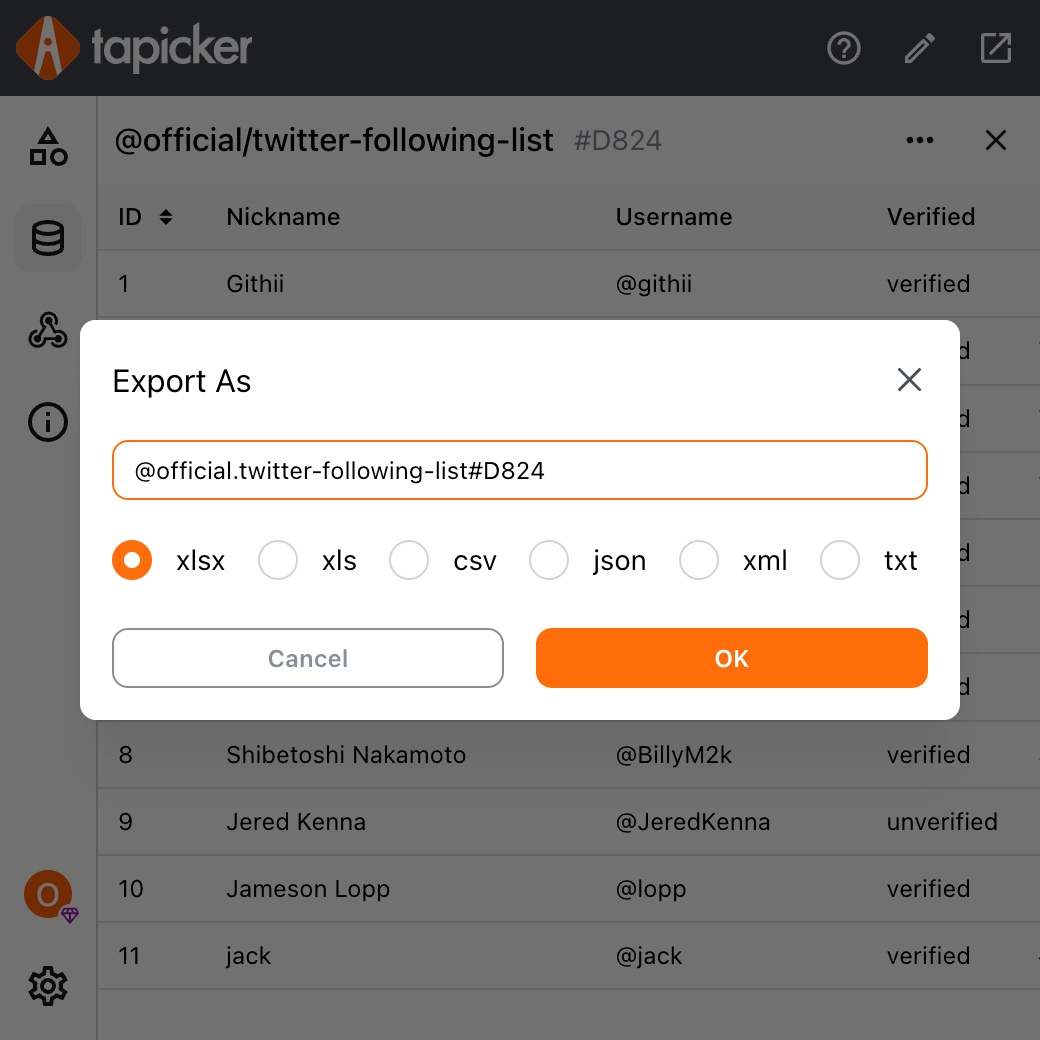
If Twitter’s built‑in tool feels clunky, a few third‑party services offer similar downloads with extra visualizations. They typically require you to log in with your Twitter credentials, so only use reputable platforms that emphasize data security.
What to Do After You Have the Archive
Once the files are on your hard drive, you can:
- Back them up to an external drive or a secure cloud service.
- Curate a “best‑of” collection for a personal blog or a printed memoir.
- Run a quick keyword search to locate a specific tweet without scrolling through the timeline.
- Share selected media with friends, making sure you respect any privacy considerations.
In short, exporting your Twitter data is a straightforward process that pays off the moment you need a reliable record of your online voice. A few clicks, a short wait, and you’ll have a complete snapshot of everything you’ve shared on the platform.