How to Find Devices Fast with UniFi Discovery Tool in Chrome
Why the UniFi Discovery Tool Matters
If you’ve ever stared at a jumble of IP addresses wondering which one belongs to a new access point, you know the pain of manual network mapping. The UniFi Discovery Tool was built to cut that guesswork short, letting you locate every UniFi device on the same broadcast domain with a single click. It’s especially handy in environments where devices are provisioned on the fly—think pop‑up offices, temporary event venues, or a home lab that keeps growing. By surfacing MAC addresses, firmware versions, and even device status, the tool gives you a quick health check before you dive into the controller.
Getting the Chrome Extension Ready
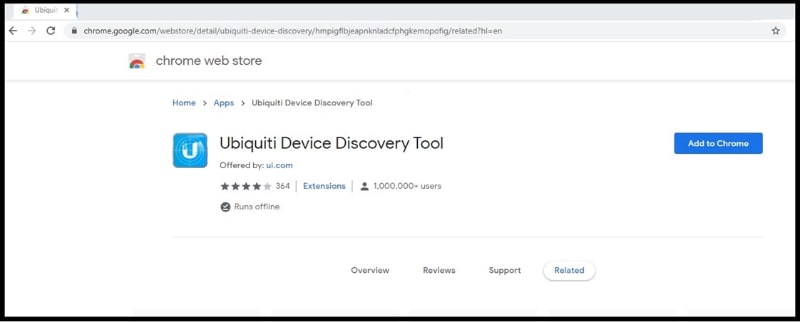
The first step is to add the UniFi Discovery extension from the Chrome Web Store. Search for “UniFi Discovery” and look for the official Ubiquiti offering; it’s a small, gray‑icon button that sits beside the address bar. Click Add to Chrome, confirm the permissions, and you’ll see the icon appear instantly. No extra software installers or admin rights are needed—just a browser that can reach the local subnet. If you run Chrome in a sandboxed corporate environment, make sure the IT policy allows extensions from external sources; otherwise the install will be blocked.
Running a Scan: Step‑by‑Step
With the icon in place, the actual discovery takes only a few seconds. Open a new tab, click the UniFi icon, and select Start Scan. The extension broadcasts a UDP probe across the local network; any UniFi device that hears it replies with its identity packet. You’ll see a live list appear, showing device name, IP, MAC, and model. If you need to narrow the view, click the filter dropdown and choose a specific device type—APs, switches, or cameras. The list refreshes automatically, so you can watch new devices pop up as they power on.
Interpreting the Results
At first glance the table looks straightforward, but a few columns deserve extra attention. The Firmware column tells you whether a device is on the latest release; outdated firmware often explains intermittent connectivity. The Signal Strength (for wireless APs) gives a quick sense of placement—low values may hint at a mis‑mounted unit. Finally, the Status field flags devices that are offline or in a reboot loop, letting you act before they affect users. Clicking a row opens a pop‑up with a Adopt button, which launches the UniFi Network Controller and streamlines the onboarding process.
Tips for Large Networks
- Segment scans by VLAN. If your environment spans multiple VLANs, run the discovery tool on each subnet separately; the UDP probe won’t cross routing boundaries.
- Use a static IP range for new devices. Assigning a predictable address block makes it easier to spot anomalies in the scan results.
- Export the list. The extension includes a CSV export button—perfect for feeding into a CMDB or sharing with teammates.
- Combine with ping sweeps. For stubborn devices that don’t answer the UniFi probe, a simple
ping -bsweep can reveal whether they’re reachable at all.
Common Issues and Fixes
Sometimes the tool returns an empty list, even though you know UniFi gear is on the network. The most common culprit is a firewall rule blocking UDP port 10001, the port the discovery probe uses. Whitelist that port on both the host running Chrome and any intervening switches. Another hiccup appears when you have multiple Wi‑Fi adapters on the same machine; Chrome may send the probe out the wrong interface. Disable the secondary adapter temporarily, or launch Chrome with the --network-interface flag to force the correct NIC. Lastly, if the extension shows devices but the Adopt button is greyed out, double‑check that your controller version matches the firmware of the target devices; a version mismatch can prevent adoption.
Putting It All Together
Once you’ve run a scan, exported the data, and resolved any firewall quirks, the real benefit shows up in day‑to‑day operations. New APs appear instantly, rogue switches get flagged, and you can verify that every device runs the recommended firmware—all without leaving your browser. The UniFi Discovery Tool essentially turns Chrome into a lightweight network inventory app, saving you the time you’d otherwise spend digging through DHCP logs or pinging hosts manually. Give it a try the next time you roll out a batch of UniFi devices; you’ll likely wonder how you ever managed without it.