How to Find Free Video Editing Templates for CapCut
If you’ve spent any time on TikTok, Instagram Reels, or YouTube Shorts, you’ve probably noticed how polished some clips look—even when the creator seems to have used just a phone. A big part of that polish comes from ready‑made templates that line up transitions, text animations, and music automatically. CapCut, the free video editor that’s bubbling up on both Android and iOS, offers a treasure trove of such templates—most of them at zero cost. Below is a practical walk‑through of where to locate them, how to customize them, and a few tips to keep your edits fresh.
Where the Templates Live Inside CapCut
CapCut’s interface is intentionally minimal, but the template library is tucked away under a few tabs. Here’s the short route:
- Open the app and tap + Create on the home screen.
- Select Template from the bottom menu (you’ll see “Edit” and “Template”).
- Choose Free in the filter bar; a handful of premium options will be greyed out.
Once you’re in the free section, you can scroll by category—“Travel,” “Fashion,” “Food,” “Trendy” and so on. Each thumbnail shows a quick preview, so you get a feel for the vibe before you tap.
Downloading and Applying a Template
After you’ve spotted something you like, the steps are almost effortless:
- Tap the template’s preview; a larger video demo pops up.
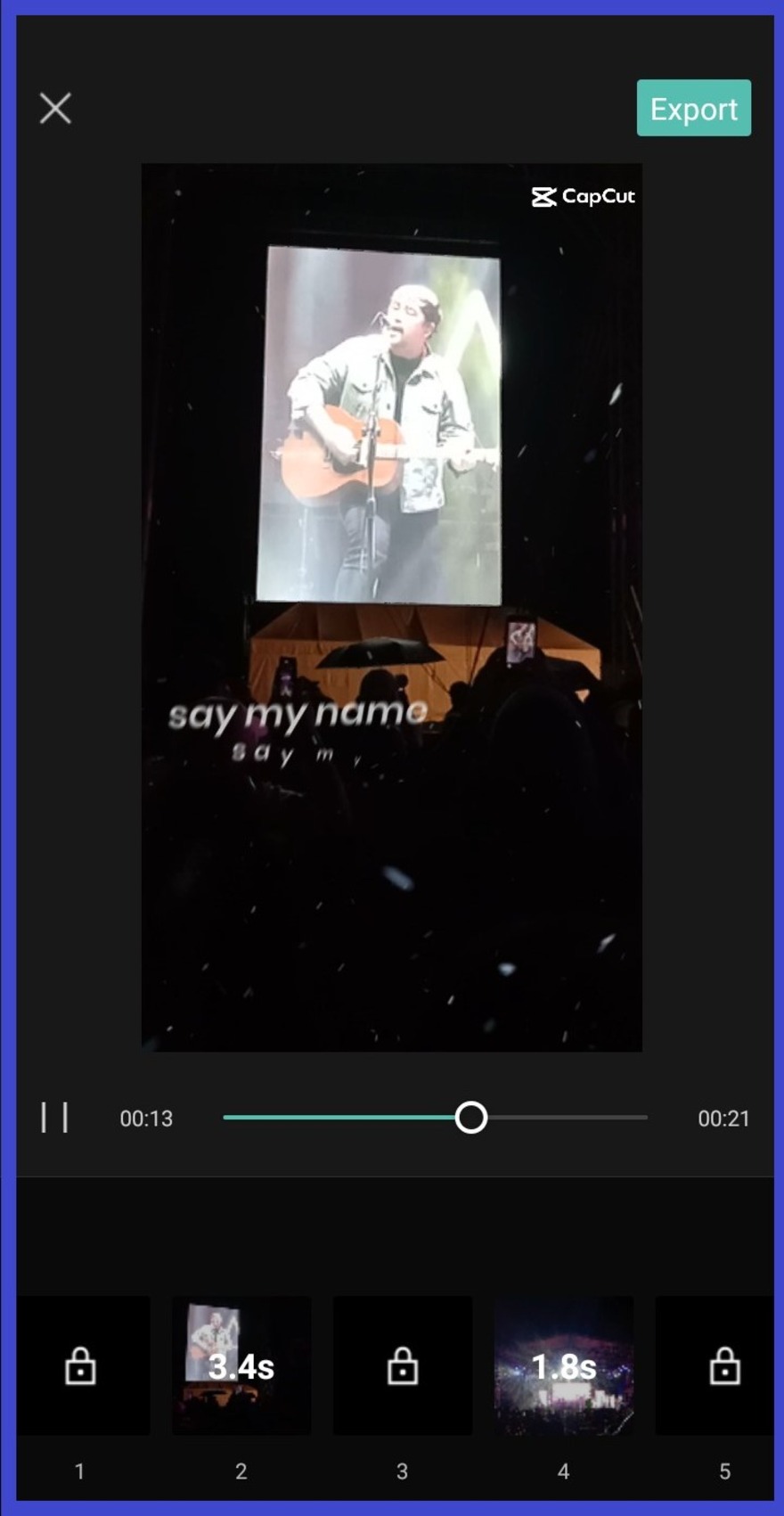
- Hit the Use button. CapCut will import the template into a new project, automatically placing placeholders for your own clips.
- Replace each placeholder by tapping the clip thumbnail, then selecting footage from your phone’s gallery.
- Adjust the length of your clips if needed—most templates trim or stretch to fit, but you can fine‑tune the timing by dragging the edges.
- When everything looks good, hit Export. The app renders the final video in the preset resolution (usually 1080p).
That’s it. No need to fiddle with keyframe animations or sync beats manually; the template does the heavy lifting.
Customizing Without Breaking the Flow
Free templates are designed to be flexible, but there are a few gotchas:
- Text styles: Most templates come with preset fonts and colors. You can change them under the Text tab, but keep the original hierarchy (headline vs. subtitle) to avoid misaligned animations.
- Music: If the included track feels overused, tap the music icon and swap it for any royalty‑free song in your library. Just make sure the tempo matches the cut—templates often sync visual beats to the original track.
- Transitions: The template’s transitions are baked in, but you can add extra ones between clips if you want a surprise element. Stick to the same style (e.g., glitch, slide) to maintain visual cohesion.
These tweaks let you inject personality while preserving the template’s polished framework.
Finding Hidden Gems Outside the App
CapCut’s built‑in library isn’t the only source. Creators on platforms like TikTok, YouTube, and Reddit regularly share downloadable template files (usually .cpt packages). Here’s how to make the most of those external resources safely:
- Search for “CapCut free template download” on YouTube; many creators walk you through the download process step‑by‑step.
- Join the “CapCut Templates” subreddit. Users post links to Google Drive or MediaFire folders, often with brief descriptions of the theme and length.
- Beware of shady links. Stick to sources with positive comments and recent activity, and scan any .zip files with your phone’s built‑in security scanner before opening.
Once you have the .cpt file, open CapCut, tap the Template tab, then the Import button (usually represented by a folder icon) to load it directly into the app.
When Free Isn’t Enough: Deciding If You Need Premium
CapCut does offer paid templates—typically part of a monthly subscription or one‑off purchase. The premium versions tend to feature:
- Longer durations (ideal for full‑length YouTube videos).
- More intricate motion graphics, like 3‑D text or custom particle effects.
- Exclusive music tracks from partnered artists.
If you’re consistently producing content for a brand or trying to stand out in a saturated niche, a handful of premium templates might be worth the investment. Otherwise, the free selection—especially when combined with external downloads—covers most casual needs.
Tips for Staying Original While Using Templates
Templates are shortcuts, not crutches. Use these strategies to keep your content feeling fresh:
- Mix and match: Combine two different free templates in a single video—use one for the intro, another for the main body, and perhaps a third for the outro.
- Layer footage: Overlay b‑roll or slow‑motion clips on top of the template’s main video to add visual interest.
- Play with color grading: A quick adjustment in the Filters tab can make a generic template look uniquely yours.
- Insert a personal hook: Start with a short, unscripted clip—talk directly to the camera—before the template kicks in. It grounds the video in authenticity.
Common Pitfalls and How to Avoid Them
Even with a user‑friendly editor like CapCut, beginners trip over a few recurring mistakes:
- Overloading with effects: Adding too many extra stickers or transitions can make the video feel chaotic. Stick to one or two complementary effects.
- Mismatched aspect ratios: Some templates are designed for vertical video (9:16). If you need a square (1:1) or landscape (16:9) output, choose a template that matches or manually adjust the canvas size.
- Ignoring copyright: While most free music in CapCut is cleared for personal use, repurposing a template for commercial ads may require a separate license. Double‑check the music’s terms if you’re monetizing.
Wrapping It Up—Your Next Steps
Whether you’re spicing up a travel montage or adding a snappy intro to a product demo, CapCut’s free video editing templates are a solid starting point. Dive into the app, experiment with a few categories, and don’t hesitate to explore community‑shared files for that extra edge. With a little tweaking, you’ll be turning raw clips into scroll‑stopping reels in minutes rather than hours.