How to Fine‑Tune Gyroscope Sensitivity for COD Mobile
Why Gyro Sensitivity Matters
In Call of Duty: Mobile, a well‑adjusted gyroscope can be the difference between a clean headshot and a missed shot that leaves you vulnerable. The sensor translates subtle wrist motions into precise in‑game aim, letting you track moving targets faster than finger swipes alone. But if the sensitivity is too high, the crosshair darts wildly; too low, and you’ll lag behind your opponents.
Default Settings Overview
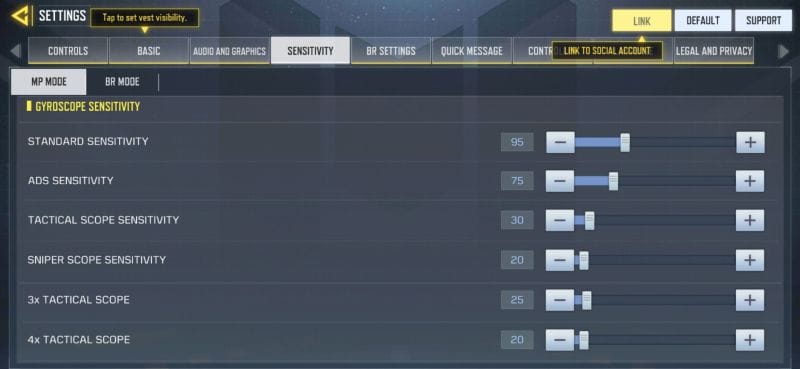
Most players start with the game’s factory defaults: a horizontal sensitivity of 70% and vertical at 65%. Those numbers work for casual play, but they’re a compromise—optimised for the average hand size and grip style.
Before you dive into tweaking, take a minute to note where you’re at. Open the settings menu, tap Control, then Gyroscope Sensitivity. Screenshot the values; you’ll want a reference point for later.
Horizontal vs. Vertical
- Horizontal (Yaw): Controls left‑right movement. Most shooters favour a slightly lower Yaw to keep horizontal drift manageable.
- Vertical (Pitch): Governs up‑and‑down aim. A higher Pitch can help track enemies jumping or moving on stairs, but it may also cause over‑correction when you look up.
Finding Your Sweet Spot
There’s no universal “perfect” number—your ideal sensitivity hinges on grip, device weight, and personal comfort. The trick is to make incremental adjustments and test them in realistic scenarios.
Step‑by‑step tweak
- Start low. Reduce both horizontal and vertical values by about 10% from the default.
- Enter a training mode. Use the Practice Range or any low‑stakes match. Aim at static targets and note how quickly you can align the crosshair.
- Gradually raise one axis. Increase horizontal by 5% while keeping vertical constant. If you notice the crosshair overshooting when you swing your wrist, dial back.
- Switch focus. Now adjust vertical in 5% increments. Pay attention to how smoothly you can track enemies climbing or dropping.
- Repeat. Cycle between the two axes until the movement feels “just right”—fast enough to react, yet controlled enough to stay on target.
During this process, keep an eye on your muscle fatigue. If you find yourself unintentionally shaking the phone, the sensitivity is likely too high for your hand strength.
Pro Tips for Different Playstyles
Whether you’re a run‑and‑gun fanatic or a patient sniper, tailoring the gyroscope to your style can shave milliseconds off your reaction time.
- Run‑and‑Gun (SMG, AR): Favor a slightly higher horizontal value (75‑80%) to swivel quickly around corners. Keep vertical modest (60‑65%) to avoid vertical jitter when you’re constantly strafing.
- Sniper/Marksman: Drop horizontal to 55‑60% for steadier tracking, then boost vertical to 70‑75% so you can smoothly follow targets at different elevations without moving the whole device.
- Control‑Heavy (Shotgun, Close‑Quarters): Balance both axes around 65‑70%. Too much swing can make you overshoot in tight spaces.
Don’t forget to adjust your Gyro Deadzone as well. A small deadzone (around 1–2%) helps eliminate accidental drift, especially on larger phones.
Common Pitfalls to Avoid
Even seasoned players stumble into a few traps when customizing gyro settings.
- Over‑tuning. Jumping from 70% to 95% in a single go usually leads to frantic, uncontrollable aim. Small, measured steps are key.
- Ignoring device variance. Older iPhones and low‑end Androids may have less accurate gyroscopes. In those cases, keep sensitivity on the conservative side.
- Neglecting practice. Changing settings without testing in real matches can give a false sense of improvement. Always validate in both training and live games.
- Forgetting to reset. If you feel off after a long session, revert to your saved screenshot values. A quick reset can clear muscle memory that’s adapted to an unsuitable setting.
Finally, remember that the “best” setting is a moving target. As you upgrade your device, grow more comfortable with the gyroscope, or shift to a different weapon class, you’ll likely need to revisit these numbers.