How to Fix a DSC Alarm Trouble Light in Minutes
Seeing that red trouble light on your DSC security panel can be unnerving, especially when you’re not sure what triggered it. Most homeowners discover the issue while stepping out for the day, only to return to a blinking warning that seems to scream “something’s wrong.” This guide walks you through the most common causes and offers a quick, practical fix so you can restore peace of mind without waiting for a technician.
Understanding the DSC Security System Trouble Light
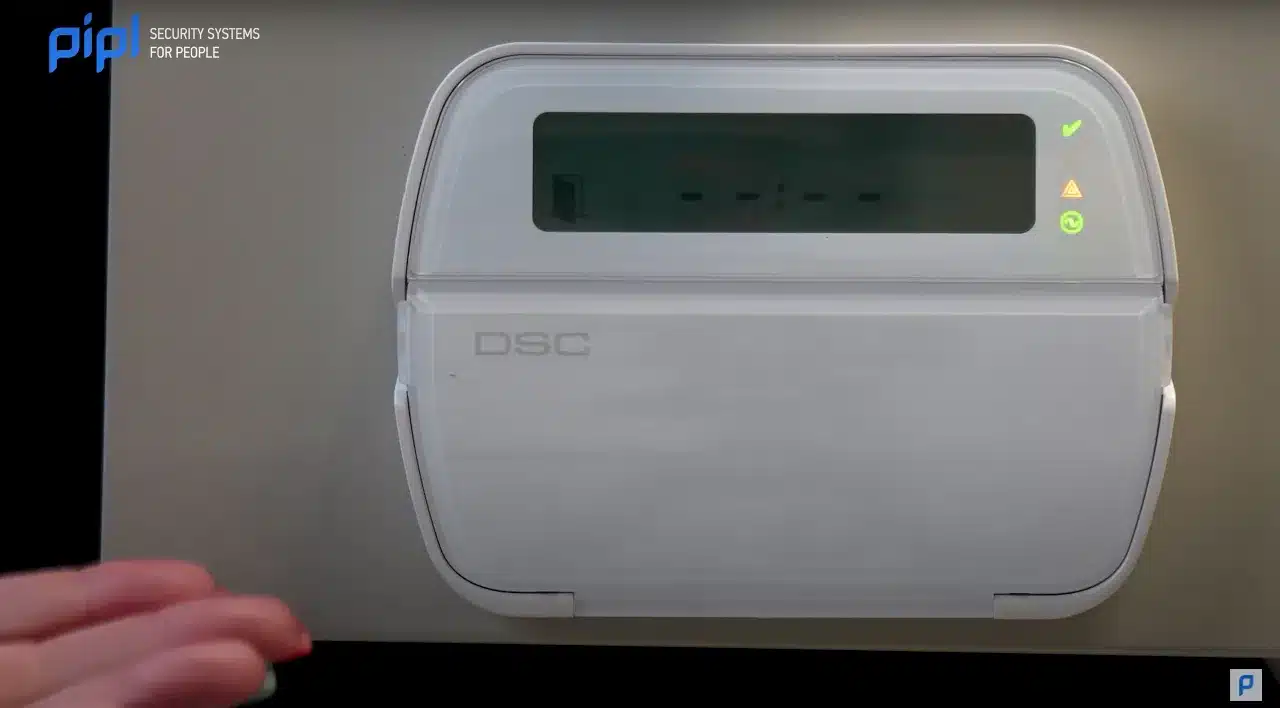
The trouble light on a DSC panel isn’t just a decorative LED; it’s the system’s way of flagging a fault that could affect your alarm’s reliability. When the light glows steady or flashes, it usually means the panel has detected a condition that needs attention—anything from a low battery to a sensor that’s out of range.
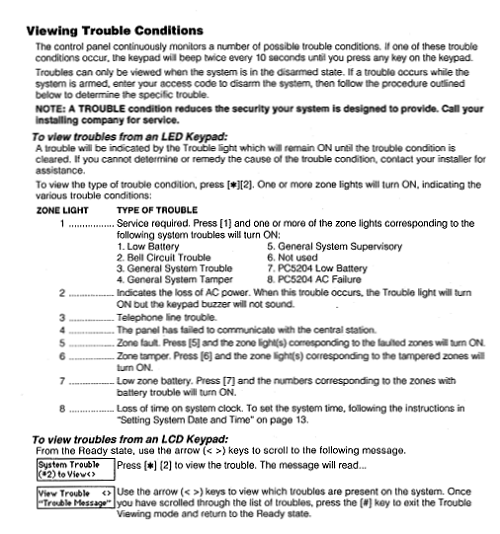
Because DSC units are designed to be self‑diagnosing, the panel will often give you a clue about the specific issue through a series of beeps or a diagnostic code displayed on the LCD. Knowing how to interpret those signals is the first step toward a swift resolution.
Common Triggers for the Trouble Light
Before you dive into a full reset, it’s helpful to know the usual suspects that set the light on:
- Power problems: A weak main power source or a failing backup battery can cause intermittent voltage drops.
- Sensor issues: A door/window contact that’s jammed, a motion detector with a dead battery, or a wireless sensor out of range.
- Wiring faults: Loose or corroded connections in the control panel or at a peripheral device.
- Environmental factors: Extreme temperatures or humidity affecting the internal circuitry.
Identifying which of these categories matches your situation will narrow down the troubleshooting path and save you time.
Quick Fix Checklist
Grab a pen, keep the panel’s user manual handy, and run through this short list. Most homeowners find that the trouble light disappears after completing just one or two steps.
- Ensure the main power cord is firmly plugged in and that the outlet isn’t tripped.
- Check the backup battery voltage; replace it if it reads below 12 V.
- Inspect all door/window contacts for proper alignment and clean any debris.
- Verify that wireless sensors show a solid signal strength indicator on the panel.
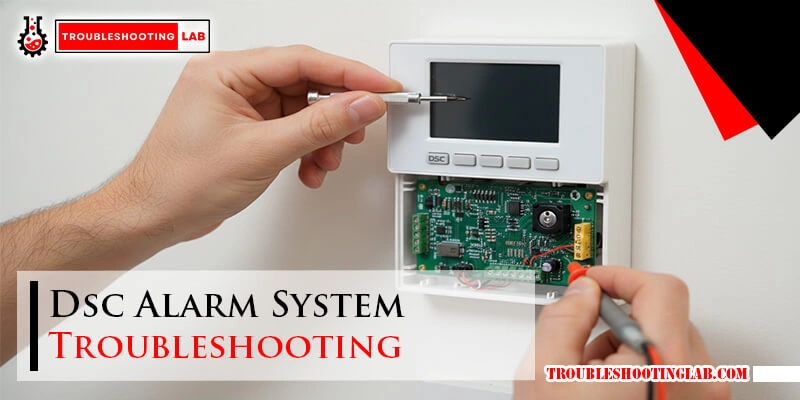
- Look for any loose wires inside the panel’s terminal block—tighten if necessary.
Step‑by‑Step Reset Procedure
If the quick checklist didn’t clear the light, a systematic reset often does the trick. Follow these steps, pausing briefly after each to see if the trouble light turns off.
- Power down the panel: Disconnect the AC adapter, then remove the backup battery. Wait about 30 seconds to let residual charge dissipate.
- Re‑install the battery: Insert the backup battery, ensuring the polarity matches the markings.
- Restore AC power: Plug the adapter back in. The panel should power up and run a self‑test.
- Enter programming mode: Use your user code followed by the “*” key (or the specific sequence listed in your manual) to access the diagnostics menu.
- Clear fault codes: Navigate to the “Clear All Faults” option and confirm. The trouble light should go out if the issue was transient.
- Test the system: Arm the system in “stay” mode, open a door, and then disarm. If the panel acknowledges the event without a warning, you’re good to go.
When a Simple Reset Isn’t Enough
Sometimes the trouble light persists despite the steps above. At that point, the fault is likely deeper—perhaps a failing control board, a sensor that needs replacement, or a wiring short that isn’t obvious on visual inspection. Continuing to ignore the warning can compromise the entire security network.
If you’ve verified power sources, batteries, and sensor integrity, and the light still glows, it’s wise to call a certified DSC technician. Professional diagnostics can uncover hidden issues like internal component wear or firmware glitches that require specialized tools.
Tips for Preventing Future Trouble Lights
Proactive maintenance is the best antidote to recurring alerts. Schedule a brief inspection twice a year, focusing on battery health and sensor placement. Also, keep the panel’s firmware up to date—DSC releases occasional patches that improve reliability and address known bugs.
Lastly, avoid placing sensors near sources of interference such as large metal objects or Wi‑Fi routers, as these can cause signal drops that the panel interprets as faults.
FAQ
Q: Why does the trouble light flash instead of staying solid?
A: A flashing light typically indicates a transient issue, like a momentary power dip or a sensor that briefly lost contact. Resetting the panel often clears it.
Q: Can I replace the backup battery myself?
A: Yes, most DSC panels use a standard 12‑V sealed lead‑acid battery. Just be sure to disconnect power first and match the voltage and size specifications.
Q: What does a “low battery” beep pattern sound like?
A: The panel will emit a series of short beeps (usually three) followed by a pause, repeating the cycle. The user manual lists the exact pattern for each fault.
Q: Is it safe to ignore a trouble light for a few days?
A: It’s not recommended. Even a minor fault can evolve into a full‑system failure, leaving you vulnerable during a break‑in or fire.