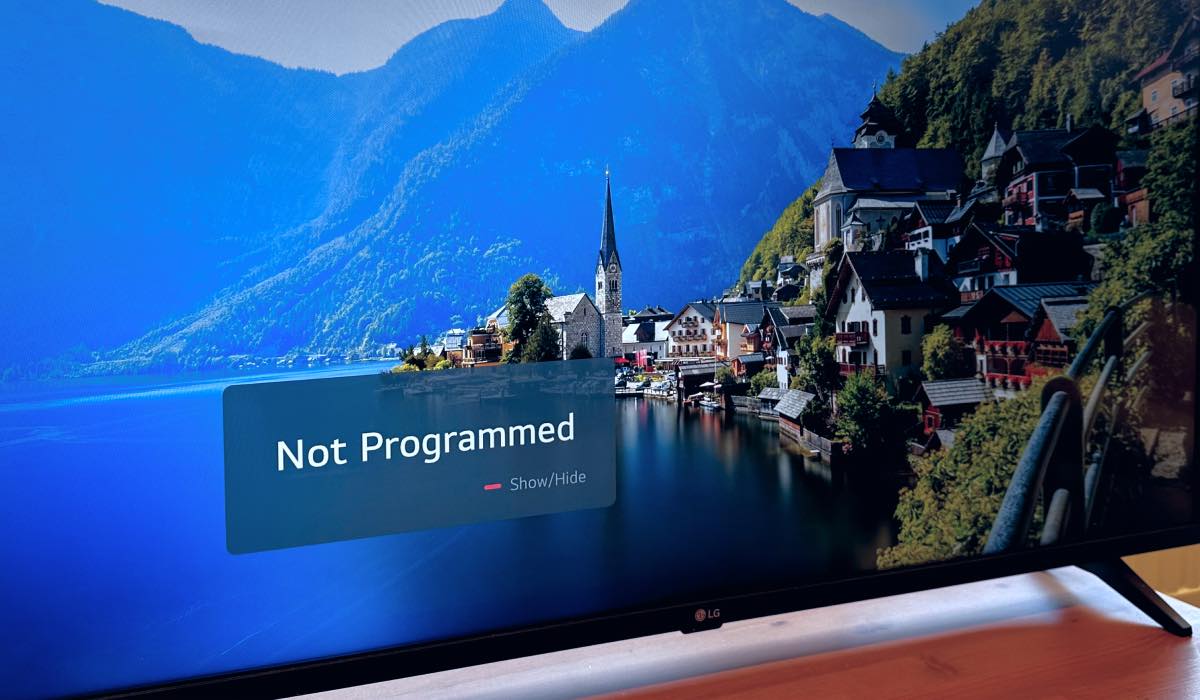
How to Fix a TV That Won’t Program: Simple Steps
Why Your TV Might Refuse to Program
Most of the time, a TV that won’t accept a channel lineup or a streaming app isn’t broken beyond repair. Often it’s a hiccup in the setup flow, a stray setting, or a simple connection issue. Understanding the common culprits helps you target the right fix without pulling the whole unit apart.
Step 1: Verify the Basics
Before you dive into menus, double‑check the obvious.
- Is the power cord firmly seated?
- Are the input cables (HDMI, coax, antenna) snug?
- Is the remote’s batteries fresh?
A loose plug can masquerade as a software glitch, so a quick visual inspection saves a lot of time.
Step 2: Reset the TV’s Settings
A soft reset clears temporary glitches. Most brands let you do this without unplugging.
- Navigate to Settings > System > Reset (or similar wording).
- Select “Reset to Factory Defaults” if you’re comfortable re‑entering your preferences later.
If the menu is unresponsive, a hard reset—unplugging the TV, waiting 60 seconds, then plugging it back in—often does the trick.
Step 3: Check Your Source Signal
A TV can appear unprogrammed simply because it can’t detect a signal.
- For over‑the‑air TV, run a channel scan: Settings > Channels > Auto‑scan.
- For cable or satellite, ensure the box is turned on and the correct input (e.g., HDMI 1) is selected.
- If you use an antenna, adjust its direction slightly; a stronger signal often appears in the channel list right away.
Step 4: Update the Firmware
Outdated firmware can prevent the TV from recognizing new apps or certain broadcast standards.
Most smart TVs let you check for updates under Settings > About > Software Update. Connect the TV to the internet via Wi‑Fi or Ethernet, then follow the on‑screen prompts. The process can take several minutes, but it often resolves hidden bugs.
Step 5: Re‑Enter Your Streaming Accounts
If the issue is with apps rather than channels, a fresh login can clear corrupted credentials.
- Open the app menu, highlight the offending app, and choose “Log Out.”
- Close the app, then reopen and sign in again using your username and password.
- Some platforms (Netflix, Hulu) also offer a “Refresh” option that forces the TV to pull the latest account data.
Step 6: Tackle Network Hiccups
A flaky Wi‑Fi connection can make it seem like the TV refuses to load programs.
- Restart your router: unplug, wait 30 seconds, plug back in.
- Move the TV closer to the router, or consider a wired Ethernet connection for a more stable link.
- On the TV, go to Settings > Network > Reset Network Settings and reconnect to your Wi‑Fi.
Step 7: Examine Parental Controls and Region Locks
Sometimes a TV’s internal safety settings block certain channels or apps unintentionally.
Check under Settings > Security > Parental Controls. If a PIN was set up long ago, you might need to reset it using the manufacturer’s support page.
Step 8: Consult the Manufacturer’s Support
If none of the above steps revive the programming function, it’s time to look at the warranty or support options.
- Visit the brand’s official support site; most have a “Live Chat” or “Call Back” feature.
- Have the model number, serial number, and a brief description of what you’ve tried ready. It speeds up the troubleshooting.
Quick‑Reference Checklist
- Power and cable connections secure
- Soft or hard reset performed
- Signal source verified and scanned
- Firmware updated to latest version
- Streaming apps re‑logged
- Network refreshed or wired
- Parental controls checked
- Manufacturer support contacted if needed
Most “TV not programmed” woes resolve with one of these straightforward steps—no need to call a repair tech just yet.