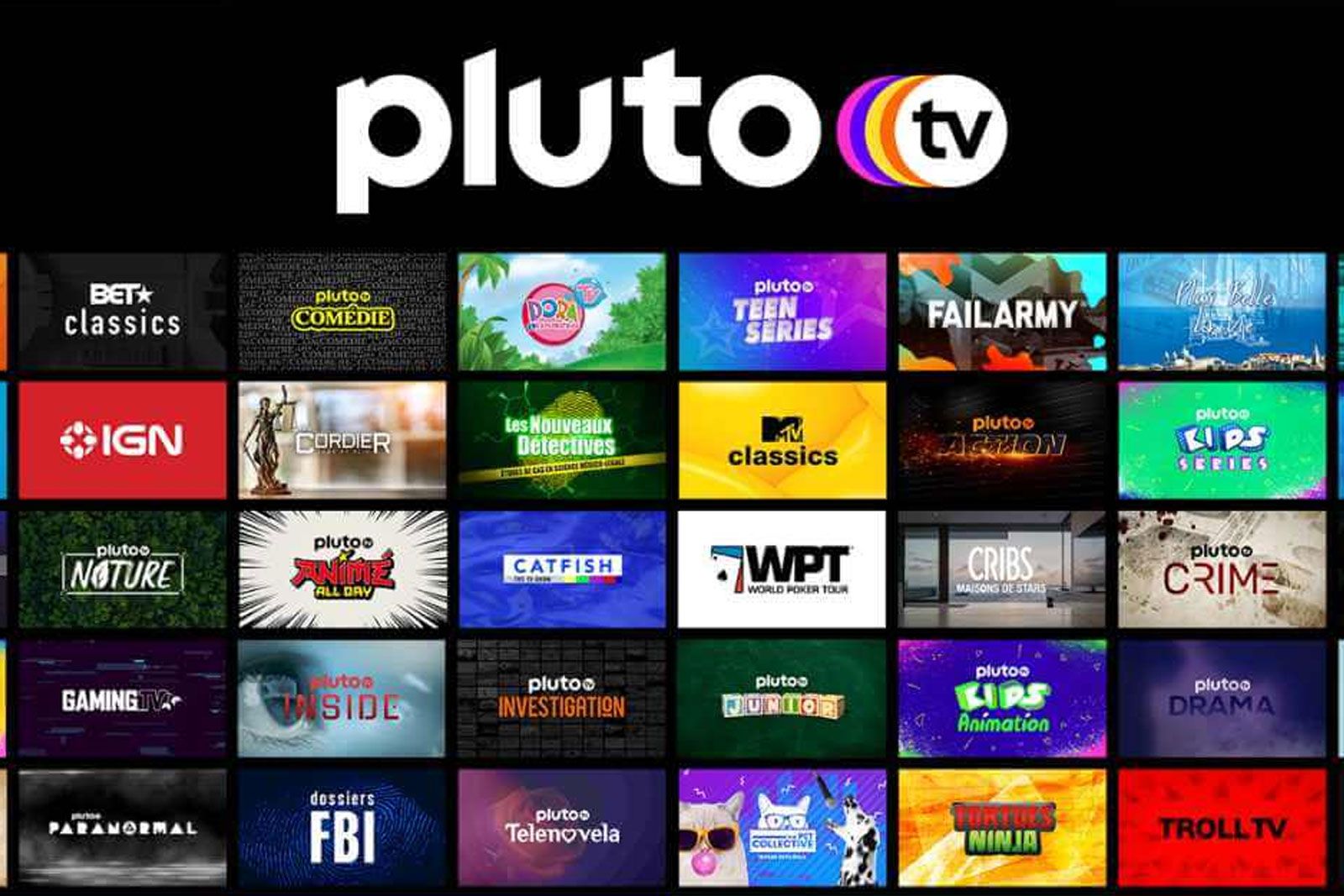
How to Fix Common Pluto TV Problems on Your Smart TV
Pluto TV is a great way to stream free channels, but it can be frustrating when the app stalls, buffers endlessly, or refuses to launch on your smart TV. Below is a practical guide that walks you through the most common hiccups and, more importantly, how to resolve them without calling a tech‑support line.
Why Pluto TV Might Misbehave on a Smart TV
Most issues stem from three sources: an unstable internet connection, outdated software, or a corrupted app cache. Smart TVs also juggle multiple background processes, so a single misstep can cause the Pluto TV app to freeze or display a black screen. Understanding the root cause helps you target the right fix rather than trying every solution blindly.
Quick First‑Aid: Basic Checks
- Restart the TV. Power it off, unplug for 30 seconds, then plug back in. This clears temporary memory glitches.
- Test your internet. Open another streaming app (YouTube, Netflix) to see if buffering occurs there as well.
- Check the remote. Sometimes a stuck button can send unintended commands that lock the app.
- Confirm the app is up to date. An outdated version may lack recent bug fixes.
Reinstalling the Pluto TV App
If a simple reboot doesn’t do the trick, a fresh install often resets hidden errors.
- Navigate to the app drawer on your TV and highlight Pluto TV.
- Select “Uninstall” or “Remove.” Confirm the prompt.
- Visit your TV’s app store (e.g., Samsung Smart Hub, LG Content Store) and search for “Pluto TV.”
- Download and install the latest version, then launch it to see if the problem persists.
Clearing Cache and Data
Even a newly installed app can retain corrupted temporary files. Clearing them is like giving the app a clean slate.
- Open the Settings menu on your TV.
- Go to “Apps” or “Applications,” then find Pluto TV in the list.
- Select “Storage,” then choose “Clear Cache.” If the issue still appears, also tap “Clear Data” (note: you’ll need to sign in again).
Updating Firmware and the App
Manufacturers release firmware updates to improve compatibility with streaming services. Ignoring them can leave your TV stuck on older protocols that Pluto TV no longer supports.
- Go to Settings → Support → Software Update (or a similarly named option).
- If an update is available, follow the on‑screen instructions to download and install it.
- After the TV restarts, revisit the app store and ensure Pluto TV is updated to the newest version.
Network Tweaks That Often Help
A sluggish or crowded Wi‑Fi network is a frequent culprit for buffering and playback errors.
- Switch to a 5 GHz band. It offers higher speeds and less interference than the 2.4 GHz band.
- Move the router closer. Even a few extra feet can improve signal strength.
- Use a wired Ethernet connection. It eliminates wireless instability altogether.
- Adjust DNS settings. Setting the DNS to Google’s (8.8.8.8, 8.8.4.4) or Cloudflare’s (1.1.1.1) sometimes resolves streaming hiccups.
- Limit other devices. Pause large downloads or streaming sessions on phones and laptops while you’re watching Pluto TV.
When All Else Fails: Factory Reset and Support
If you’ve tried every step above and Pluto TV still refuses to cooperate, a full factory reset may be necessary. This erases all personal settings, so back up any important data first. To reset, locate Settings → General → Reset, then follow the prompts. Should the problem linger after a clean slate, reach out to Pluto TV’s support team—they can confirm whether a regional outage or account issue is at play.
FAQ
Why does Pluto TV keep buffering on my smart TV?
Buffering is usually tied to network speed or congestion. Check your internet bandwidth, switch to a 5 GHz Wi‑Fi network, or try a wired connection. Also, clearing the app’s cache can remove stale data that hampers playback.
Can I use Pluto TV on a TV that doesn’t have the app pre‑installed?
Yes. Most modern smart TVs support side‑loading the app via the manufacturer’s app store. If your TV’s store doesn’t list Pluto TV, consider using a streaming stick (Roku, Amazon Fire TV, or Chromecast) as an alternative.
Do I need a Pluto TV account to watch live channels?
No. Pluto TV offers a fully free experience; you can browse and watch live streams without signing in. Creating an account only unlocks personalized channel lists and the ability to pause or resume content across devices.
:max_bytes(150000):strip_icc()/pluto-tv-activate-prompt-1700-dk-yellow-alt-blur-20902474fe554dfaa7bfc0b227933ded.jpg)