How to Generate Disposable Yahoo Emails Easily – A Simple Guide
Let’s face it: signing up for a newsletter or a one‑time forum often feels like a trap for your inbox. A disposable Yahoo email can be a handy buffer, letting you stay reachable without the clutter. Below is a down‑to‑earth walk‑through that keeps the process quick and the jargon low.
Why a Disposable Yahoo Account Might Come in Handy
It’s not just about dodging spam. A temporary Yahoo address can be useful when you:
- Register for a site that requires email verification but you doubt its longevity.
- Test a web service without exposing your main address.
- Need a quick contact point for a short‑term project.
These scenarios share a common thread: you want an email that works for a while, then can be abandoned without a trace.
Preparing for the Creation Process
Before you jump in, gather a few basics. You’ll need a device with a browser, a fresh password idea, and maybe a secondary phone number if Yahoo asks for verification. No need for anything fancy.
Choosing a Username
Yahoo still allows a decent range of characters—letters, numbers, periods, and underscores. Aim for something nonspecific, like temp2024 or quickmail.xyz. Avoid personal identifiers; the point is anonymity.
Step‑by‑Step Creation
Follow these moves, and you’ll have a functional Yahoo inbox in under five minutes.
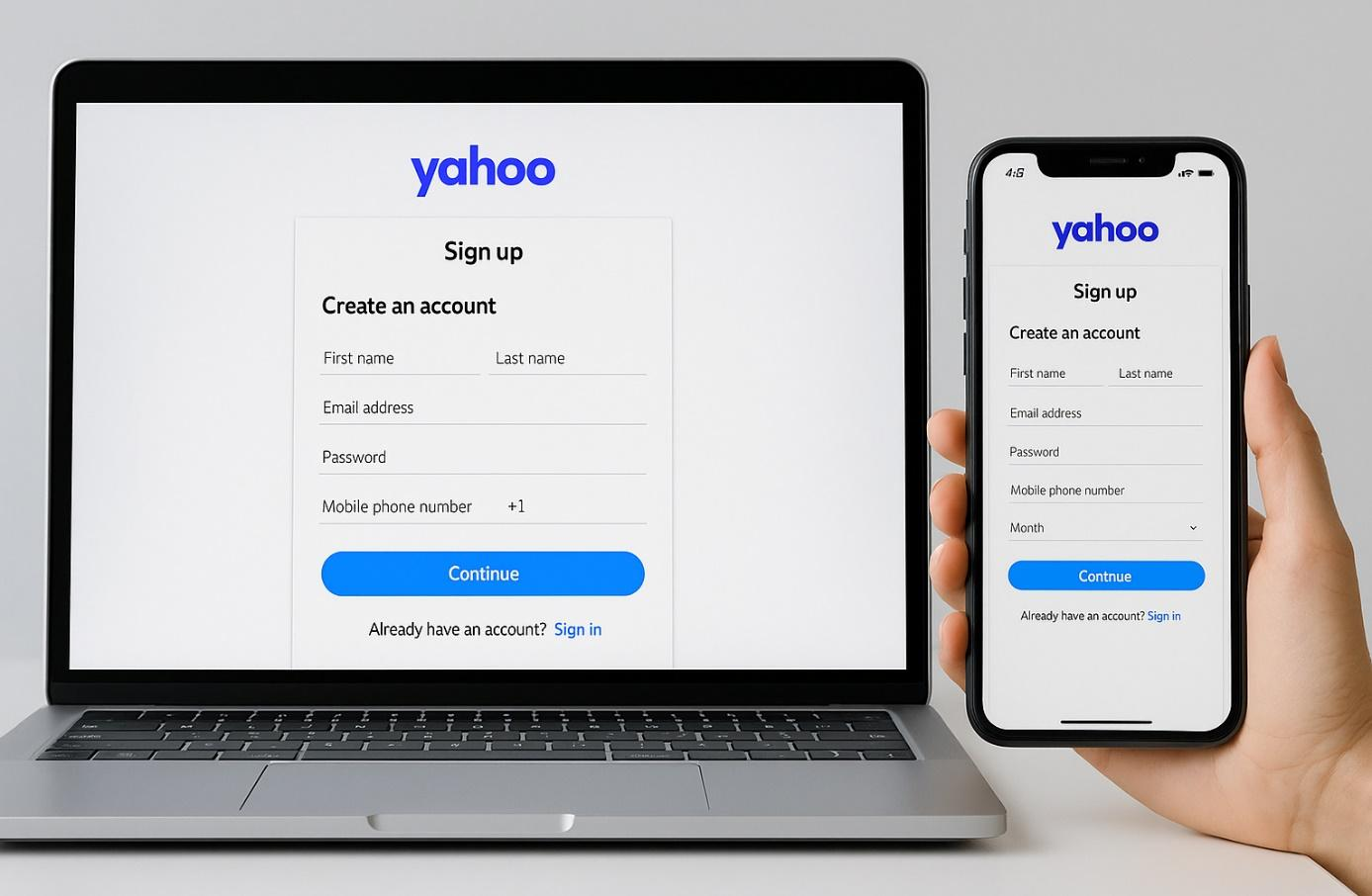
- 1. Open Yahoo’s sign‑up page. A quick search for “Yahoo sign up” lands you at
login.yahoo.com/account/create. - 2. Fill in the form. Enter your chosen username, a strong password, and your mobile number (optional but sometimes required). Keep the password unique; reuse can compromise both accounts.
- 3. Complete the verification. If Yahoo sends a code to your phone, grab it and type it in. Some users report that using a Google Voice number works, but results vary.
- 4. Agree to the terms. Scroll down, tick the boxes, and click “Continue.” Nothing else needs tweaking.
- 5. Skip profile customization. Yahoo will prompt you to add a recovery email or personalize the inbox. Feel free to skip—it’s a disposable setup.
- 6. Test the address. Send a test email from another account. If it lands, you’re good to go.
That’s it. No hidden steps, no need to install extra software.
Tips for Keeping It Low‑Maintenance
A disposable mailbox works best when you treat it like a single‑use tool.
- Set a short expiration reminder. Mark a calendar for a week or two after creation, then simply stop checking.
- Don’t link it to critical services. Use it only where a disposable address is appropriate.
- Enable basic spam filtering. Even a throwaway inbox can get hit with junk; the default Yahoo filters are usually enough.
When the time is up, you can either let the account sit idle—Yahoo will eventually deactivate inactive accounts—or you can manually delete it via the account termination page.
Potential Pitfalls and How to Avoid Them
While the process is straightforward, a few hiccups can crop up.
Verification prompts. Yahoo sometimes insists on a phone verification even if you skip the field. If you don’t have a spare number, consider a temporary SMS service, but keep in mind that some providers are blocked.
Username availability. Popular names are taken quickly. Adding a dash, a year, or a random string usually solves the problem.
Account deactivation. If you never log in, Yahoo might suspend the address after a few months. For a truly disposable scenario, that’s fine; just be aware you won’t retrieve any missed messages.
Wrapping Up the Quick Setup
Creating a disposable Yahoo email doesn’t have to feel like a tech‑heavy chore. With a clear username, a brief verification, and a few mindful choices, you get a functional inbox that shields your primary address from unwanted noise. Use it when you need that extra layer of privacy, and let it fade when the job’s done.