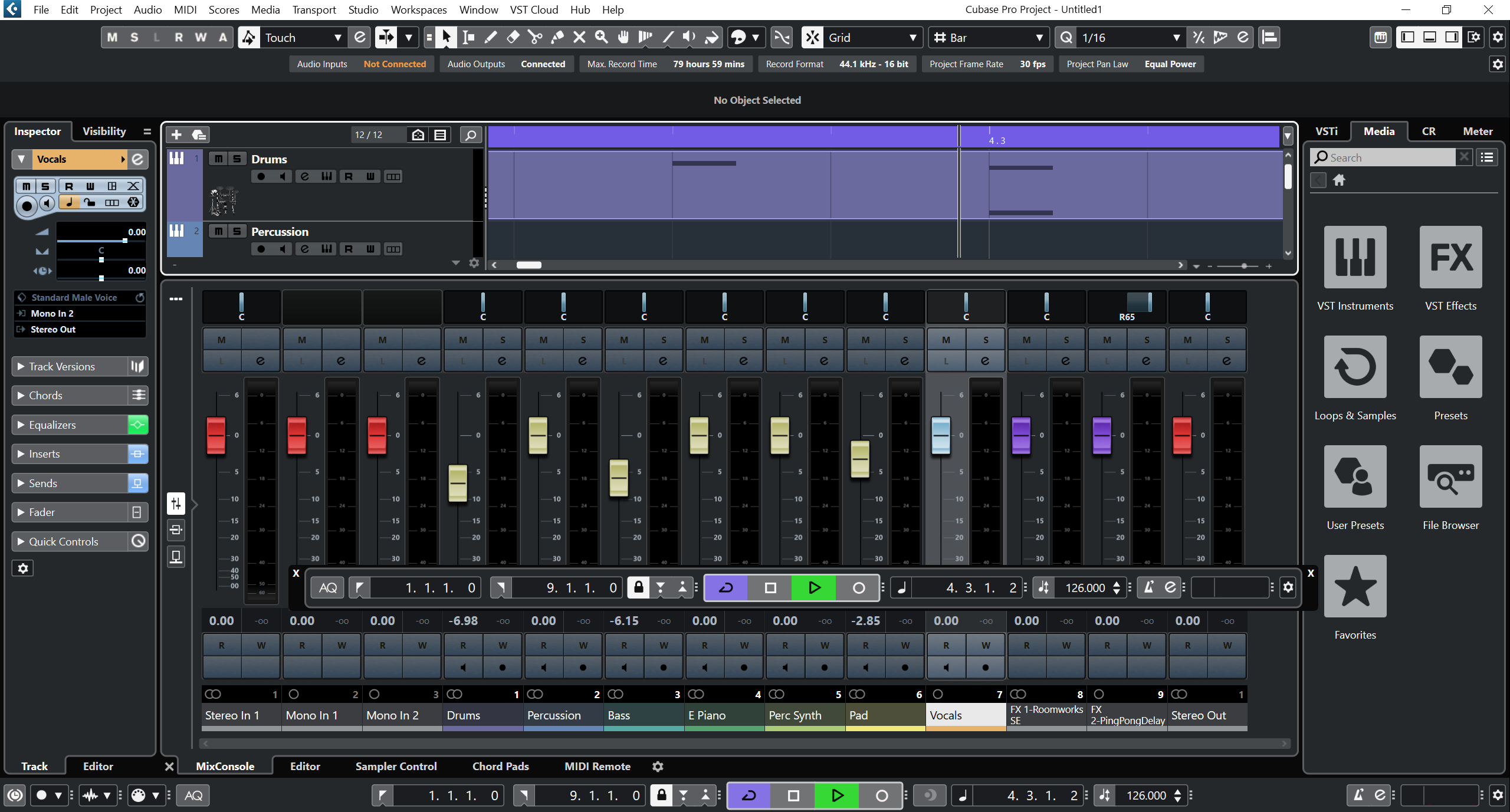
How to Install Cubase 12: A Complete Step‑by‑Step Guide
Got the latest Cubase 12 on your hard drive but aren’t sure where to start? You’re not alone—installing a DAW can feel a bit like assembling a puzzle without the picture on the box. This walkthrough strips away the jargon and walks you through each click, so you can get to making music sooner rather than later.
Before You Begin
First, check that your system meets the basics. Cubase 12 runs on Windows 10/11 (64‑bit) and macOS 10.15 or newer. If you’re on an older OS, the installer will warn you, and you’ll probably hit a wall later.
- Free disk space: at least 10 GB for the program plus room for sample libraries.
- Audio interface: ensure drivers are up to date; FTDI/ASIO are the usual suspects.
- Admin rights: you’ll need them to write to Program Files and the registry.
Having these boxes checked saves a lot of “why won’t it work?” moments later.
Downloading the Installer
The official Steinberg website is the safest source. Head to the Cubase 12 download page, pick the version that matches your OS, and click “Download”. The file will be a .exe for Windows or a .dmg for macOS.
If you have a Steinberg account, sign in before you download—this ties the installer to your license and can smooth the activation step.
Running the Setup
Once the file lands in your Downloads folder, double‑click it. Windows will flash a User Account Control prompt; click “Yes”. macOS will ask if you’re sure you want to open the app—again, confirm.
The wizard is fairly linear:
- Accept the End‑User License Agreement (read it if you have the time).
- Choose an installation path—default is fine unless you have a custom drive.
- Pick components: the core Cubase program, optional VST plugins, and the editor.
- Decide whether to create a desktop shortcut; handy for quick launches.
When you hit “Install”, the progress bar will wobble for a few minutes. Resist the urge to cancel; the installer will clean up after itself if you do.
Activating Your License
After installation, launch Cubase. The first thing you’ll see is the eLicenser Control Center (ELCC). This tiny utility manages your activation keys.
- eLicenser USB dongle: plug it in if you have a hardware key.
- Online activation: enter the serial number you received via email.
Follow the prompts—Cubase will contact Steinberg’s servers, validate the key, and grant you full access. If you hit a “connection failed” error, check your firewall or try again later; it’s rarely a permanent problem.
Configuring Preferences
With the software now unlocked, take a minute to tailor the environment to your workflow:
- Audio buffer size: lower values (e.g., 128 samples) give less latency but demand more CPU.
- VST plugin locations: add any custom folders where you store third‑party instruments.
- Project folders: set a default directory to keep your sessions organized.
These settings stick across restarts, so you won’t have to re‑tune every time you open a new project.
Troubleshooting Common Issues
Even with a smooth install, hiccups happen. Here are a few quick fixes:
- “Cubase won’t start” – try running as administrator or reinstalling the ASIO driver.
- Missing plugins – double‑check that the plugin folders are listed in the Preferences → VST Plug‑Ins.
- Activation failed – make sure your system clock is correct; an off date can trip the server validation.
If none of these work, the Steinberg forums are surprisingly helpful. A search with the exact error message often lands you a solution posted by someone who’s been there.
Now that Cubase 12 sits ready on your machine, the real fun begins—loading a project, laying down a beat, or experimenting with a new synth. Installation is just the first step; the music you’ll create afterward is the whole point.