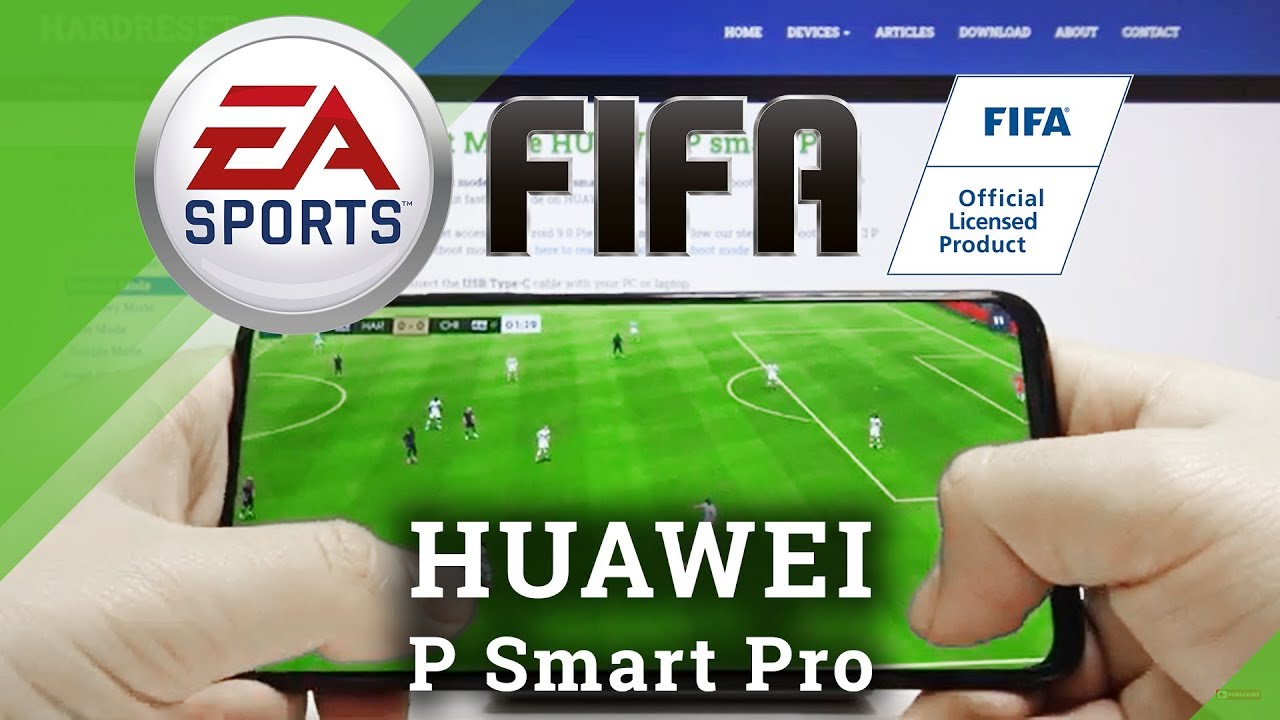
How to Install FIFA Mobile on Huawei Phones – Step by Step
Why the Game Isn’t in the AppGallery
Huawei’s shift away from Google services left a few popular titles stranded. FIFA Mobile, which relies on Google Play for distribution, simply never made it to the official AppGallery. That doesn’t mean you’re out of luck; the game can still run on your device—you just have to take a slightly different route.
Preparing Your Huawei Device
Before you dive into the download, a quick checklist will save you from unnecessary headaches.
- Enable “Install from unknown sources.” Head to Settings → Security and toggle the option for the browser or file manager you’ll use.
- Free up storage. FIFA Mobile needs roughly 1 GB for the app itself, plus extra space for updates and data.
- Check your Android version. The game runs on Android 8.0 (Oreo) and newer, so older devices might struggle.
Downloading the Official APK
The safest way to get FIFA Mobile is from the game’s official source. Visit EA’s APK page, locate the latest FIFA Mobile release, and tap the download button. The file will appear in your Downloads folder.
Installing the APK
Once the download finishes, open the file manager, find the APK, and tap it. You’ll see a brief permission screen—just accept and let the installer do its thing. After a minute or so, the game icon should pop up on your home screen.
Alternative: Using Phone Clone
If you already have FIFA Mobile on another Android phone, Huawei’s Phone Clone makes the transfer painless.
- Install Phone Clone on both devices from the AppGallery.
- Open the app, select “This is the old phone” on the source device and “This is the new phone” on the Huawei.
- Follow the on‑screen QR code pairing, then choose FIFA Mobile from the list of apps to transfer.
The game, along with its data, will copy over—no need to hunt for an APK.
Configuring Game Settings for Huawei
After the first launch, you might notice slower load times. Tweaking a couple of settings can smooth things out:
- Set the graphics quality to “Medium” or “Low” if you experience lag.
- Disable background data for other heavy apps while you play.
- Enable “Battery Saver” mode only if you notice rapid drain; otherwise keep it off for optimal performance.
Troubleshooting Common Issues
Even with everything set up correctly, hiccups happen. Here are the most frequent roadblocks and how to clear them.
App won’t install (“Parse error”)
That usually means the APK is corrupted or incomplete. Delete the file, clear your browser cache, and download it again from the official source.
Game crashes on startup
Try clearing the app cache: Settings → Apps → FIFA Mobile → Storage → Clear Cache. If the crash persists, reinstall the APK after rebooting your phone.
Login problems with EA Account
Because Huawei devices lack Google Play Services, the EA app may struggle with authentication. Open the EA app directly (you can find it in the same folder as FIFA Mobile) and sign in using your email and password rather than “Sign in with Google.”
Keeping FIFA Mobile Updated
EA rolls out patches regularly to add new events and fix bugs. Since you’re sideloading, you’ll need to repeat the download process for each update. A quick tip: bookmark the EA APK page and check it weekly; the newest version will always be at the top.
Is It Worth the Effort?
For many fans, the answer is a resounding yes. FIFA Mobile’s daily challenges and live‑event seasons keep the experience fresh, and the community around it is surprisingly active even on Huawei phones. With a few minutes of setup, you’ll be back on the virtual pitch, competing for those coveted weekly rewards.