How to Install IBO Player on Fire Stick: Step‑by‑Step Guide
Watching live sports, streaming news, or catching the latest series is easier than ever on the Amazon Fire TV Stick. But for fans who crave the IBO Player’s broad catalog of international sports, the default app store doesn’t always have the app. This guide walks you through every step of installing IBO Player on Fire Stick, from preparing the device to troubleshooting common hiccups. Whether you’re a seasoned tech user or a first‑time Fire Stick owner, you’ll find clear, concise instructions that get the job done.
What You’ll Need
- Amazon Fire TV Stick (any model) – The guide works on both original and Fire TV Stick 4K.
- Stable Wi‑Fi connection – A reliable network is essential for downloading the APK and streaming content.
- Android device or computer with internet access – You’ll download the IBO Player APK here and transfer it to the Stick.
- USB drive (optional) – Handy if you prefer transferring files locally instead of over the network.
- ADB (Android Debug Bridge) tool (optional) – For users comfortable with command line, this speeds up the sideloading process.
Step 1: Enable Unknown Sources on Your Fire Stick
Fire TV’s security settings block apps from outside the Amazon Appstore by default. To allow the IBO Player APK you’ll need to toggle the setting.
1. From the Fire Stick home screen, go to Settings → My Fire TV → Developer options.
2. Turn on Apps from Unknown Sources and ADB debugging. A confirmation prompt will appear; accept it.
After enabling these, your Fire Stick will be ready to receive the IBO Player installer.
Step 2: Download the IBO Player APK
Open your web browser on any device, and search for the latest IBO Player APK. Only download from reputable sites that host Android apps, such as APKCombo or the official IBO website. Verify that the file size and version match what’s listed on the source site.
Once the download finishes, keep the file handy – you’ll need to copy it to the Fire Stick in the next step.
Step 3: Transfer the APK to the Fire Stick
You have two main options: wireless transfer via file‑sharing apps, or a USB drive if you’re near your TV.
Option A: Wireless Transfer with Downloader App
- On the Fire Stick, navigate to the Appstore and search for Downloader. Install it.
- Launch Downloader and enter the direct URL to the downloaded APK (copy the link from your browser’s address bar).
- Follow the on‑screen prompts to download and install the APK.
Option B: USB Transfer
- Copy the APK file to a USB flash drive that’s formatted in FAT32.
- Plug the USB into the Fire Stick’s USB port.
- In the Fire Stick menu, go to Settings → Storage & Reset → USB Storage → Open file manager (you may need a file‑manager app like ES File Explorer from the Appstore).
- Navigate to the USB drive, locate the APK, and select it to initiate installation.
Step 4: Install IBO Player
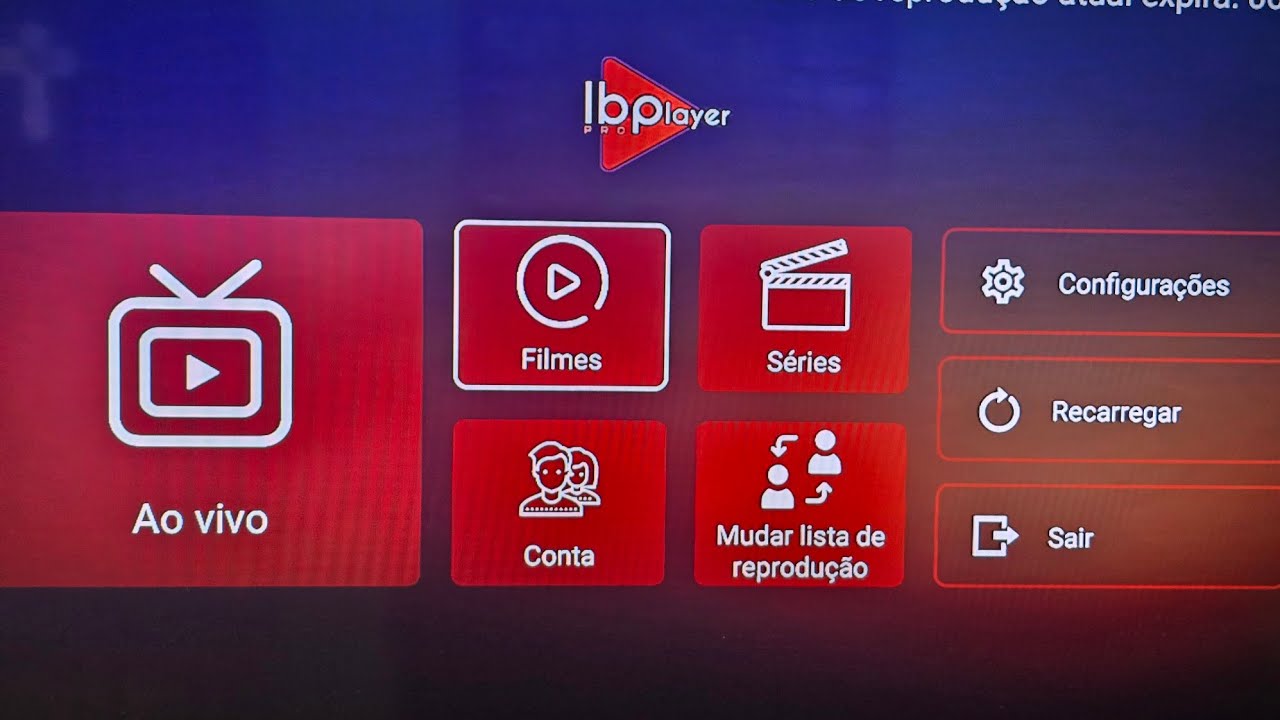
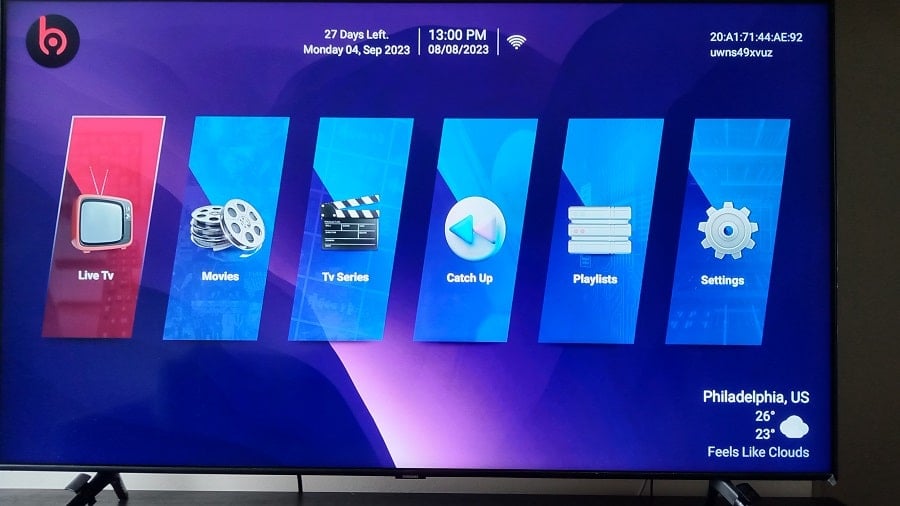
Once the APK file appears on your Fire Stick, a prompt will ask if you want to install the app. Confirm to proceed. The installation process usually completes within a minute. When finished, you’ll see an IBO Player icon on your home screen or in the Apps folder.
Step 5: Launch and Set Up
Open IBO Player. The first launch will prompt you to log in or create an account. If you already have a subscription, enter your credentials. Otherwise, follow the on‑screen wizard to sign up. Once logged in, the app will sync your preferences and ready you for streaming.
Adjust playback settings if desired: navigate to Settings → Playback Quality and choose the resolution that matches your internet speed. For most users, 720p is a safe balance between quality and buffering.
Step 6: Optimize for Performance
- Keep Wi‑Fi strong: The Fire Stick should stay within 20 feet of your router for optimal throughput.
- Close background apps: Use the Home button, then Back repeatedly to exit other apps and free up memory.
- Restart the Fire Stick: If you notice stuttering, rebooting often solves minor glitches.
Troubleshooting Common Issues
1. App won’t launch after installation. Make sure you enabled “Apps from Unknown Sources.” If that’s already on, try uninstalling and reinstalling the APK.
2. Streaming buffers or freezes. Verify your internet speed. For 1080p, aim for at least 5 Mbps; for 720p, 3 Mbps is sufficient.
3. Error “Signature mismatch.” This occurs if the APK has been modified. Re‑download from the official source and try again.
4. Fire Stick keeps rebooting. Disable ADB debugging and Unknown Sources, then re‑enable them. A fresh reset of developer options can help.
FAQ
Do I need an IBO Player subscription to use the app on Fire Stick?
IBO Player offers both free channels and premium packages. Free channels provide basic sports coverage, while a paid subscription unlocks high‑definition streams and exclusive events.
Is it safe to install IBO Player from third‑party sites?
Yes, if you download the APK from reputable sources that verify the app’s integrity. Avoid sites that host multiple bundled or altered APKs.
Can I use IBO Player on other Amazon devices?
The app is designed
![IBO Player Firestick [Download & Install] 2024 - Watch TV Online](https://internettvdotcom.com/wp-content/uploads/2023/08/3.-IBO-Player-Installed.jpg)

