How to Install OpenWRT on a Tenda AC23 Router
If you’re tired of the stock firmware’s limitations and want a router that can actually keep up with your smart home, the Tenda AC23 is a surprisingly solid candidate for OpenWRT. The process isn’t as intimidating as you might think, and the payoff—customized firewall rules, VLANs, mesh capabilities—can be worth the few minutes you’ll spend in the terminal.
Why Choose OpenWRT for the AC23?
OpenWRT turns a consumer router into a Linux‑based platform. That means you get:
- Fine‑grained control over Wi‑Fi bands and power levels.
- Support for VPN clients and servers without third‑party apps.
- Package manager (opkg) to add only the features you need.
- Regular security updates, even after the vendor stops supporting the hardware.
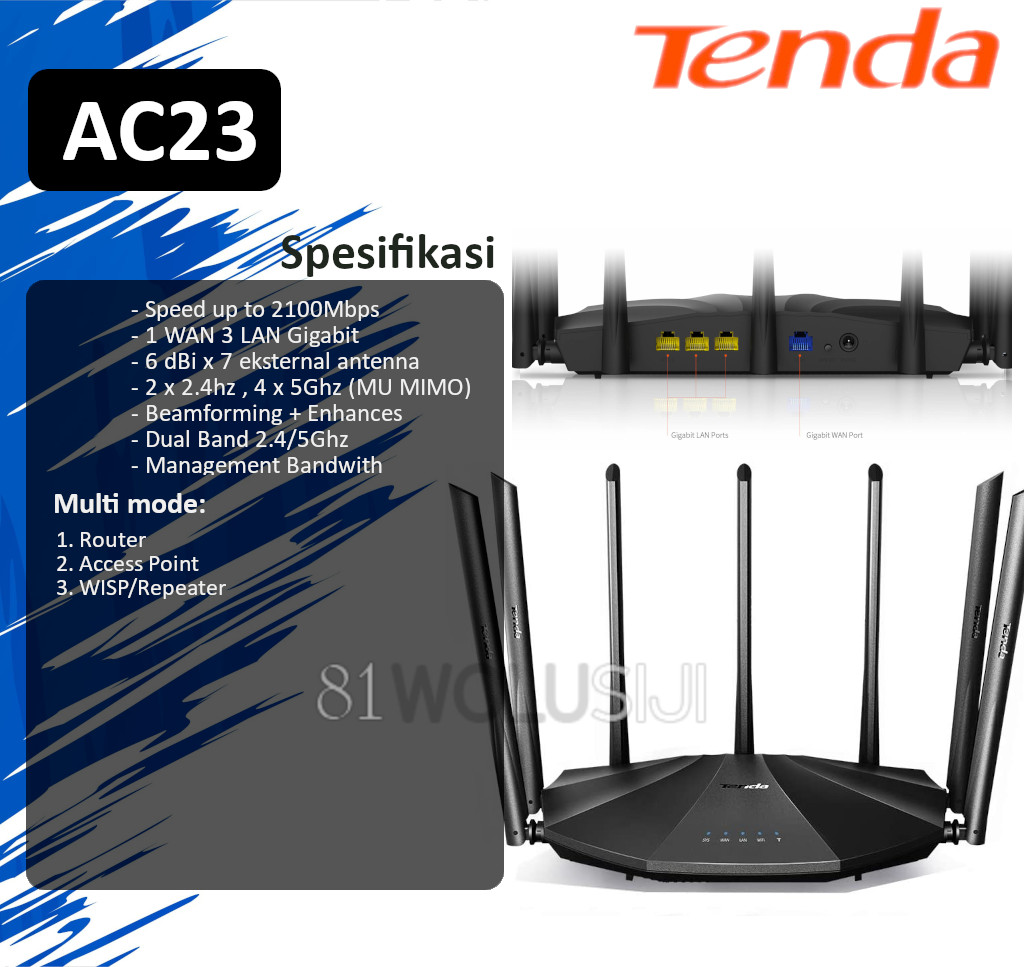
The AC23’s hardware (dual‑core CPU, 128 MB RAM) sits comfortably within OpenWRT’s recommended specs, so performance won’t suffer.
Preparation Checklist
Before you start, gather these items:
- A computer with Ethernet or a reliable Wi‑Fi connection.
- The latest OpenWRT firmware for the Tenda AC23 (look for the “tenda_ac23” build on the OpenWRT download page).
- The Tenda web interface password (default is usually admin if you haven’t changed it).
- A TFTP server or an external USB drive, depending on the flashing method you prefer.
It’s also a good idea to back up the original firmware. While the AC23’s stock UI lets you download a config file, a full binary backup requires a USB stick and the router’s recovery mode.
Step‑by‑Step Flashing Guide
1. Enable Recovery Mode
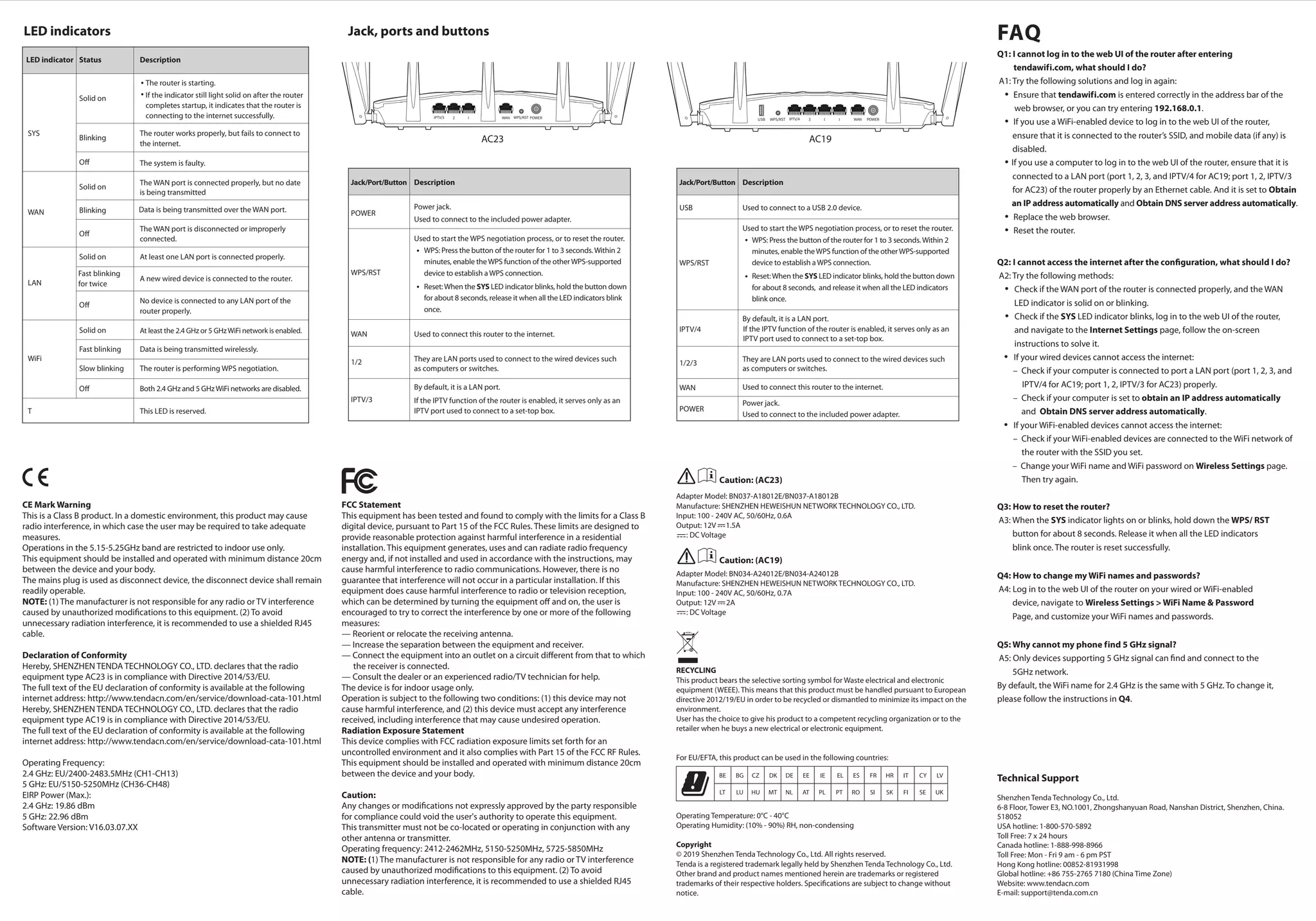
Power off the router, then press and hold the reset button while you plug the power back in. Keep the button held for about 10 seconds until the LEDs flash in a rapid pattern. This signals that the device is listening for a TFTP upload on 192.168.0.66.
2. Set Up Your PC’s Network
Configure your computer’s Ethernet adapter with a static IP in the 192.168.0.x range (for example, 192.168.0.10, mask 255.255.255.0). No gateway is needed; you’re talking directly to the router.
3. Run the TFTP Transfer
Launch a TFTP client (many OSes have one built‑in). The command looks like this:
tftp 192.168.0.66 -c put openwrt-tenda_ac23-squashfs-factory.bin
Replace the file name with the exact name you downloaded. The transfer should finish in a few seconds, after which the router will reboot automatically.
4. Verify the Firmware Swap
Give the router a minute, then reconnect to its new default IP, which is 192.168.1.1 for OpenWRT. Open a browser and you should see the LuCI web interface. The default login is root with a blank password—be sure to set a strong password right away.
5. Optional: Flash Via USB
If TFTP feels too risky, you can use the AC23’s USB port.
- Format a micro‑SD card to FAT32 and place the firmware file on it, renamed to update.bin.
- Insert the card, power on the router, and press the reset button for 5 seconds. The router will detect update.bin and flash it automatically.
- When the LEDs return to steady green, remove the card and let the device boot into OpenWRT.
First‑Time Configuration
After you’re in LuCI, a quick setup wizard will ask for a new root password, your Wi‑Fi SSID, and basic network settings. For most users, leaving the WAN interface on DHCP is fine, but power users often configure a static IP or a PPPoE tunnel.
Don’t forget to install luci-app-upnp if you need automatic port forwarding, or luci-app-wireguard for a low‑overhead VPN. These packages are pulled directly from OpenWRT’s repository with the opkg install command.
Troubleshooting Common Hiccups
- Router stuck in recovery mode. Double‑check the firmware file’s checksum. Corrupt binaries will cause the device to reboot into recovery repeatedly.
- No Wi‑Fi after flashing. Some users need to manually enable the wireless radios via
uci set wireless.radio0.disabled='0'and then commit the change. - Cannot reach the web UI. Ensure your PC’s static IP matches the subnet (192.168.1.x) and that no other DHCP server is interfering.
Expanding the AC23’s Capabilities
Once the basics are stable, OpenWRT invites you to explore more advanced features:
- VLAN tagging for guest networks separated from your main LAN.
- Ad‑blocking with
adblockpackage, keeping the network tidy without extra browser extensions. - QoS rules to prioritize gaming traffic over bulk downloads.
- Mesh networking using the built‑in 802.11s support, letting you add compatible routers for wider coverage.
All of these are configurable through LuCI or the command line, whichever you prefer.
Keeping Your Router Secure
OpenWRT’s advantage is its regular security patches. Set up automatic updates by installing luci-app-autoupdate or schedule a daily opkg upgrade via a cron job. Also, disable SSH password logins and switch to key‑based authentication—a small step that blocks a whole class of brute‑force attacks.
Final Thoughts
Flashing OpenWRT onto the Tenda AC23 isn’t just a hobbyist trick; it’s a practical upgrade that extends the life of a budget router. With a little patience and the steps above, you’ll transform a generic Wi‑Fi box into a fully‑featured network appliance, ready for VPNs, custom firewalls, and even a mesh extension. The learning curve may feel steep at first, but the community forums are full of AC23‑specific tips, so you’re never truly alone.