How to Master Apple’s App Store Connect: A Complete Guide
Whether you’re launching your first iPhone game or maintaining a suite of productivity apps, App Store Connect is the control center that determines how your software reaches millions of users. It’s more than a filing cabinet; it’s the place where you shape your app’s identity, run beta tests, and navigate the sometimes‑opaque review process. This guide walks you through the essential steps, common pitfalls, and a few insider tips to keep your submissions sailing smoothly.
Why App Store Connect Matters for Every iOS Developer
Apple’s ecosystem is tightly curated, and the only way to publish or update an app is through App Store Connect. The platform consolidates everything from pricing and regional availability to crash analytics and revenue reports. Mastering it means you spend less time wrestling with logistics and more time iterating on features that users love.
Getting Started: Setting Up Your Account
Creating an Apple Developer Account
- Visit the Apple Developer website and sign in with your Apple ID.
- Enroll in the Individual or Organization program (the latter is required for team collaboration).
- Complete the annual fee payment—currently $99 USD—and verify your identity as prompted.
- Once approved, you’ll receive an invitation to access App Store Connect.
Navigating the Dashboard for the First Time
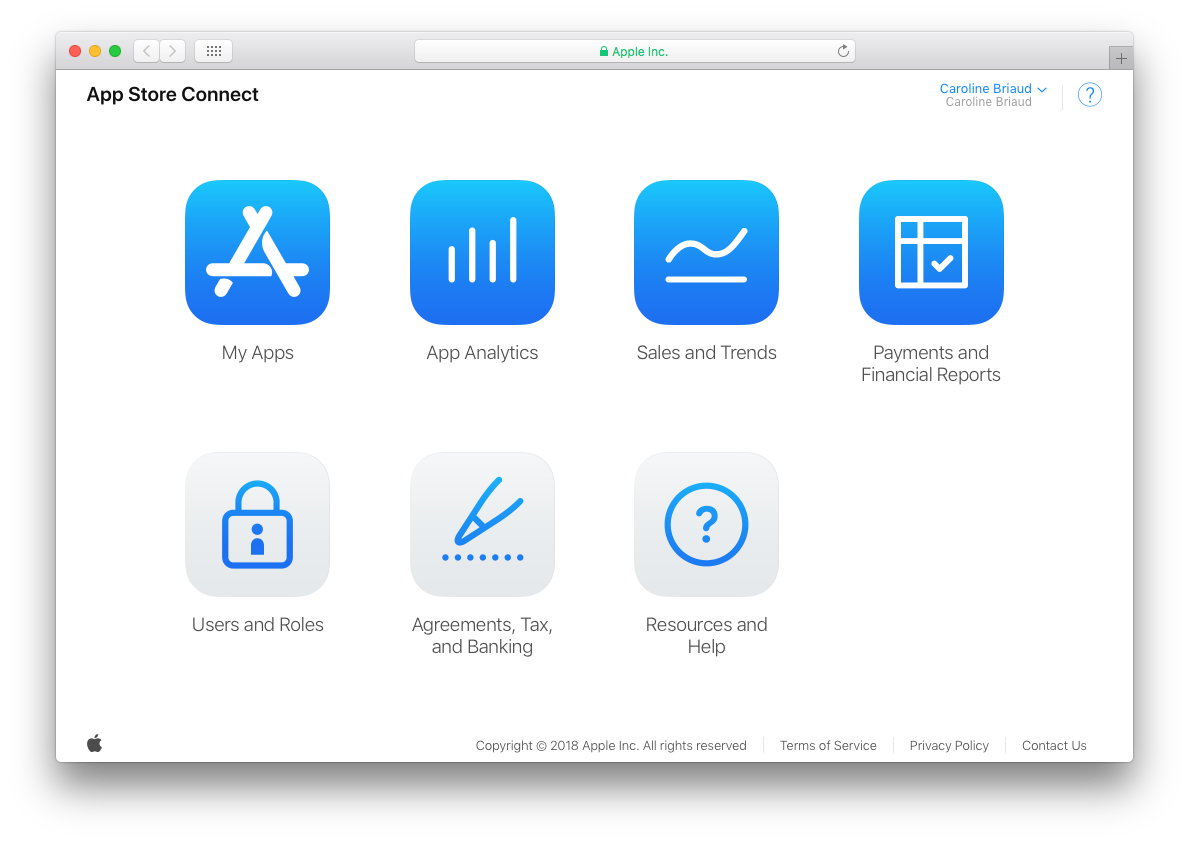
The dashboard opens to a clean grid of tiles: “My Apps,” “TestFlight,” “App Analytics,” and “Payments & Financial Reports.” Click “My Apps” to begin adding a new project, and use the top‑right search bar to locate existing listings. The layout may feel sparse at first, but each section expands into detailed panels once you select an app.
Key Workflows Inside App Store Connect
1. Managing App Metadata
Metadata includes your app’s name, subtitle, description, screenshots, and keywords. Apple recommends concise, benefit‑focused copy—think “Track workouts effortlessly” instead of a laundry list of features. Remember that screenshots must reflect the exact UI version you’re submitting; mismatched images often trigger a review rejection.
2. Uploading Builds with Xcode or Transporter
When you’re ready to ship a new binary, Xcode’s “Archive” command pushes the build directly to App Store Connect. For larger teams or CI pipelines, the Transporter app (available on the Mac App Store) offers a drag‑and‑drop alternative. After upload, the build appears under the “TestFlight” tab, where you can assign it to internal or external testers.
3. Running Beta Tests via TestFlight
- Invite up to 100 internal testers—typically your development team—instantly.
- Submit the build for external testing; Apple will perform a brief review (usually under 24 hours).
- Collect feedback through the built‑in questionnaire or via email, then iterate on the next build.
TestFlight also lets you set expiration dates, which is handy for time‑bound feature trials.
4. Submitting for App Review
Before hitting “Submit for Review,” double‑check these items: correct bundle ID, accurate version number, and a fully completed “App Review Information” section (including demo login credentials if needed). Adding a short “What’s New” note helps reviewers understand the changes at a glance.
5. Monitoring Performance with App Analytics
After your app goes live, the “App Analytics” tab provides insight into installations, active devices, and conversion funnels. Look for spikes in “App Store Impressions” that don’t translate to downloads—these often signal a metadata issue that can be tweaked for better conversion.
Best Practices to Keep Your Submissions Smooth
Stay organized. Use a naming convention for builds (e.g., 1.2.0‑beta‑3) so you can trace feedback to a specific version. Document your review notes. A shared Google Doc with screenshots of reviewer comments helps the whole team respond quickly. Finally, run a final checklist before each submission: screenshots updated, privacy policy URL live, and all required fields filled.
Troubleshooting Common Hurdles
One frequent snag is the “Missing Required Icon” error. Apple expects a 1024 × 1024 px App Store icon in the asset catalog; even a tiny deviation will halt the upload. Another common issue is the “Invalid Bundle Identifier” warning—double‑check that the bundle ID in Xcode matches the one registered in App Store Connect exactly, including case sensitivity. If a review is delayed, use the “Resolution Center” to ask for clarification rather than resubmitting the same build.
Staying Up‑to‑Date with New Features
Apple rolls out App Store Connect enhancements several times a year—most recently, the “App Store Promotions” tool, which lets you create limited‑time discount codes directly from the dashboard. Subscribe to the Apple Developer newsletter or check the “What's New” banner on the homepage to catch these updates early; integrating new features can give your app a competitive edge.
FAQ
What is the difference between internal and external TestFlight testers?
Internal testers are members of your Apple Developer team (up to 100) and can access builds immediately. External testers are anyone with an email address; their builds must pass a brief Apple review before distribution.
Can I change an app’s name after it’s live?
Yes, but the name change requires a new version submission. Keep in mind that the name appears in the App Store search results, so update your keywords accordingly to maintain discoverability.
How often can I submit a new build for review?
Apple doesn’t impose a hard limit, but frequent submissions may trigger a “review backlog” warning. It’s best to batch changes—bug fixes, UI tweaks, and new features—into fewer, more polished builds.