How to Master Wisconsin Police Blotter and Incident Reports
Whether you’re a journalist chasing a story, a researcher tracking local trends, or just a curious resident, the Wisconsin police blotter can feel like a maze of jargon and PDFs. The good news? With a few tricks under your belt, you’ll be able to pull the data you need without spending hours on a municipal website.
What Exactly Is a Police Blotter?
A police blotter is essentially a daily log of law‑enforcement activity—arrests, traffic citations, accidents, and sometimes even community outreach events. In Wisconsin, each municipality publishes its own version, often alongside more detailed incident reports that expand on the brief blotter entry.
Why It Matters
- Spot patterns in local crime or traffic safety.
- Verify the timeline of an event you heard about on the news.
- Gather evidence for community‑advocacy projects.
Where to Find the Blotter and Incident Reports
The first step is locating the right portal. Most Wisconsin cities and counties host their records on official police or municipal websites. A quick Google search for “city name police blotter PDF” usually brings up a direct link.
Here are the most common entry points:
- City Police Department pages – often a “Public Records” or “Community Updates” tab.
- County Sheriff’s Office sites – a “Crime Statistics” section may house both blotters and full reports.
- Wisconsin Open Data portal – aggregates data for multiple jurisdictions in one searchable database.
Decoding the Entries
Blotters are terse by design. A typical line might read:
03/14/2024 – 2200 – 5th & Main – DUI – 2 violators – no injuries.
Break it down:
- Date & Time: First two fields; sometimes a 24‑hour clock is used.
- Location: Intersection or address; if a landmark is listed, consult a map for exact coordinates.
- Offense Code: Abbreviations like DUI, ASSLT, or BURGLAR. A quick look at the agency’s “Code Glossary” (often linked at the bottom of the page) explains each.
- Outcome: Number of arrests, citations, or injuries.
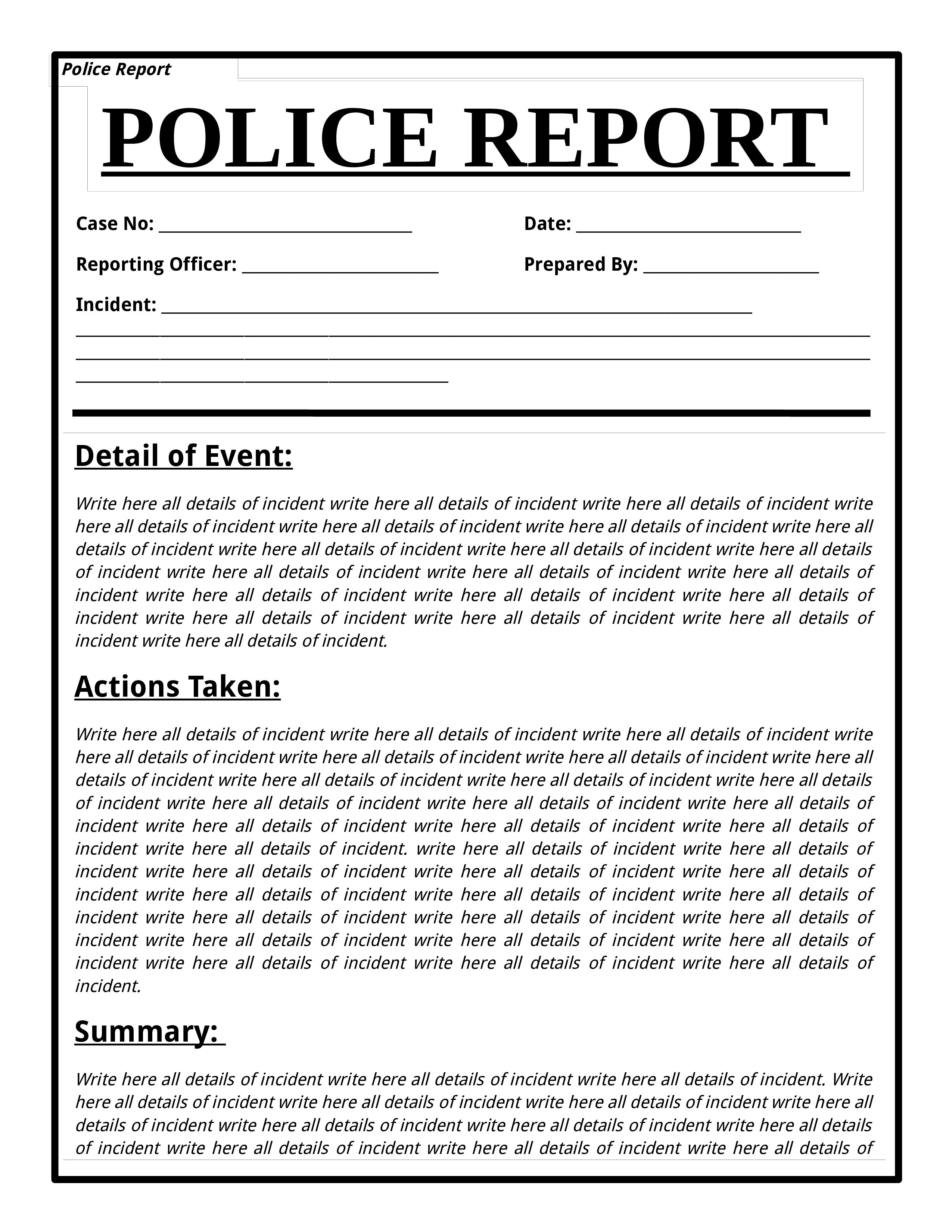
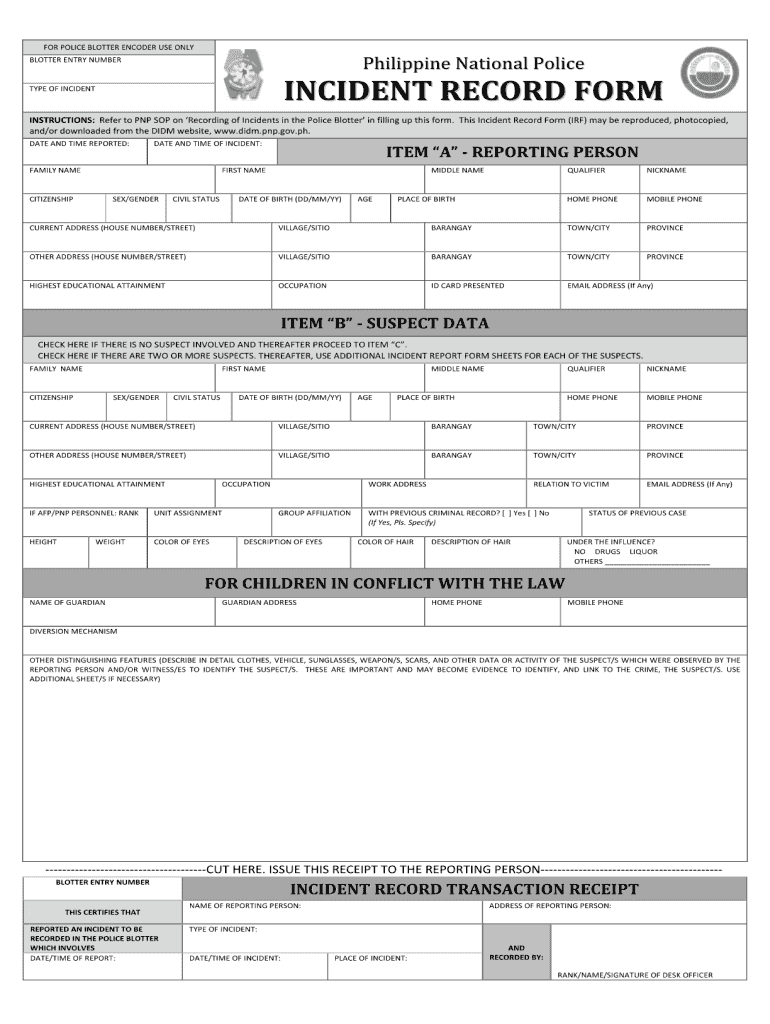
Incident reports expand on this skeleton, offering narrative descriptions, officer names, and sometimes photos. They’re usually available as PDFs or through an online request form.
Tools & Tips for Efficient Searching
Don’t rely on the site’s built‑in search bar alone; it can be limited. Instead, try these methods:
1. Use Google’s Site Search
Type site:cityname.gov "police blotter" "2024" into Google. It bypasses internal search restrictions and often surfaces hidden PDF archives.
2. Filter PDFs with Adobe Reader
Open the PDF and hit Ctrl+F. Searching for keywords like “theft” or a specific address quickly narrows results.
3. Leverage the Wisconsin Open Data API
If you’re comfortable with a bit of code, the state’s open data portal offers an API that returns JSON objects for each blotter entry. A simple GET request can dump months of data into a spreadsheet for analysis.
Common Pitfalls to Avoid
- Assuming completeness – Some smaller towns only publish weekly summaries, not daily logs.
- Overlooking redacted fields – Personal identifiers are often blacked out; don’t mistake a missing name for no suspect.
- Ignoring update schedules – Blotters may be posted every 24‑48 hours, so the latest incident could lag by a day.
Turning Raw Data Into Insight
Once you’ve gathered the entries, consider these simple analyses:
- Frequency charts – Plot incidents by month to see seasonal spikes.
- Heat maps – Use a free GIS tool to visualize hotspots across neighborhoods.
- Comparative tables – Line up similar offenses across adjacent counties for a regional view.
Even a basic spreadsheet can reveal trends that would otherwise stay buried in a wall of text.
Staying Within the Rules
Wisconsin’s Open Records law grants public access, but it also protects certain details. When you publish findings, make sure to:
- Omit names of minors and any redacted personal data.
- Credit the source agency—most require a simple “Source: City of ___ Police Department.”
- Check for any local restrictions on redistribution of PDF files.
Quick Reference Checklist
- Identify the correct municipal site or Open Data portal.
- Use Google site search for faster PDF discovery.
- Consult the agency’s code glossary for abbreviations.
- Apply filters (date, location, offense) in Adobe Reader.
- Consider API access for bulk data needs.
- Respect privacy redactions and citation requirements.