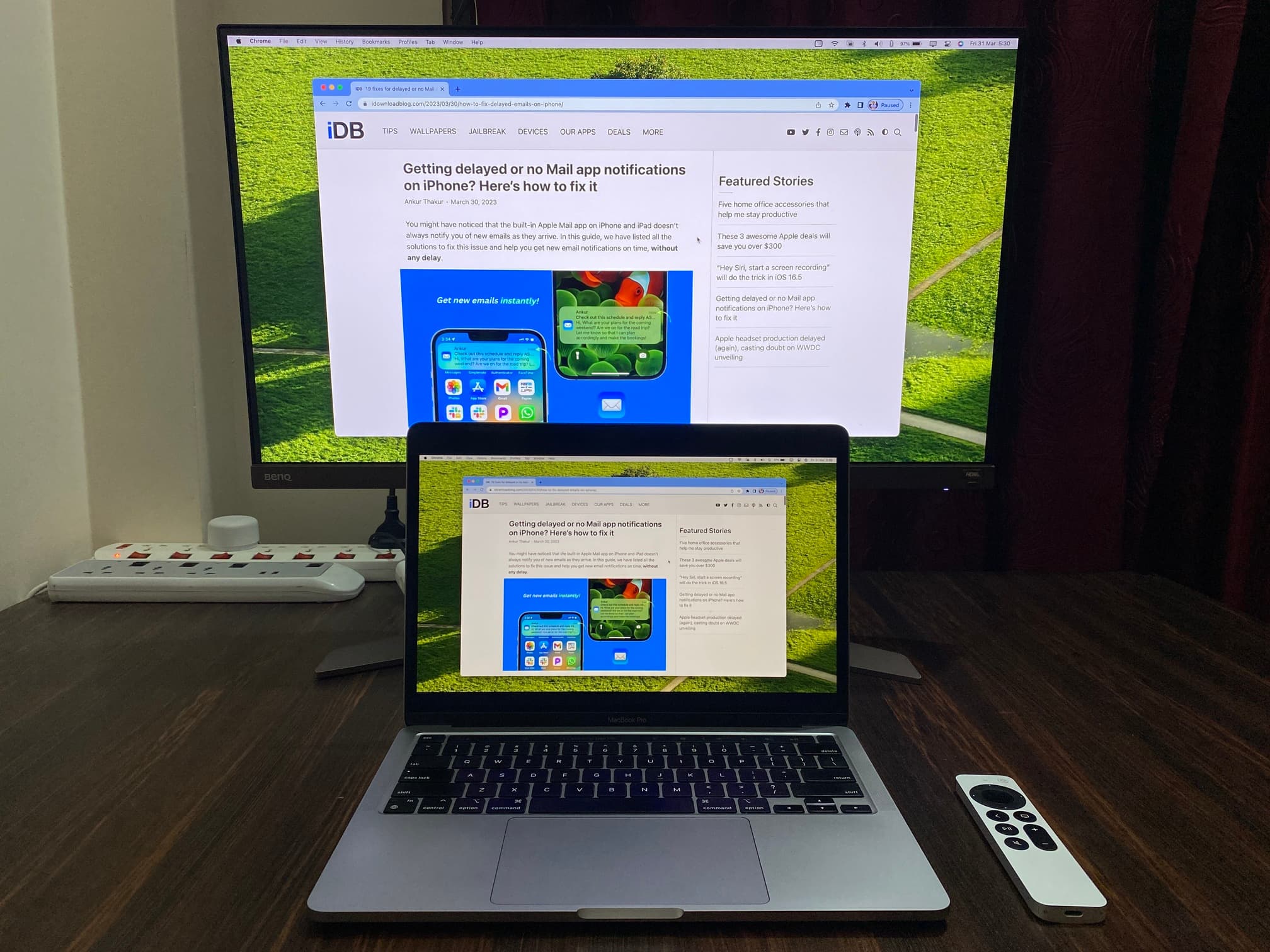
How to Mirror Your Mac to a TV Without Hassle
Ever tried to pull a presentation from your Mac onto the living‑room screen and ended up with a pixelated mess or a stubborn “no signal” message? You’re not alone. The good news is that, with a few simple steps, you can turn any modern TV into an extension of your Mac—perfect for movies, slideshows, or a bigger workspace.
What You’ll Need
- A Mac running macOS 12 Monterey or later (most recent models work fine).
- A TV with either an HDMI input or built‑in AirPlay 2 support.
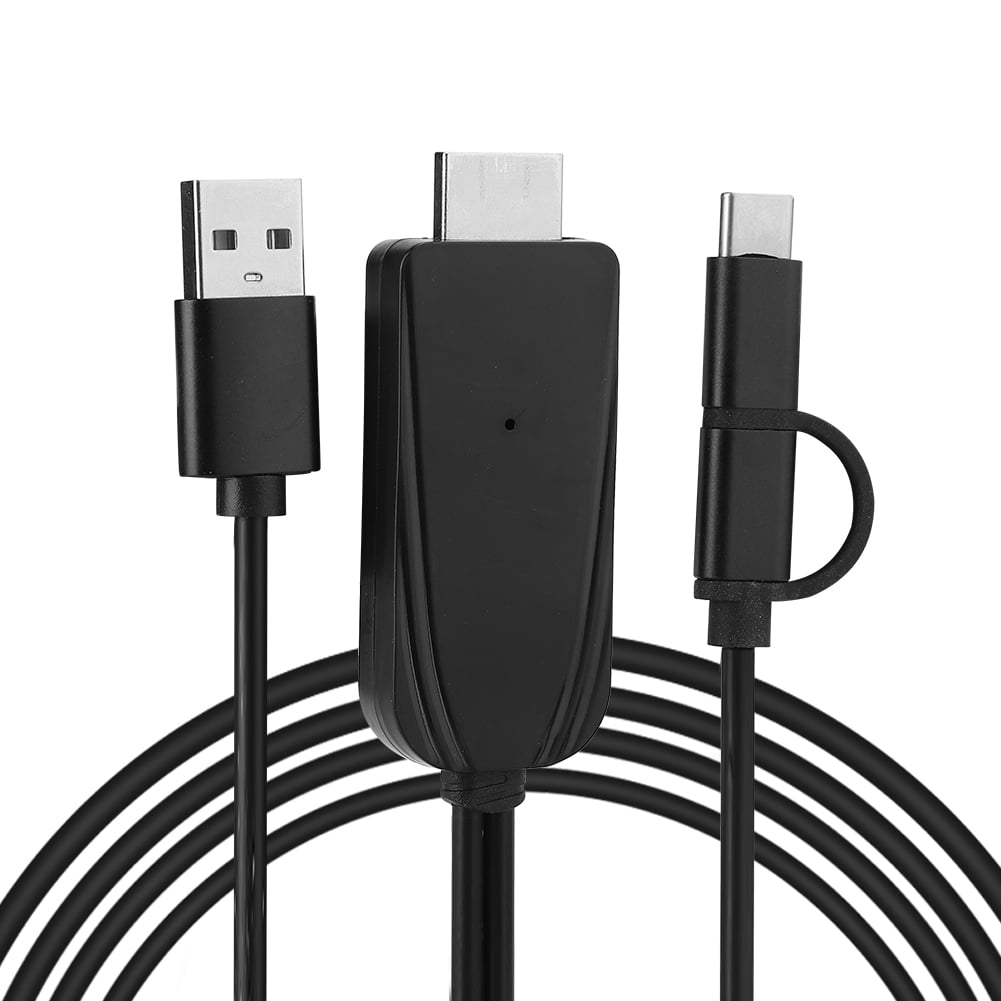
- If you’re using HDMI, a compatible cable or a USB‑C to HDMI adapter for newer Macs.
- For wireless mirroring, a stable Wi‑Fi network that both devices share.
Wired Mirroring: The Straightforward Route
Connecting via HDMI is the most reliable method, especially if you’re streaming high‑definition video or playing games where latency matters.
Step‑by‑step
- Plug one end of the HDMI cable into the TV’s HDMI port.
- Attach the other end to your Mac’s Thunderbolt/USB‑C port using an adapter if needed.
- Turn on the TV and select the correct HDMI input (often labeled “HDMI 1,” “HDMI 2,” etc.).
- On your Mac, go to Apple menu → System Settings → Displays. macOS should automatically detect the TV and mirror the screen.
- If the picture looks stretched or cropped, click Display Settings and choose “Scaled” to match the TV’s native resolution (usually 1920×1080 or 3840×2160).
That’s it. The connection stays active as long as the cable is plugged in, and you can adjust audio output in System Settings → Sound** to send sound to the TV speakers.
Wireless Mirroring With AirPlay 2
AirPlay 2 turned the whole “wireless mirroring” thing from a novelty into a practical feature. If your TV is AirPlay‑compatible (many Samsung, LG, Sony, and Vizio models are), you can skip cables altogether.
Getting Set Up
- Make sure both Mac and TV are on the same Wi‑Fi network.
- On the TV, enable AirPlay in the settings menu (sometimes under “Connections” or “Screen Sharing”).
- On the Mac, click the Control Center icon in the menu bar, then the Screen Mirroring button.
- Select your TV from the list. A prompt may appear on the TV asking you to confirm; accept it.
After a brief handshake, whatever you see on your Mac will appear on the big screen. You can also choose “Use As Separate Display” if you prefer a dual‑monitor setup rather than a mirror.
Troubleshooting Common Hiccups
Even with the steps above, you might run into a snag. Here are the most frequent issues and quick fixes.
- No Signal on the TV: Double‑check that the correct HDMI input is selected. For AirPlay, ensure the TV isn’t muted or in “Do Not Disturb” mode.
- Audio Still Plays Through Mac Speakers: Open System Settings → Sound** and manually set the output device to your TV or HDMI.
- Lag or Stutter (Wireless): Move both devices closer to the router, or switch to a 5 GHz network if possible. Reducing other network traffic helps too.
- Resolution Mismatch: In Displays, hold the Option key and click “Scaled” to reveal additional resolution options that better fit your TV.
Alternative Solutions If Your TV Lacks AirPlay
Not every TV supports AirPlay out of the box, but you can still go wireless with affordable accessories.
- Apple TV: Plug an Apple TV into the HDMI port, then use the same AirPlay steps you’d use with a native TV.
- Chromecast: Install the Google Chrome browser on your Mac, click the three‑dot menu, choose “Cast,” and select your TV. It mirrors the browser tab, not the whole desktop, but it works well for presentations.
- Third‑Party Miracast Dongles: Devices like Microsoft’s Wireless Display Adapter can receive Miracast streams; macOS doesn’t support Miracast natively, but third‑party apps (e.g., Reflector) can bridge the gap.
When to Choose Wired vs. Wireless
Both methods have pros and cons, so picking the right one depends on your situation.
| Wired (HDMI) | Wireless (AirPlay) |
|---|---|
|
|
Final Thoughts
Mirroring a Mac to a TV isn’t the tech wizardry it once seemed to be. Whether you reach for a simple HDMI cable or lean on AirPlay 2’s wireless magic, the process is now quick enough to fit into a coffee break. Keep the basics—compatible hardware, the same network, and a bit of patience—and you’ll have your favorite content lighting up the big screen in no time.