How to Optimize Oracle on VMware for Maximum Performance
Why Combine Oracle and VMware?
Running Oracle databases on a virtualized platform like VMware offers flexibility that traditional bare‑metal setups simply can’t match. You can spin up a new instance in minutes, shift workloads across hosts without downtime, and make the most of your hardware investments. Yet, without the right settings, you’ll quickly notice latency spikes and resource contention—exactly the opposite of what you expected.
Planning Your Virtual Infrastructure
Before you even launch a VM, sketch out the big picture. Think about how many cores you’ll allocate, what memory ceiling makes sense, and whether your storage array can keep up with the I/O bursts Oracle loves.
- CPU: Aim for whole cores, not fractions. Over‑committing CPUs in a database environment is a fast track to performance degradation.
- Memory: Reserve enough RAM to cover the SGA and PGA comfortably; a common rule is to leave at least 20 % of host memory free for the hypervisor.
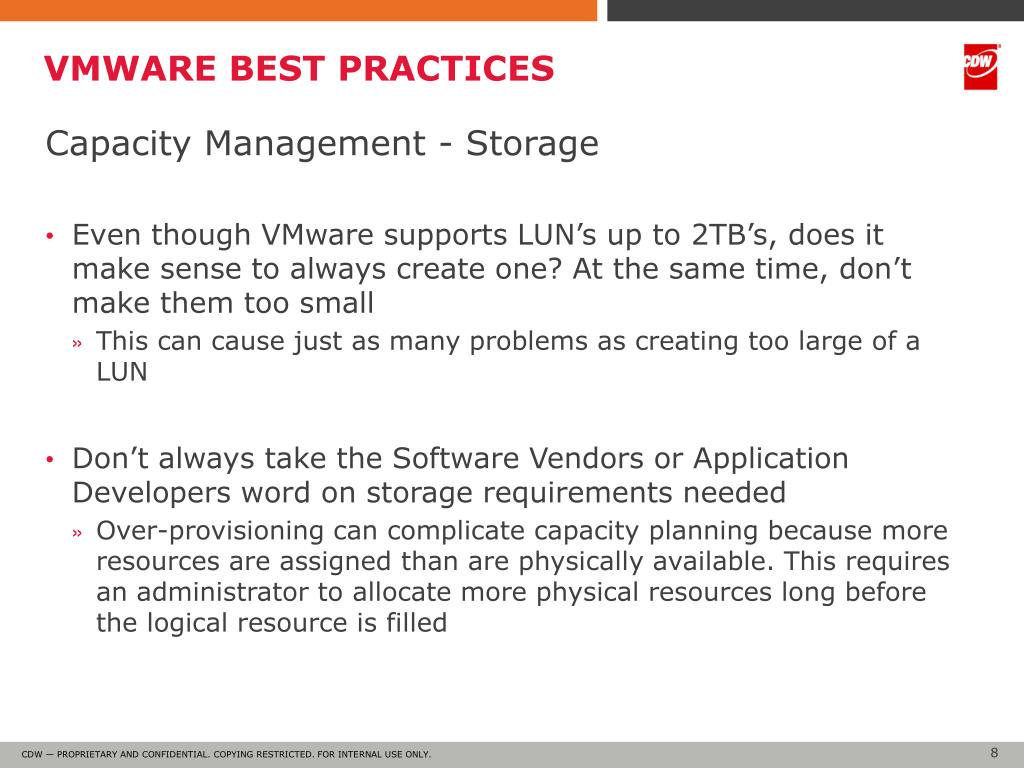
- Storage: Choose shared, high‑throughput storage (e.g., NVMe or all‑flash arrays) and enable VMFS “thin provisioning” only if you’re sure space won’t become a bottleneck.
- Network: Use multi‑nic configurations for separate data and management traffic; consider NIC teaming for redundancy and load balancing.
Sizing and Licensing Considerations
Oracle’s licensing model ties directly to the number of cores you expose to the database. When you run on VMware, you must count the virtual cores, not the physical ones. Miscounting can lead to costly compliance surprises. It’s also wise to model expected growth—over‑provision now, and you’ll avoid a painful re‑license later.
Configuring the Virtual Machine
CPU Affinity and Hyper‑Threading
Let the hypervisor schedule CPUs, but pin critical Oracle processes to specific vCPUs if you notice jitter. Disable hyper‑threading for the VM if your workload is memory‑intensive; the extra logical cores sometimes cause more cache thrashing than benefit.
Memory Management
- Enable “Memory Reservation” equal to the VM’s anticipated SGA size. This guarantees the OS won’t swap out essential pages.
- Turn off “Transparent Page Sharing” for the Oracle VM; it can unintentionally collapse identical memory pages, leading to subtle performance hits.
- Use “Balloon Drivers” sparingly—only when you need to reclaim memory from idle VMs, not as a default safety net.
Storage Choices
Oracle likes sequential reads, so align your virtual disks with the underlying storage block size (typically 4 KB). Prefer “Raw Device Mapping” (RDM) for direct LUN access if you need the lowest possible latency, especially for ASM disk groups.
Tuning Oracle Inside the VM
Once the VM is humming, the real magic happens inside Oracle itself. A handful of parameters can make a world of difference.
- SGA_MAX_SIZE and SGA_TARGET—set them to match the reserved memory in VMware, avoiding over‑allocation.
- PGA_AGGREGATE_TARGET—tune based on workload; a good starting point is 25 % of total VM memory.
- Enable Automatic Memory Management only if you trust Oracle’s heuristics; otherwise, manually balance SGA and PGA.
- Consider using ASM Diskgroups with “NORMAL” redundancy for performance, and “HIGH” redundancy only when data safety outweighs speed.
Monitoring and Ongoing Maintenance
Performance isn’t a set‑and‑forget affair. Keep an eye on both the hypervisor and the database.
- VMware vSphere Performance Charts—track CPU ready time, memory ballooning, and datastore latency.
- Oracle’s Automatic Workload Repository (AWR)—review top SQL statements and wait events regularly.
- Use OSWatcher or vmstat inside the VM to spot I/O spikes before they impact users.
- Schedule quarterly “remedial” windows to re‑evaluate VM sizing as data grows.
Common Pitfalls to Avoid
- Assuming “more vCPUs = better performance.” After a certain point, extra vCPUs just add scheduling overhead.
- Leaving “Swap” enabled on the VM. Oracle never likes swapping; it can cripple response times.
- Relying on default VM settings for disk provisioning; thin provisioning can hide latency until you run out of space.
- Neglecting to sync time between the host and the VM. Time drift hurts replication and RAC clustering.
By marrying thoughtful VMware configuration with proven Oracle tuning, you’ll get a database that’s flexible, scalable, and fast enough to handle today’s demanding workloads.