How to Pay PhilHealth with GCash in Simple Steps
Why GCash is a Convenient Choice for PhilHealth Payments
PhilHealth contributions are mandatory, but the process doesn’t have to involve long queues or paperwork. GCash, the Philippines’ leading mobile wallet, lets you settle your premiums from the comfort of your phone. The app syncs with major banks, accepts cash‑in via partner outlets, and even offers real‑time transaction receipts. That means you can keep track of what you’ve paid, avoid late‑payment penalties, and free up valuable time for work or family.
What You Need Before You Begin
- GCash account – fully registered with a verified mobile number.
- Enough balance – either from a linked bank account, credit/debit card, or cash‑in at a partner kiosk.
- PhilHealth Member Data – your PhilHealth Identification Number (PIN) and the amount due.
- Internet connection – a stable 3G/4G or Wi‑Fi signal for a smooth transaction.
If any of these items are missing, pause for a moment and get them sorted; the steps themselves are straightforward, but a hiccup in the setup can cause unnecessary frustration.
Step‑by‑Step: Paying PhilHealth via GCash
Step 1: Open the GCash app and tap the “Pay Bills” icon on the home screen. The icon usually looks like a receipt or a clipboard, making it easy to spot even for first‑time users.
Step 2: Choose “PhilHealth” from the list of billers. If you don’t see it right away, use the search bar at the top and type “PhilHealth.” The app will pull up the official payment channel, ensuring you’re not redirected to a third‑party site.
Step 3: Enter your PhilHealth PIN. This is the ten‑digit number found on your PhilHealth ID card or on the latest contribution statement you received via email or SMS. Double‑check the digits; a single typo will prevent the system from locating your account.
Step 4: Input the payment amount. GCash typically offers two options: “Full Payment” (the exact amount shown on your statement) or “Custom Amount” if you’re paying a partial contribution. For most members, the full amount is the safest bet to stay compliant.
Step 5: Review the details. The screen will summarize your PhilHealth PIN, the amount, and the total to be deducted from your GCash balance. Take a moment to verify everything, then tap “Proceed” or “Confirm” depending on your app version.
Step 6: Authenticate the transaction. GCash may ask for a 4‑digit MPIN, a fingerprint scan, or a facial recognition check, depending on your security settings. This extra layer protects both your wallet and PhilHealth’s records.
Step 7: Receive your receipt. Within seconds, a digital receipt appears on the screen, and a copy is also sent to your registered email or SMS. Save the screenshot or download the PDF for your records; the receipt includes a transaction reference number that you can later use for verification.
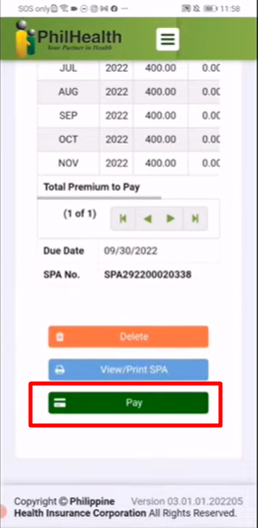
Step 8: Confirm with PhilHealth. Log in to the PhilHealth Member Portal or use the PHILHEALTH Mobile App to see if the payment reflects in your account. It usually updates instantly, but occasional system delays may occur; if the balance doesn’t change after 30 minutes, reach out to GCash support or PhilHealth’s helpline.
Tips for a Smooth Experience
- Set a reminder a few days before your due date to avoid last‑minute rushes.
- Keep a backup payment method (e.g., a linked bank account) in case your GCash balance falls short.
- Watch for promos – GCash often runs cash‑back or discount campaigns for bill payments, which can offset a portion of your contribution.
- Update your profile regularly; an outdated mobile number may prevent you from receiving OTPs or receipt alerts.
Common Issues and How to Fix Them
Insufficient Balance – If the app shows “Insufficient Funds,” top up via a partner kiosk, online bank transfer, or a credit card. Remember that some banks impose a minimum top‑up amount, so check the limits before proceeding.
Wrong PhilHealth PIN – A mismatched PIN results in an “Account Not Found” error. Re‑enter the number, or locate your PIN on the latest statement. If you’ve truly misplaced it, contact PhilHealth’s customer service for a reset.
Transaction Timeout – Occasionally, the connection may drop mid‑process, leaving the payment in a pending state. In the GCash app, navigate to History → Pending Transactions and either retry or cancel and start anew.
No Confirmation Email – Check your spam folder first. If the email never arrived, use the in‑app receipt as proof; you can also request a duplicate receipt from PhilHealth’s online portal.
Frequently Asked Questions
Can I pay my PhilHealth contribution for multiple members in one GCash transaction?
Yes. After entering the first member’s PIN, you’ll see an option to “Add Another Beneficiary.” This allows you to bundle several contributions, saving both time and transaction fees.
Is there a fee for using GCash to pay PhilHealth?
GCash typically charges a nominal service fee (around ₱10‑₱15) for bill payments, though promotional periods may waive it. The fee is displayed before you confirm the payment.
What if I overpay by mistake?
PhilHealth will credit the excess amount to your account, which can be applied to future contributions. Keep the receipt, as you may need it when requesting a refund or adjustment.
Do I need an internet connection after the payment?
A stable connection is required only during the transaction. Once you have the receipt, you can verify the payment offline via the PhilHealth portal using the reference number.