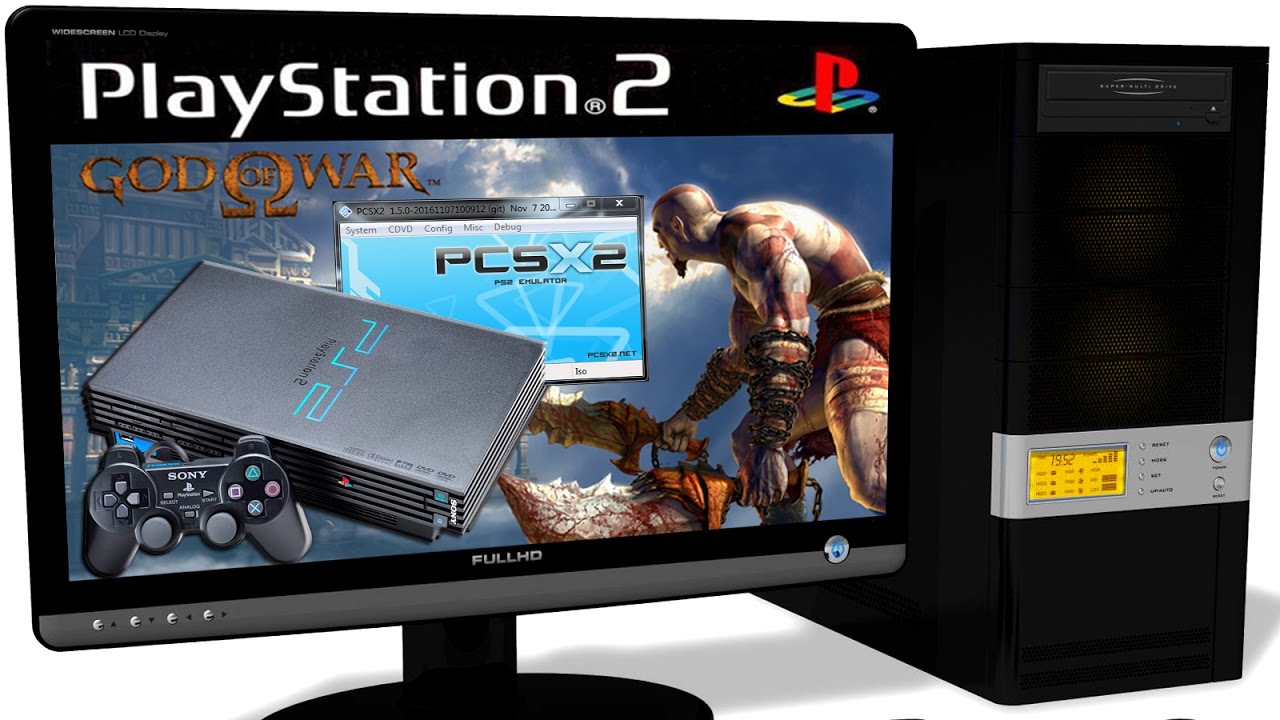
How to Play PlayStation 2 Games on Android with PCSX2
If you grew up with a PlayStation 2 tucked under your TV, you know the thrill of those sprawling worlds and slick combat. Nowadays, your phone can become a pocket-sized console—thanks to the PCSX2 emulator. Below is a practical walk‑through that helps you get the emulator up and running, tweak it for smooth play, and sidestep the most common hiccups.
What Is PCSX2?
PCSX2 is an open‑source PlayStation 2 emulator originally built for Windows, macOS, and Linux. It reproduces the console’s hardware in software, allowing you to load ISO files or ripped discs and experience the games as if the original hardware were still humming in the room.
While the official builds target desktop platforms, a handful of Android ports have emerged, offering a similar experience on ARM‑based devices. The core remains the same: you provide a game file, the emulator translates the PS2’s instructions, and you watch the output on your handset’s screen.
Getting PCSX2 on Android
Unlike the desktop version, the Android port isn’t hosted on the Play Store, so you need to sideload the APK. Follow these steps:
- Enable Unknown Sources – Open Settings → Security (or Apps & notifications) and toggle “Install unknown apps” for your browser or file manager.
- Download the APK – Head to the official PCSX2 Android GitHub releases page. Choose the latest .apk that matches your device’s architecture (most modern phones use arm64‑v8a).
- Install – Tap the downloaded file and let the installer do its thing.
After installation, you’ll see PCSX2 in your app drawer. Open it, and you’ll be greeted by a basic UI that asks you to configure a few essentials before any games can run.
Setting Up the Emulator
First‑time launch triggers a configuration wizard. Here’s what you’ll encounter:
1. BIOS File
The PlayStation 2 BIOS is proprietary, so you must supply a legally obtained copy from your own console. Place the SCUS_*.bin file into the bios folder in the emulator’s directory (usually Android/data/pcsx2/files/bios).
2. Plugins & Settings
PCSX2 bundles default plugins that work for most titles. Still, you might want to tweak a few options:
- Graphics – Set the renderer to “OpenGL ES” for better compatibility with Android GPUs.
- Audio – Choose “XA2” for higher fidelity, but if you notice lag, switch back to “SPU2”.
- Controller – Map your touchscreen controls or connect a Bluetooth gamepad via the “Input” tab.
Save the configuration and exit the wizard. You’re now ready to load a game.
Loading and Playing Games
Games come in a few formats: ISO, BIN/CUE pairs, or even compressed archives like ZIP. PCSX2 can handle all of them, but ISO is the simplest.
- Copy the ISO to your device’s internal storage, preferably under
Android/data/pcsx2/files/isos. - Launch PCSX2, tap “Open ISO”, navigate to the folder, and select the file.
- The emulator will take a moment to boot. Once the title screen appears, you’re in business.
For many games, the first launch can feel a bit sluggish as the emulator builds caches. Subsequent runs are noticeably faster.
Tips for Smooth Performance
Not every phone can emulate a PS2 perfectly, but the following tweaks often bridge the gap:
- Enable “Speedhack” – Under the “Emulation Settings”, turn on Speedhack and set the multiplier to 2–3× for less demanding titles.
- Lower the internal resolution – A 2× or 3× resolution typically balances visual fidelity with frame‑rate stability.
- Close background apps – Free RAM and CPU cycles improve the emulator’s real‑time processing.
- Use a dedicated controller – A Bluetooth pad reduces the lag inherent to touchscreen inputs.
- Update graphics drivers – Some manufacturers release driver updates that enhance OpenGL performance.
Remember, each game reacts differently. If a title still stutters, experiment with the “EE/IOP/GS” settings; nudging them down a notch can sometimes rescue a choppy experience.
Common Issues and Fixes
Even with careful setup, you might run into roadblocks. Here are the most frequent ones and quick solutions.
BIOS Not Detected
Double‑check that the BIOS file is named exactly as PCSX2 expects (e.g., SCUS_95001.bin) and sits in the correct folder. A misplaced file will trigger a “BIOS not found” warning at launch.
Audio Glitches
If you hear crackling or dropouts, switch the audio plugin to “SPU2‑X” and lower the volume synchronization setting. Occasionally, toggling “Enable Audio Buffer” resolves timing mismatches.
Game Won’t Start (Black Screen)
Try changing the renderer from OpenGL ES to Vulkan, if your device supports it. Alternatively, disable “Use Threaded Rendering” under graphics options.
Controller Mapping Issues
Within the “Input” tab, press “Clear” then re‑assign each button manually. Some controllers report axes as buttons, so you may need to adjust the “Deadzone” settings.
Wrapping Up the Experience
Playing PlayStation 2 games on Android isn’t just a novelty; it’s a portable nostalgia trip that can feel surprisingly faithful when tuned right. The key lies in patience—getting the BIOS in place, tweaking graphics, and testing a few settings per game.
Once you’ve cleared the initial hurdles, you’ll discover a library of classics ready to accompany you on commutes, long flights, or lazy afternoons. With PCSX2 on Android, the console that once occupied a living‑room shelf now fits snugly in your pocket.