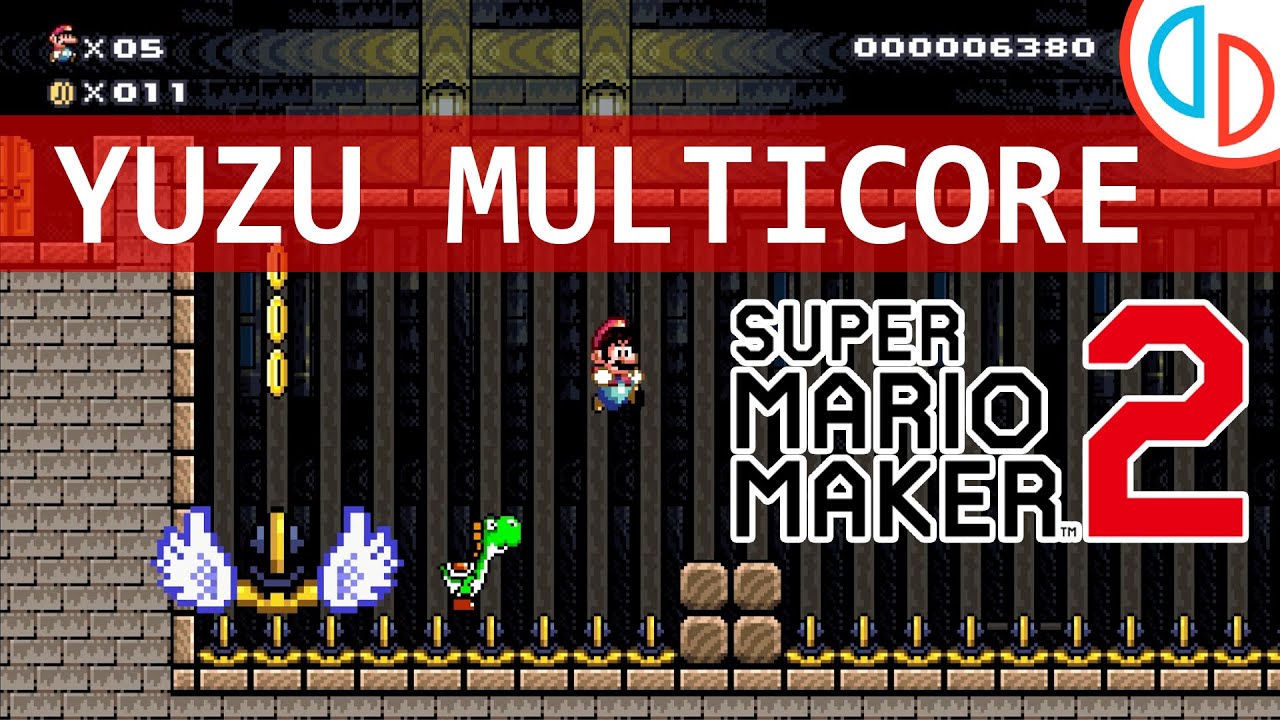
How to Play Super Mario Maker 2 on PC Using the Yuzu Emulator
Super Mario Maker 2 remains one of the most creative playgrounds on the Switch, but not everyone has a console at hand. Thanks to Yuzu, the open‑source Nintendo Switch emulator, you can bring the fun to a Windows or Linux PC. The process isn’t rocket science, yet it does involve a few moving parts—ROM handling, configuration tweaks, and a dash of troubleshooting. Below is a step‑by‑step guide that walks you through the whole setup, plus some practical tips to keep the experience smooth.
What You’ll Need Before You Start
- Yuzu emulator – the latest stable build from the official website.
- Switch firmware files (key.bin and prod.keys) – these are required for decryption.
- Super Mario Maker 2 game file – an XCI or NSP dump that you legally own.
- At least a CPU with AVX2 support and a GPU that supports Vulkan or OpenGL.
- Optional: a controller (DualShock 4, Xbox One, or a compatible Switch Pro clone) for a more authentic feel.
Step 1: Grab the Latest Yuzu Build
Head to yuzu-emu.org and download the installer that matches your OS. The site automatically offers the recommended version—usually the “Mainline” build. Run the installer and let it place Yuzu in your preferred folder; there’s no need to tinker with custom directories unless you have a specific organizational habit.
Step 2: Dump the Required Keys
Yuzu can’t run any Switch title without the console’s cryptographic keys. If you already own a Switch, you can extract them with a homebrew tool like Lockpick_RCM. Plug the console into your PC, launch the tool, and follow the on‑screen prompts. The output will be two files: key.bin and prod.keys. Place both inside Yuzu’s keys folder (found under %appdata%\yuzu on Windows).
Step 3: Load Super Mario Maker 2
Drag the XCI or NSP file into Yuzu’s main window, or use “File → Load File”. Yuzu will index the title automatically. When the game appears in the list, right‑click it and select “Add to Favorites” for quick access later. If the title fails to load, double‑check that the key files are correctly placed and that the ROM isn’t corrupted.
Step 4: Tweak Graphics Settings for Optimal Performance
Switching from handheld hardware to a PC can be a double‑edged sword. By default Yuzu aims for visual fidelity, which may stress older GPUs. Open “Graphics” in the configuration menu and consider these adjustments:
- API: Vulkan usually delivers the best frame rates; fall back to OpenGL if you encounter crashes.
- Resolution Scale: 2× is a safe starting point, giving a sharper image without overwhelming the GPU.
- V-Sync: Enable it to prevent screen tearing, especially if you notice jitter during fast‑moving platform sections.
- Shader Cache: Keep this on—Yuzu builds a cache over time, which reduces stutter after the first play session.
Step 5: Set Up Controls
The Nintendo Switch’s button layout feels natural for Mario games. If you’re using a DualShock 4, map “Square” to “X”, “Triangle” to “Y”, and “Cross” to “A”. For Xbox controllers, the default mapping already aligns fairly well. You can adjust each button under “Controls → Configure”. Remember to enable “Motion Controls” if you plan to use the tilt‑based features in some platforms.
Common Hiccups and How to Fix Them
Game Crashes on Launch
Most crashes stem from outdated firmware files. Verify that your key.bin and prod.keys match the version of the game you’re loading. Updating Yuzu to the latest commit often patches compatibility issues, too.
Audio Desynchronization
If the music lags behind the action, toggle the “Audio Backend” between “Cubeb” and “SDL2”. One of them usually restores sync without sacrificing quality.
Controller Input Lag
Enable “Input Prediction” under the “Controls” tab. It adds a minimal buffer that smooths out occasional latency spikes, especially noticeable when doing rapid jumps.
Enhancing the Experience
Beyond simply playing, Yuzu lets you tinker with the game’s visual style. Using the “Graphics → Shader Effects” menu, you can turn on “Bloom” for a glowy feel or disable it for a retro, flat‑shaded look. Some players even experiment with “Custom Textures” to replace the classic Mario tiles with fan‑made artwork—just drop the texture pack into Yuzu’s load\textures folder and select it.
Another neat trick is the “Multiplayer” mode via local network. While Yuzu doesn’t natively support online matchmaking for Mario Maker 2, you can simulate a local Wi‑Fi environment using a virtual router on your PC. Both players run Yuzu instances, connect to the same network, and join a shared world just as you would on a real Switch.
Legal and Ethical Considerations
Emulation sits in a gray area that many users overlook. The key requirement is ownership: you must have purchased Super Mario Maker 2 and own a Nintendo Switch to extract the necessary keys. Distributing ROMs or downloading them from sketchy sites is both illegal and harmful to developers. Treat the emulator as a backup tool, not a piracy avenue.
Wrapping Up
Getting Super Mario Maker 2 running on Yuzu is a surprisingly rewarding project. It opens the door to building levels on a larger screen, using custom controllers, and even sharing creations with friends who don’t own a Switch. Follow the steps above, keep your software up to date, and you’ll be leaping through mushroom‑filled worlds in no time.