How to Quickly Fix Discord’s White Screen on Web and Mobile
Seeing only a stark white canvas when you try to open Discord can feel like an unexpected glitch in the middle of a gaming session or a group chat. The good news? Most of the time the culprit is something you can resolve in minutes, without resorting to a full reinstall. Below is a practical walk‑through that tackles the most common causes on both browsers and the mobile apps.
What Usually Triggers the White Screen?
Before diving into fixes, it helps to know what’s often behind that blank page:
- Cache overload – Old files stored by your browser or app can clash with fresh updates.
- Outdated software – An old version of Discord, your browser, or the operating system may lack needed compatibility.
- Network hiccups – A shaky connection or DNS misconfiguration can prevent assets from loading.
- Third‑party extensions – Ad blockers, VPNs, or privacy plugins sometimes interfere with Discord’s scripts.
Quick Fixes for Discord on Web
1. Refresh and Hard‑Reload
Sometimes the simplest step works. Press Ctrl + F5 (or Cmd + Shift + R on a Mac) to force the browser to bypass its cache and fetch a clean copy of the page.
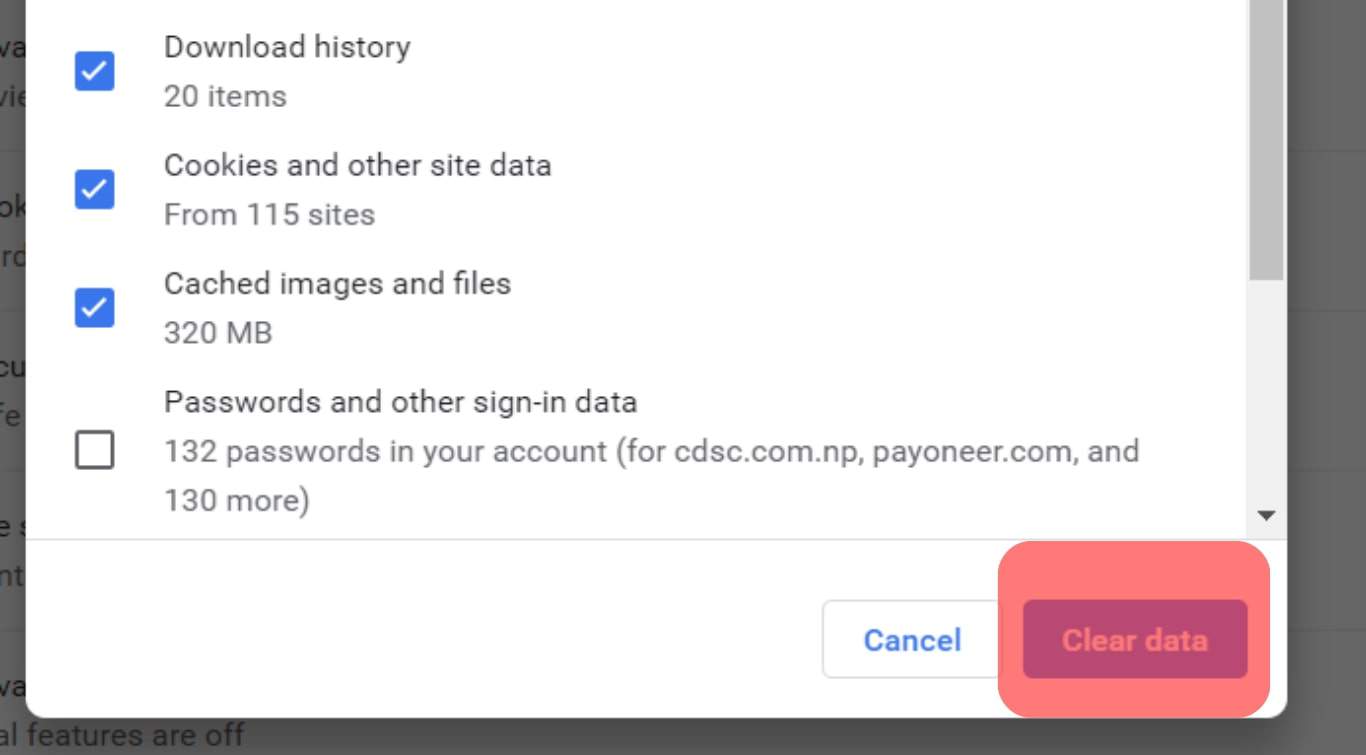
2. Clear Browser Cache and Cookies
Each browser has a slightly different path, but the general route is:
- Open Settings → Privacy & Security.
- Find “Clear browsing data.”
- Select “Cached images and files” plus “Cookies and other site data” for the last 24‑48 hours.
- Confirm and reload Discord.
3. Try Incognito/Private Mode
If Discord loads correctly in an incognito window, the issue likely stems from an extension or stale cookie. Disable extensions one by one, especially ad blockers, until the white screen disappears.
4. Switch Browsers
Chrome, Edge, Firefox, and Safari each handle web apps a touch differently. A quick test on a secondary browser can pinpoint whether the problem is browser‑specific.
5. Update Your Browser
Modern web apps rely on the latest HTML5 and WebGL features. Ensure your browser is on the newest stable release; older versions may not interpret Discord’s code properly.
Quick Fixes for Discord on Mobile (iOS & Android)
1. Force‑Close and Reopen the App
On iOS, swipe up from the bottom and flick the Discord card off the stack. On Android, go to Settings → Apps → Discord → Force stop. Then launch the app again.
2. Clear App Cache (Android) / Offload App (iOS)
Android: Settings → Apps → Discord → Storage → Clear Cache.
iOS: Settings → General → iPhone Storage → Discord → Offload App (keeps documents, removes code). Reinstall from the App Store.
3. Check for Updates
Both platforms push regular patches that address rendering bugs. Open the Play Store or App Store, search Discord, and hit “Update” if available.
4. Verify Network Settings
A quick Wi‑Fi toggle often resets DNS resolution. If you’re on mobile data, try switching to Wi‑Fi (or vice‑versa). For stubborn cases, reset network settings:
- iOS: Settings → General → Reset → Reset Network Settings.
- Android: Settings → System → Reset options → Reset Wi‑Fi, mobile & Bluetooth.
5. Disable VPNs or Proxy Apps
While they’re handy for privacy, VPNs can sometimes block Discord’s CDN servers, resulting in a white screen. Turn them off temporarily to test.
When the Above Steps Aren’t Enough
If the problem persists after trying each solution, consider these deeper checks:
- Device storage: Low free space can prevent assets from being written to disk.
- System updates: A pending OS upgrade (iOS 17, Android 14, etc.) might contain crucial compatibility patches.
- Discord server status: Rarely, Discord’s own servers experience outages. A quick look at discordstatus.com can confirm.
Preventing Future White Screens
Staying ahead of the issue is easier than troubleshooting it after the fact. Here are some habits that keep Discord running smoothly:
- Enable automatic app updates on both desktop and mobile.
- Schedule a monthly cache clear—especially after major Discord updates.
- Limit the number of active browser extensions while using Discord.
- Keep your operating system and browsers on current stable releases.
With these steps in your toolbox, a blank Discord screen should be a fleeting annoyance rather than a show‑stopper. Give the fixes a try, and you’ll be back to chatting, streaming, and gaming in no time.