How to Quickly Fix Your TV When the Picture Goes Missing
Picture gone? You’re not alone. Most of us have stared at a black screen, wondering whether “turn it off and on again” actually works for a television. The good news is – in many cases you can get the image back without calling a repair shop.
Spot the Usual Culprits
Before tearing your TV apart, it helps to know what typically steals the picture. Think of it as a detective story where you’re the sleuth.
- Loose or damaged cables – the most common, especially after moving furniture.
- Power supply hiccups – a brief outage can leave the TV in a standby limbo.
- Incorrect source selection – the remote might be tuned to the wrong HDMI port.
- Software glitches – outdated firmware can cause the display driver to crash.
- Internal component failure – less frequent, but possible with older sets.
Start with the Simple Reset
Turn the TV off, unplug it, wait about 60 seconds, then plug it back in. This power cycle clears residual charge and often restores the picture. If you have a smart TV, give it an extra minute – the internal reboot can take a little longer.
Check the Remote and Buttons
Sometimes the issue isn’t the TV at all. Make sure the Power button on the remote isn’t stuck, and try the physical power button on the TV itself. A stuck button can keep the unit in a “no‑signal” mode.
Inspect All Cables
Even a tiny bend can jeopardize a connection. Pull the HDMI, component, or coaxial cables out and back in, listening for a click. While you’re at it, glance for frayed ends or visible scorch marks.
- HDMI – the go‑to for most modern devices.
- Component (red, green, blue) – older DVDs and gaming consoles.
- Coaxial (RF) – cable or antenna input.
If you have a spare cable lying around, swap it in. A faulty cable is a cheap fix that saves a lot of headaches.
Confirm the Correct Input
Press the Input or Source button on the remote and cycle through options until you see a picture. It’s easy to forget that the TV might be set to “TV” when you’re actually watching a streaming box.
Audio‑Only Situation
Ever heard sound but saw no image? That usually points to a signal issue rather than a power problem. Switch to another input (like a different HDMI port) to see if the image reappears.
Adjust Picture Settings
Some TVs have a “Picture Mode” that can inadvertently hide the image. Navigate to Settings → Picture and reset to “Standard” or “Default.” If you see a faint image after resetting, increase the brightness and contrast; a mis‑configured setting can make the picture look like it vanished.
Update Firmware
Smart TVs receive periodic software updates. An outdated version can cause the display driver to misbehave. Go to Settings → System → Software Update and check for the latest version. A quick download and install might be all you need.
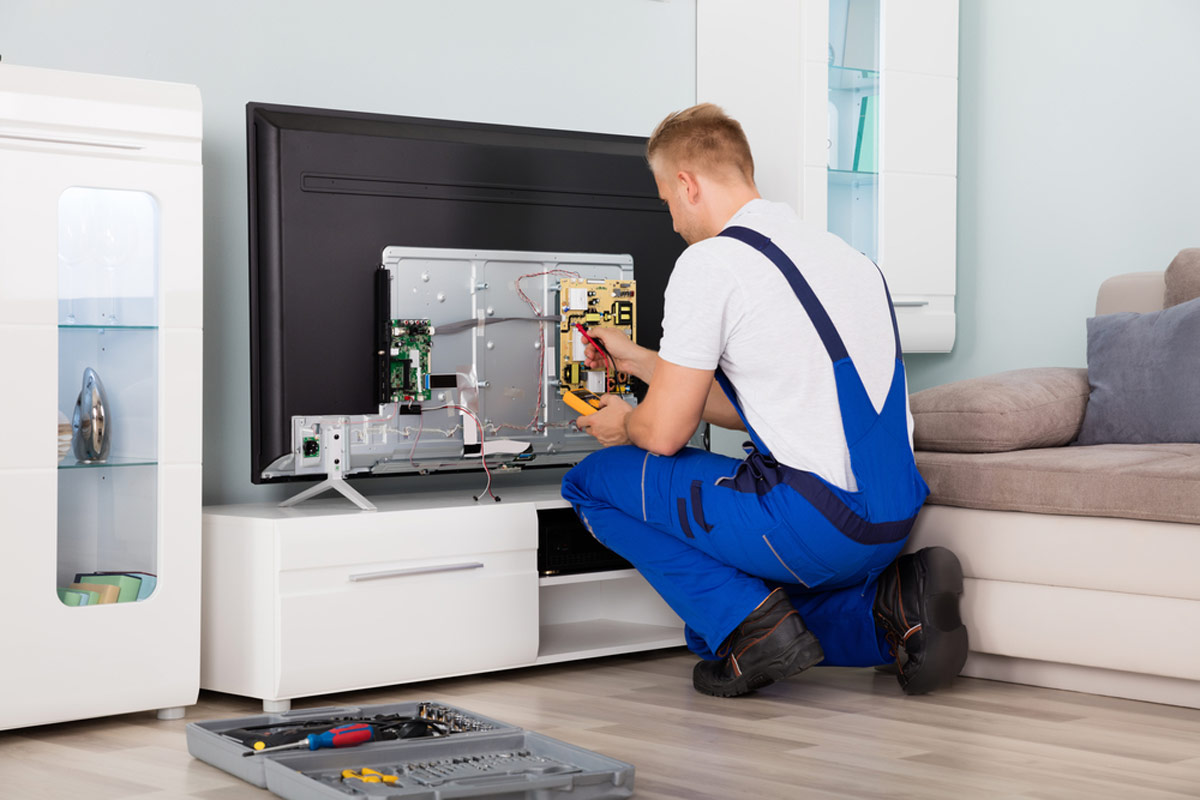
When Internal Hardware Fails
If none of the above steps help, the fault may lie deeper.
- Power board – irregular voltage can shut off the backlight.
- Backlight LEDs – dim or dead LEDs lead to a black screen.
- Logic board – the brain that processes video signals.
These components usually require professional tools and expertise. Attempting a DIY repair without the right equipment can cause further damage.
Quick Troubleshooting Checklist
- Unplug, wait 60 seconds, plug back in.
- Verify remote power button isn’t stuck.
- Reconnect all cables; look for damage.
- Swap cables with a known‑good spare.
- Select the proper input source.
- Reset picture mode to default.
- Check for firmware updates.
- If still black, consider professional service.
Most of the time, a missing picture is a simple fix – a loose cable or a stray setting. By following the steps above, you’ll likely get your TV back to normal without emptying your wallet.