How to Reset Your EA Account Password: Step-by-Step Guide
Forgot your EA password? It happens to the best of us—especially after a marathon gaming session. The good news is that getting back into your account doesn’t have to feel like an epic quest. Follow these simple steps, and you’ll be back to matchmaking in no time.
Why resetting your EA password matters
Beyond the obvious frustration of a locked account, an outdated password can expose you to security risks. EA handles real‑money purchases and personal data, so a strong, fresh password is a small but vital line of defense.
Preparation before you start
- Access to your registered email – EA will send a reset link, so make sure you can receive mail there.
- A reliable internet connection – The process is quick, but a glitch can stall the email delivery.
- Optional: Two‑factor authentication (2FA) enabled – If you’ve set up 2FA, keep your mobile device handy.
Resetting through the official EA website
Step 1: Open the login page
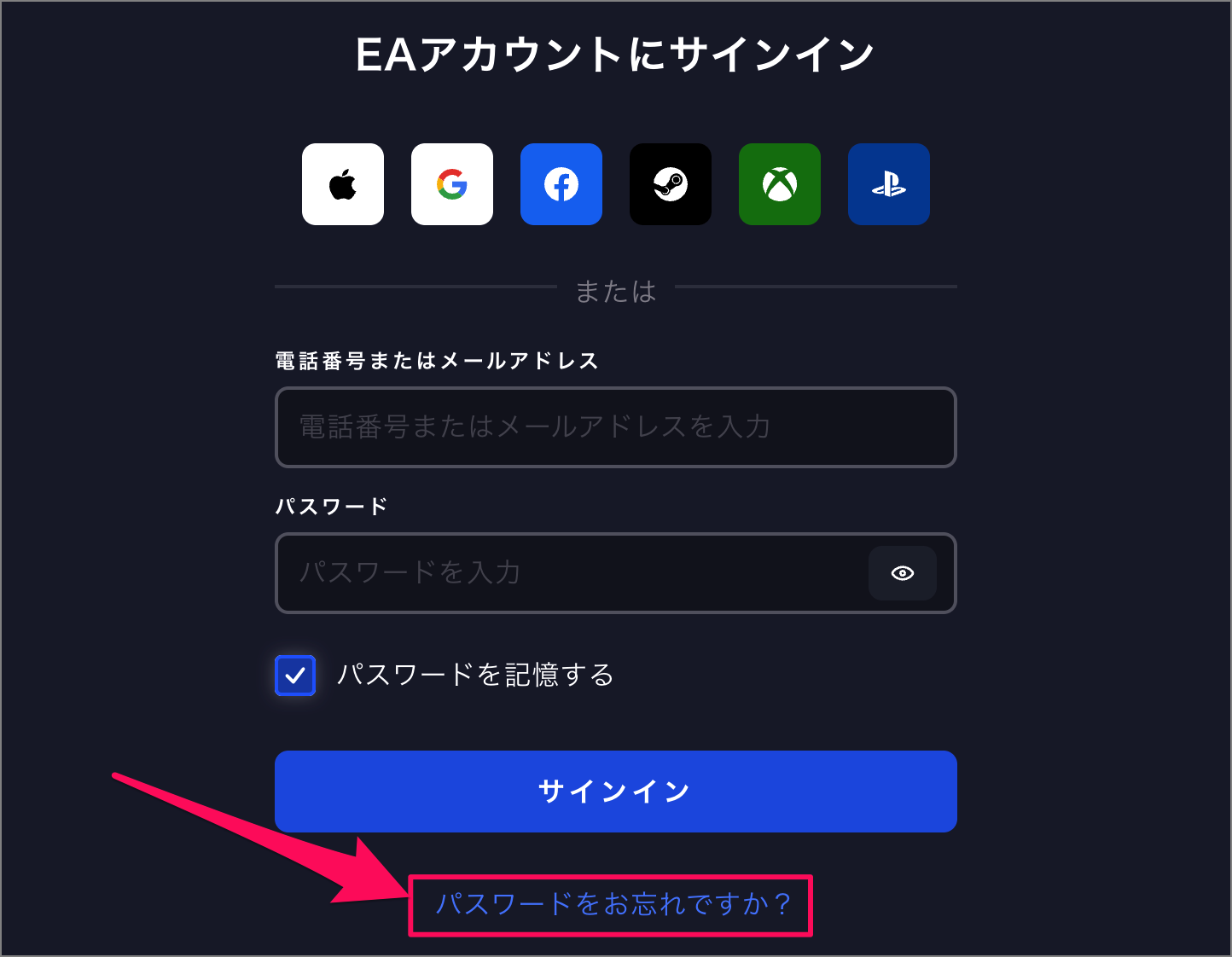
Head to ea.com and click “Sign In” in the top‑right corner. The login window will pop up; look for the “Forgot your password?” link underneath the fields.
Step 2: Enter your email address
Type the email tied to your EA account. Don’t worry if you have multiple EA‑linked emails; the system will tell you if the address isn’t recognized.
Step 3: Check your inbox
Within a few minutes, EA will deliver a message titled “Reset your EA password.” If you don’t see it, glance at your spam or promotions folder—automated emails sometimes wander.
Step 4: Follow the reset link
Click the link in the email. You’ll land on a secure page prompting you to create a new password. Choose something memorable yet complex—mix uppercase, numbers, and symbols.
Step 5: Confirm and log in
After confirming the new password, EA will log you in automatically. If you have 2FA enabled, you may be asked to verify the change on your phone.
Resetting via the EA mobile app
If you prefer handling things on the go, the EA app offers a streamlined reset flow.
- Open the app and tap the profile icon in the upper‑right corner.
- Select “Sign In,” then choose “Forgot password?”
- Enter your email, confirm the reset link from your inbox, and follow the on‑screen prompts to set a new password.
The mobile method mirrors the web process, but the UI adapts for smaller screens, making it handy when you’re away from a computer.
Common hiccups and how to troubleshoot
- No email arrives? Verify you entered the correct email and check spam folders. If all else fails, use EA’s “Contact Support” button for manual assistance.
- The reset link says it’s expired? Links are time‑sensitive—usually valid for 24 hours. Request a fresh link and try again promptly.
- 2FA blocks the change? Open your authentication app (Google Authenticator, Authy, etc.) and enter the code shown. If you no longer have access, EA’s support can guide you through a recovery process.
Tips to keep your EA account safe after resetting
- Use a unique password—don’t recycle it from other gaming or social platforms.
- Enable two‑factor authentication for an extra layer of protection.
- Update your recovery email periodically, ensuring you always have a valid contact point.
- Review authorized devices in your account settings; remove any you no longer use.
With these steps under your belt, a forgotten password is no longer a roadblock. A few clicks, a quick email check, and you’re back in the game—ready to take on the next challenge.