How to Resolve Windows Error Recovery Issues Step by Step
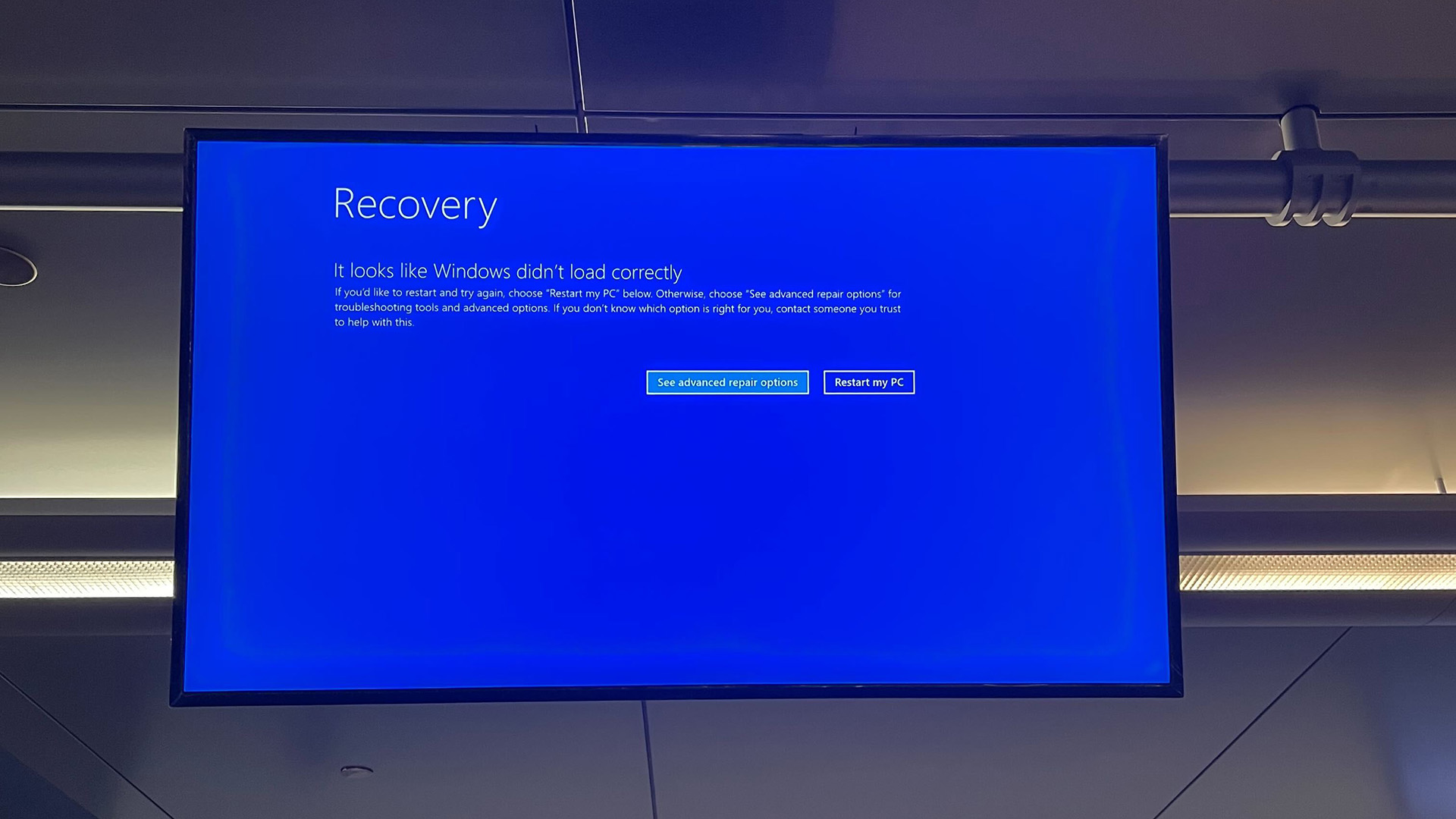
Ever been greeted by the stark “Windows Error Recovery” screen right after a crash? It’s one of those moments that makes you wonder whether you’ll ever get back to work. The good news is that the problem isn’t a mystery locked away in the OS; it’s usually a handful of settings or corrupted files you can tackle yourself. Below is a practical, down‑to‑earth guide that walks you through the most common fixes, from the quick checks to the more involved repairs.
What Triggers the Error Recovery Screen?
Before you dive into solutions, it helps to know why the screen appears in the first place. Most often, it’s a sign that Windows tried to restart after a crash but couldn’t locate a stable boot configuration. Typical culprits include:
- Corrupted system files
- Faulty drivers after a recent update
- Problems with the boot sector or BCD (Boot Configuration Data)
- Hardware issues such as failing RAM or a dying hard drive
Identifying the root cause narrows down the steps you’ll need, saving you time and extra restarts.
Step 1: Perform a Simple Power Reset
It sounds almost too easy, but a full power cycle can clear residual memory glitches that sometimes cause the error.
- Shut down the PC completely.
- Unplug the power cord (and battery, if you’re on a laptop).
- Press the power button for 15–20 seconds to discharge capacitors.
- Reconnect power and start the computer.
If Windows boots normally, you’ve just avoided a deeper problem. If not, keep reading.
Step 2: Use Windows Recovery Environment (WinRE)
When the system can’t start, it usually drops you into WinRE automatically. If you don’t see it, force it by turning the PC off and on three times in a row.
Run Startup Repair
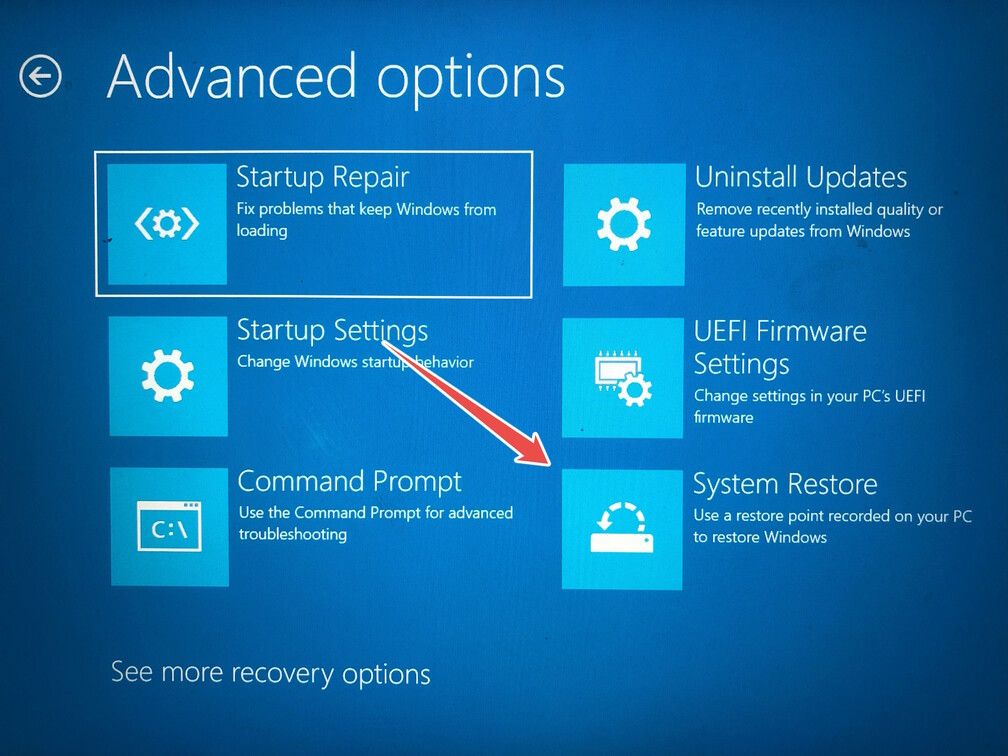
1. Choose Troubleshoot → Advanced options → Startup Repair.
2. Let Windows scan for issues; it will attempt automatic fixes.
Most users report that this alone resolves the error, especially after a recent driver update.
Repair the Boot Configuration
If Startup Repair fails, you’ll need to rebuild the BCD manually.
- In WinRE, select Command Prompt.
- Type the following commands, pressing Enter after each:
bootrec /fixmbrbootrec /fixbootbootrec /scanosbootrec /rebuildbcd
These commands rewrite the master boot record and refresh the boot data store, which often clears the “Error Recovery” loop.
Step 3: Check for Corrupted System Files
Even if the boot sector is fine, essential Windows files may be damaged.
Run SFC and DISM
Open Command Prompt again (you can stay in WinRE) and execute:
sfc /scannow /offbootdir=C:\ /offwindir=C:\WindowsIf SFC reports unable to fix some files, follow up with DISM:
DISM /Image:C:\ /Cleanup-Image /RestoreHealthThese tools scan and replace corrupted system components, which frequently stops the recovery screen from reappearing.
Step 4: Roll Back or Update Problematic Drivers
Windows updates can sometimes introduce driver conflicts. If the error started after a recent update, consider reverting.
- Boot into Safe Mode (via WinRE > Startup Settings > Enable Safe Mode).
- Open Device Manager, locate the most recent driver (often displayed with a yellow warning), right‑click, and choose Properties → Driver → Roll Back Driver.
- Alternatively, download the latest version from the manufacturer’s site and install it.
Step 5: Test Your Hardware
When software fixes don’t work, hardware could be the guilty party.
Run Memory Diagnostics
From WinRE, choose Command Prompt and type mdsched.exe. Follow the prompts to test RAM; faulty modules often cause boot loops.
Check Disk Health
Still in the command line, run:
chkdsk C: /f /rThis scans for bad sectors and attempts repairs. A failing drive might need replacement altogether.
Step 6: Restore or Refresh Windows
If none of the above resolves the issue, you may need to revert to a previous system state or perform a clean installation.
- System Restore: In WinRE, go to Troubleshoot → Advanced options → System Restore and select a restore point from before the problem began.
- Reset this PC: Choose Troubleshoot → Reset this PC. You can keep personal files while reinstalling Windows, or opt for a full wipe if you prefer a fresh start.
Both options preserve your data (unless you choose the full wipe) and give you a functional OS without the “Error Recovery” hurdle.
Prevent Future Recurrences
Prevention is half the battle. Here are a few habits that keep the error at bay:
- Create regular restore points, especially before major updates.
- Maintain up‑to‑date drivers, but avoid automatic driver installs from third‑party tools.
- Run
sfc /scannowandchkdskat least once a month. - Back up critical files to an external drive or cloud service.
With these practices, you’ll reduce the likelihood of the dreaded Windows Error Recovery screen showing up again.