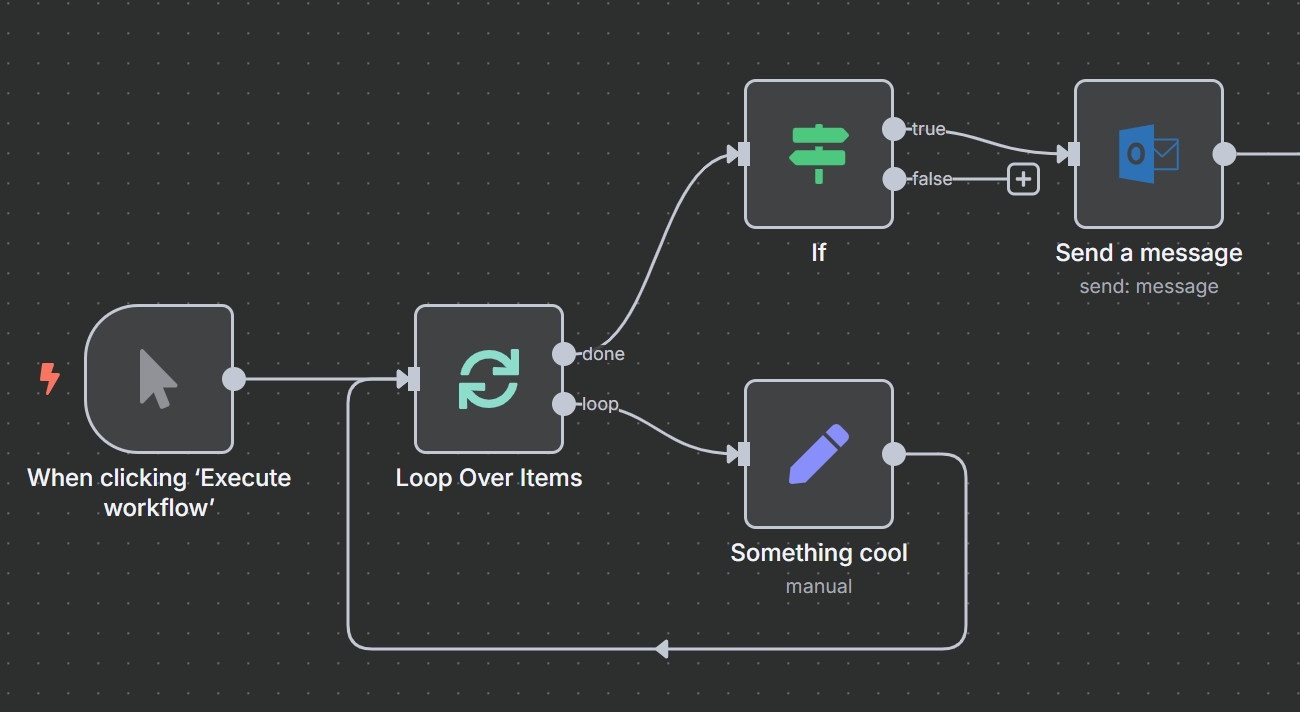
How to Run n8n with Docker for Seamless Automation
Ever wondered why some teams can spin up automation workflows in minutes while others wrestle with dependencies and version mismatches? The answer often lies in the container. Docker promises an isolated, reproducible environment, and n8n—a powerful, low‑code workflow engine—fits right into that picture. Below is a practical walk‑through that gets n8n up and running inside Docker, plus a handful of tips to keep your automations humming.
Why Pair n8n with Docker?
- Consistency. The same image runs on a dev laptop, a staging server, or a production VM, eliminating “it works on my machine” headaches.
- Portability. Move the container across clouds or on‑premise without reinstalling node modules or fiddling with system libraries.
- Scalability. Docker’s networking and orchestration tools (Docker Compose, Swarm, Kubernetes) make it easy to add more instances as your workflow load spikes.
Prerequisites
Before you dive in, make sure you have:
- Docker Engine (or Docker Desktop) installed and running.
- A fresh
dockercommand line access—no sudo needed on most setups. - Basic familiarity with terminal commands.
If any of these are missing, grab the latest Docker release from docker.com and follow the platform‑specific guide.
Step‑by‑Step: Pulling and Running the Official n8n Image
1. Choose a Working Directory
Pick a location on your host where you’ll store persistent data. For example:
mkdir -p ~/n8n/datacd ~/n8n
2. Pull the Image
The official image is maintained on Docker Hub. Pull it with a single command:
docker pull n8nio/n8n:latestThe :latest tag points to the most recent stable release, but you can specify a version like 0.210.0 if you need reproducibility.
3. Run the Container
Here’s a minimal command that starts n8n on port 5678 and mounts your data folder:
docker run -d \--name n8n \
-p 5678:5678 \
-v ~/n8n/data:/home/node/.n8n \
n8nio/n8n:latest
Breakdown:
-druns the container in detached mode.--name n8ngives it a friendly identifier.-p 5678:5678forwards the internal port to your host.-vmounts a host directory, ensuring your workflows survive container restarts.
After a few seconds, visit http://localhost:5678 in your browser. The n8n UI should greet you, ready to start building automations.
Customizing the Setup with Docker Compose
While a one‑liner works for quick tests, a docker-compose.yml file offers flexibility—environment variables, multiple services, and easy version control.
version: '3.8'services:
n8n:
image: n8nio/n8n:latest
container_name: n8n
restart: unless-stopped
ports:
- "5678:5678"
volumes:
- ./data:/home/node/.n8n
environment:
- DB_TYPE=sqlite
- DB_SQLITE_VACUUM_ON_STARTUP=true
- N8N_BASIC_AUTH_ACTIVE=true
- N8N_BASIC_AUTH_USER=admin
- N8N_BASIC_AUTH_PASSWORD=changeMeNow
- N8N_HOST=localhost
- N8N_PORT=5678
- NODE_ENV=production
Save this as docker-compose.yml in your project folder, then launch with:
docker compose up -dUsing restart: unless-stopped ensures the container boots after a reboot, and the environment block lets you toggle basic authentication, switch databases, or adjust the host name without editing the container itself.
Adding a Database Backend
For larger installations, SQLite eventually hits performance limits. Switching to PostgreSQL is straightforward; just add a second service to the compose file and point n8n at it.
services:db:
image: postgres:15-alpine
restart: unless-stopped
environment:
- POSTGRES_USER=n8n
- POSTGRES_PASSWORD=securePass
- POSTGRES_DB=n8n
volumes:
- db-data:/var/lib/postgresql/data
n8n:
# …previous config…
environment:
- DB_TYPE=postgresdb
- DB_POSTGRESDB_HOST=db
- DB_POSTGRESDB_PORT=5432
- DB_POSTGRESDB_DATABASE=n8n
- DB_POSTGRESDB_USER=n8n
- DB_POSTGRESDB_PASSWORD=securePass
volumes:
db-data:
Now n8n stores all workflow definitions, credentials, and execution logs in a robust relational database, ready for scaling out.
Common Pitfalls and How to Avoid Them
- Port conflicts. If 5678 is already bound, change the host side of the mapping (e.g.,
8080:5678). - File permissions. Mounted volumes may inherit restrictive permissions. Running
chmod -R 777 ./datasolves most issues during development, but tighten permissions for production. - Environment leakage. Accidentally committing
.envfiles with real passwords is a security risk. Use Docker secrets or a .gitignore entry. - Container restarts. Forgetting the
restartpolicy results in manual restarts after crashes. Theunless-stoppedrule is a good default.
Monitoring and Updating
Docker provides built‑in commands to check container health:
docker ps # see running containersdocker logs n8n # view output stream
docker exec n8n n8n --version # verify n8n version inside
When a new n8n release lands, update with two simple steps:
docker pull n8nio/n8n:latestdocker compose up -d --force-recreate
Because your data lives in a host‑mounted folder (or an external DB), you won’t lose any workflows during the upgrade.
Wrapping Up
Running n8n in Docker isn’t a magic bullet, but it does remove most of the friction that comes with manual node installations, dependency hell, and environment drift. By following the steps above—pulling the image, setting up a compose file, optionally adding PostgreSQL—you gain a reproducible, portable automation hub that can grow alongside your projects. Give it a spin, tweak the environment variables to suit your security posture, and let the workflows flow.