How to Safely Download Samsung Apps from APKMirror
When a Samsung device runs an older OS or a region‑locked feature, the official Galaxy Store may not have the version you need. In those cases, many users turn to APKMirror, a popular repository for Android application packages. But downloading Samsung apps from a third‑party site raises legitimate concerns about security, legality, and device stability. This guide walks you through the practical steps to ensure you get the right file, verify its integrity, and install it without compromising your phone.
Why Choose APKMirror for Samsung Apps?
APKMirror has built a reputation for hosting only original, unmodified APKs. Each upload undergoes a verification process that checks the cryptographic signatures against the original developer’s key. For Samsung‑specific apps—such as Samsung Health, SmartThings, or the Galaxy Themes store—this means you’re likely getting the same binary that would appear on a Samsung device sold in another market.
That said, APKMirror is still a third‑party platform, so you must exercise the same caution you would with any download outside the official store.
Step‑by‑Step: Getting the Correct APK
- Identify the exact app version you need. Check your device’s Settings → Apps for the current version number, or note the version listed in the Galaxy Store if it’s still accessible.
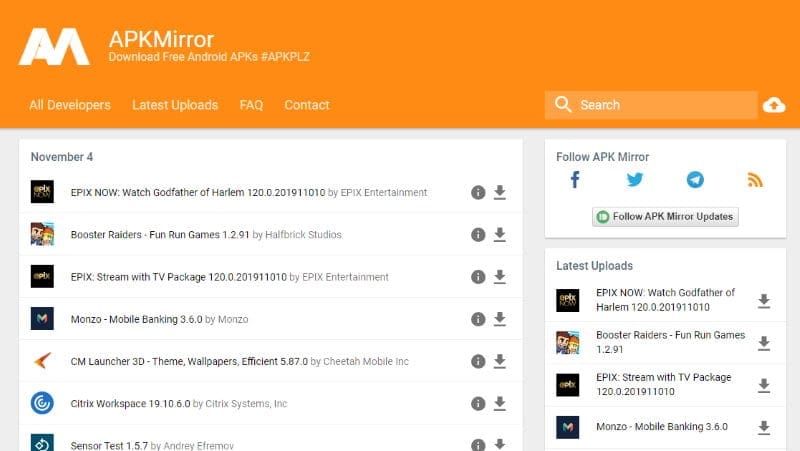
- Visit APKMirror’s Samsung page. Use a desktop browser or the mobile site (avoid unofficial “APKMirror” apps that could be malicious).
- Filter by version and Android compatibility. APKMirror lists supported Android versions and device architectures (arm64‑v8a, arm‑v7a, etc.). Choose the build that matches your phone’s specs.
- Read the “Verified” badge. A green check indicates that the uploader’s file matched the original signing certificate.
- Download the APK. Tap the “Download APK” button; a small “APK” file will land in your
Downloadsfolder.
Verifying the APK Before Installation
Even with APKMirror’s checks, it’s wise to double‑check the file yourself. Here are two low‑effort methods:
Check the SHA‑256 hash
APKMirror publishes the SHA‑256 hash next to each download link. On Android, you can use a file‑manager app with hash‑checking capability, or a terminal command like sha256sum /sdcard/Download/app.apk. Compare the computed hash with the one shown on the site; a match confirms the file hasn’t been tampered with.
Use an Android security scanner
Apps such as VirusTotal let you upload the APK (or share the file from your phone) for an on‑the‑fly malware scan. Most reputable scanners flag anything suspicious, giving you an extra safety net.
Preparing Your Samsung Device for Sideloading
By default, Android blocks installations from “unknown sources.” To enable sideloading:
- Open Settings → Biometrics and security → Install unknown apps.
- Select the browser or file manager you used to download the APK.
- Toggle Allow from this source. Remember to switch it off again after you’re done, especially if you share the device with others.
Some Samsung devices also have a “Secure Folder” that isolates apps. If you’re concerned about potential conflicts, install the APK inside Secure Folder; it runs in a sandboxed environment and won’t affect the main system.
Potential Risks and How to Mitigate Them
Even a verified APK can cause issues if it’s not designed for your specific model or Android version. Common problems include:
- App crashes or freezes. Newer features may rely on APIs unavailable on older firmware.
- Battery drain. Background services that weren’t intended for your device can consume power.
- Security loopholes. An older version might lack recent patches.
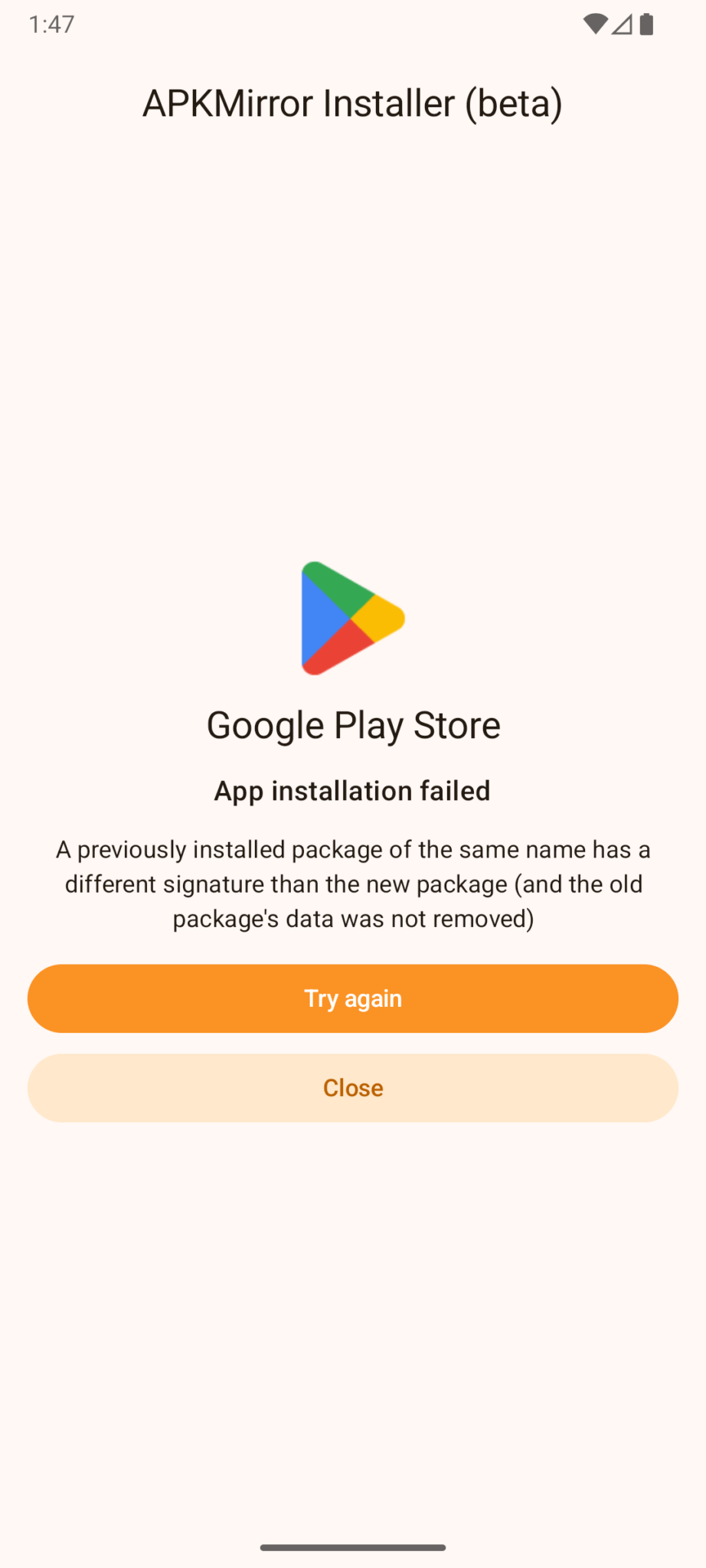
To minimize these risks, keep a backup of your current app data (via Samsung’s Smart Switch or a third‑party backup tool) and note the version you replaced. If anything goes awry, you can uninstall the sideloaded app and reinstall the official version from the Galaxy Store.
Legal and Ethical Considerations
Downloading an APK from APKMirror is generally legal in most jurisdictions because the site does not host copyrighted content; it merely provides links to publicly available binaries. However, redistributing paid apps or using cracked versions is illegal and unethical. Stick to free or legitimately purchased Samsung apps, and respect the developer’s licensing terms.
Moreover, Samsung’s end‑user license agreement (EULA) may prohibit sideloading certain proprietary services. While enforcement is rare, violating the EULA could affect warranty claims or support eligibility. If you rely on official Samsung support, it’s best to stay within the Galaxy Store for critical apps.
Keeping Your Samsung Apps Updated
When you install an APK manually, the automatic update prompt from the Galaxy Store will disappear. To stay current:
- Periodically revisit APKMirror and check for newer builds of the same app.
- Consider using a third‑party update manager that monitors installed apps against known repositories. Be cautious—only trust reputable managers.
- Alternatively, revert to the official store for that app when a stable version becomes available for your region or OS.
FAQ
Is it legal to download Samsung apps from APKMirror?
Yes, as long as you download free apps or ones you’ve already purchased through official channels. APKMirror does not host pirated software, but distributing paid apps without permission would be illegal.
How can I verify that an APK hasn’t been tampered with?
Compare the SHA‑256 hash listed on APKMirror with the hash generated on your device, and optionally run the file through a service like VirusTotal for an additional malware scan.
What should I do if a sideloaded Samsung app crashes frequently?
First, confirm you installed the correct version for your Android OS and device architecture. If the issue persists, uninstall the APK, clear any residual data, and either try an older stable version or reinstall the official version from the Galaxy Store.
Will installing apps from APKMirror void my Samsung warranty?
Installing third‑party APKs does not automatically void the warranty, but if a problem can be traced to a sideloaded app, Samsung support may request its removal before providing service.