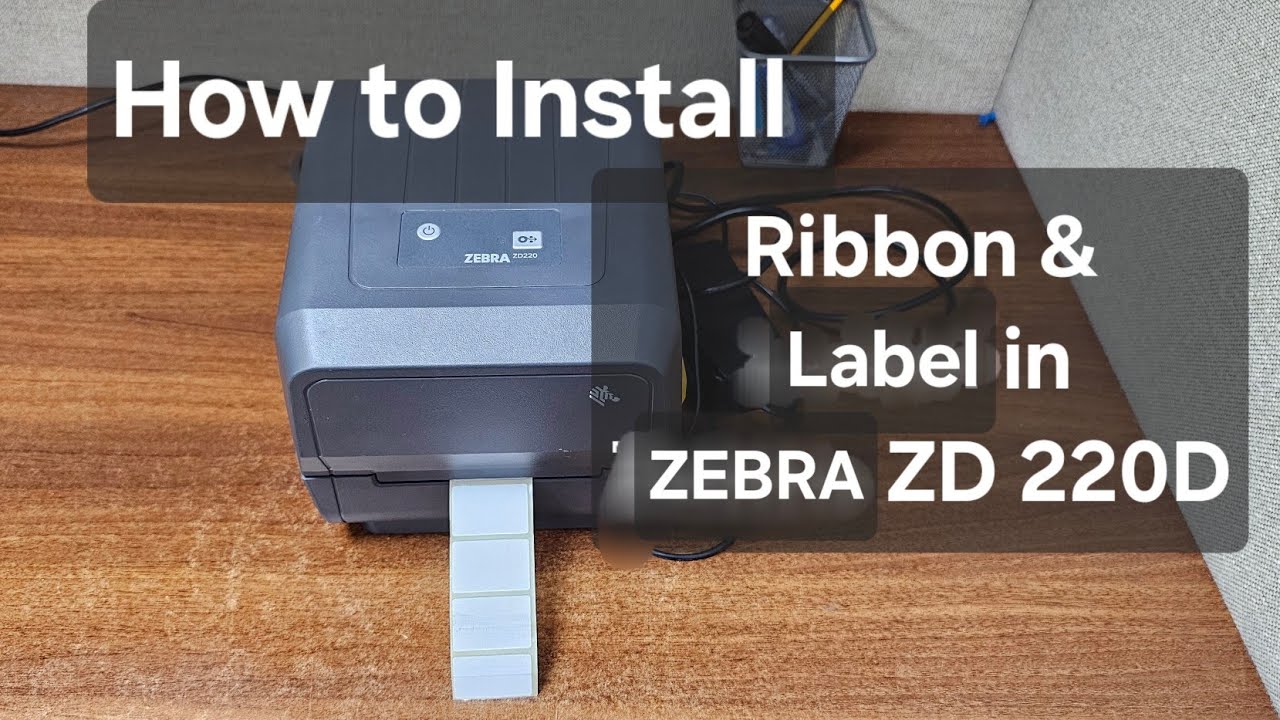
How to Set Up Labels Quickly on a Zebra ZD220 Printer
If you’ve just unboxed a Zebra ZD220 and wonder how to get those crisp barcodes and shipping tags out of the gate, you’re in the right place. This easy label setup guide walks you through every step—from plugging in the power cord to printing your very first label—so you can start labeling without a steep learning curve.
Unpacking Your ZD220 and Preparing the Essentials
First things first: lay the printer on a stable surface and check that the box includes the power adapter, USB cable, a roll of compatible labels, and the quick‑start manual. The ZD220 is a compact, desktop model, so you won’t need a dedicated workstation; a regular desk will do. Before you touch any cables, give the printer a quick visual inspection for any shipping debris or protective tape that might still be clinging to the label feed path.
Connecting the Printer to Your Computer
Plug the power adapter into an outlet and then into the printer’s power socket. The unit should power up with a soft chime and a blinking status light. Next, attach the USB cable to the printer’s rear port and to an available USB port on your computer. Windows and macOS both recognize the ZD220 as a generic USB device, so you won’t see a fancy driver prompt right away.
Installing Drivers and Software
Head to Zebra’s official support site and download the latest ZDesigner driver for your operating system. The installer is straightforward: accept the license, choose “Standard Installation,” and let the wizard copy the files. When prompted, select “Zebra ZD220” from the printer list, and the system will bind the driver to the USB port you just used. For most users, the free Zebra Setup Utilities (ZSU) program is a handy companion; it lets you tweak printer settings without digging into complex command lines.
Loading and Aligning Labels
Open the top cover by lifting the latch on the left side. Slide the roll of labels onto the spindle, making sure the printable side faces up (the adhesive side should be against the roll core). Pull the label strip forward until you feel a slight resistance, then thread it through the sensor slot and under the platen rollers. Close the cover and press the feed button; the printer will advance a few millimeters, confirming that the sensor has detected the label edge.
Configuring Basic Settings for Easy Printing
With the driver installed, open the Zebra Setup Utilities and select “Configure Printer Settings.” Set the media type to “Continuous” or “Label” depending on the roll you loaded—most standard label rolls fall under “Label.” Adjust the print speed to a moderate 4 inches per second; this balances speed and quality for everyday tasks. If your labels have a black border, enable “Label Darkness” at a medium level to ensure the edges come out solid.
Testing Your First Print
Open a simple text editor or, better yet, the ZSU’s “Print Test Label” feature. The default test label includes a barcode, a sample text line, and a border—perfect for spotting alignment issues. Click “Print,” and the ZD220 should spool out a clean label within seconds. If the barcode looks faint or the text is misaligned, return to the ZSU, increase the darkness setting by one notch, and re‑run the test.
Tips for Ongoing Success
- Keep the sensor clean. Dust can cause missed label detection, leading to jams.
- Use Zebra‑approved labels. Non‑compatible media might feed unevenly or produce blurry prints.
- Update firmware. Zebra releases occasional patches that improve connectivity and performance.
Frequently Asked Questions
Can I connect the ZD220 via Bluetooth? The ZD220 is a USB‑only model; for wireless printing you’d need a ZD200 series with Bluetooth or an external Bluetooth dongle that supports Zebra printers.
What label sizes does the ZD220 support? It handles label widths from 0.75 in to 4.0 in and roll diameters up to 2 in. Check the specifications sheet for exact thickness limits.
Do I need special software for barcode printing? Not at all. The ZDesigner driver supports standard ZPL (Zebra Programming Language) commands, and most label design tools—like BarTender or NiceLabel—can generate ZPL automatically.