How to Set YouTube to Turn Off Automatically After Playback
Ever found yourself scrolling endlessly, only to realize the video has been running for hours? Whether you’re drifting off to sleep or just want to limit screen time, there’s a simple way to tell YouTube to stop on its own. Below is a practical guide that walks you through the options on mobile, desktop, and even third‑party tools, so you can finally regain control of your viewing habits.
Why You Might Want an Auto‑Shutdown
- Sleep routine: Let a calming playlist fade out while you nod off.
- Battery preservation: Prevent your phone or laptop from draining overnight.
- Parental control: Set a safe limit for kids’ video sessions.
Built‑In YouTube Features
Using the “Sleep Timer” on Android
If you use the official YouTube app on Android, a hidden sleep timer can do the trick.
- Open YouTube and start the video you want.
- Tap the three‑dot menu in the top‑right corner.
- Select “Timer” (you might see it as “Sleep timer”).
- Choose a preset duration—15 minutes, 30 minutes, 1 hour—or set a custom time.
- Confirm. YouTube will pause playback automatically when the countdown ends.
iOS Workaround with Shortcuts
Apple’s Shortcuts app lets you create a personal automation that stops YouTube after a set period.
- Open Shortcuts and tap Automation → Create Personal Automation.
- Choose Time of Day or Timer as the trigger.
- Add the action “Pause Playing” and select YouTube as the target app.
- Set the timer length (e.g., 45 minutes) and save.
- When you run the shortcut, you’ll get a notification reminding you that playback will stop at the chosen time.
Desktop Solutions
Using YouTube’s “Watch Later” Playlist
While YouTube itself doesn’t offer a direct shutdown timer on the web, you can simulate one with a simple trick.
- Create a short, silent video (or find a 1‑minute black screen video).
- Add it to a new playlist called “Auto‑Stop.”
- After your main video, set the playlist to continue with the silent clip.
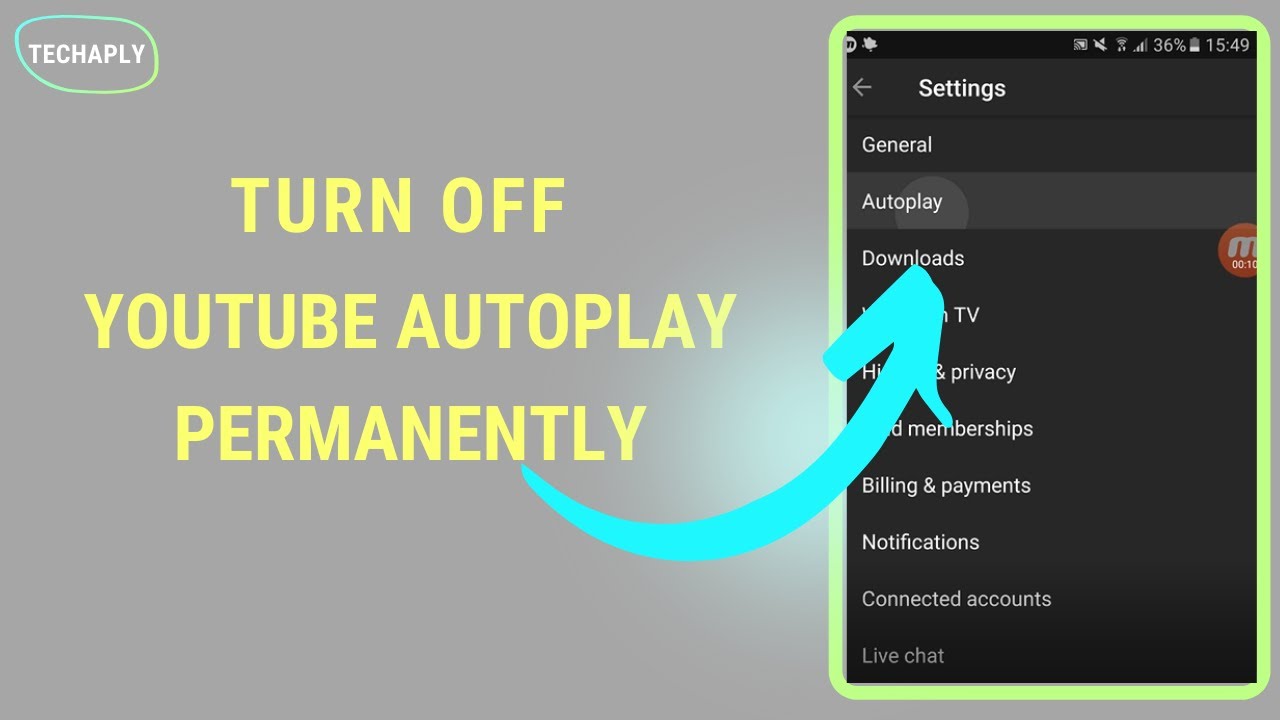
- In the browser, enable Auto‑Play off. Once the silent clip ends, playback stops.
It’s a bit of a hack, but it works without extra extensions.
Browser Extensions for Precise Timing
If you prefer a more polished approach, several extensions let you schedule a stop time.
- Video Blocker + Timer: Combine a video blocker with a timer to pause after a set period.
- Smart Sleep Timer: Works on Chrome, Firefox, and Edge; you set minutes and the extension mutes then pauses the tab.
Install from the official store, grant the minimal permissions it asks for, and you’re good to go.
Third‑Party Apps and Tools
Mobile Sleep‑Timer Apps
Apps like Sleep Timer (Music & Podcast) or Timer for YouTube integrate directly with the YouTube player.
- Download the app from Google Play or the App Store.
- Open YouTube from within the timer app (or share the video to the app).
- Set the desired countdown. The app will automatically pause or close YouTube when time’s up.
Using a Smart Speaker
If you have a Google Nest or Amazon Echo, you can command it to stop playback after a certain duration.
Google: “Hey Google, play lofi beats for 30 minutes.”
Alexa: “Alexa, set a timer for 45 minutes and play music.”
When the timer expires, the speaker cuts the audio stream—effectively turning off YouTube on your TV or casting device.
Tips to Fine‑Tune Your Auto‑Shutdown
- Combine with “Autoplay off”: Ensures YouTube doesn’t immediately start the next suggested video.
- Check volume levels: Some timers only mute; verify that the video truly pauses.
- Test before bedtime: Run a short trial to make sure the chosen method works on your device.
Common Pitfalls and How to Avoid Them
It’s easy to assume the timer will work forever, but a few hiccups can happen.
- App updates reset settings: After a YouTube update, revisit the timer menu to confirm it’s still enabled.
- Background restrictions: On Android, battery‑saving modes may stop the timer. Add YouTube to the “Allowed background activity” list.
- Multiple tabs: If you have several YouTube tabs open, the timer may only affect the active one. Close the extras or use a browser extension that targets all tabs.
Wrapping It Up (Without a Formal Summary)
Whether you’re winding down for the night, managing a child’s screen time, or just trying to keep your device’s battery in check, setting YouTube to turn off automatically is totally doable. From native sleep timers on Android to clever shortcuts on iOS, browser extensions on the desktop, and even voice‑controlled smart speakers, the tools are there—you just need to pick the one that fits your routine.