How to Trade Binance Futures on TradingView: A Practical Guide
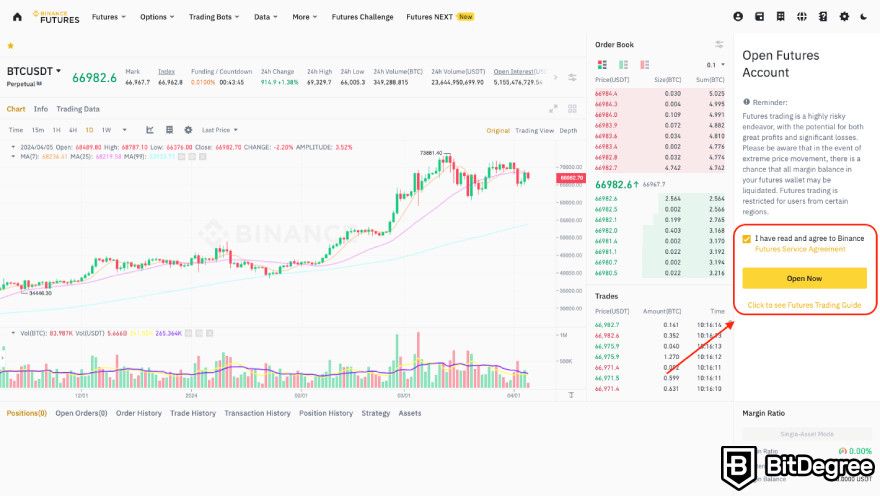
If you’ve been dabbling in crypto derivatives, you’ve probably heard the buzz about using TradingView’s charting power for Binance Futures. Marrying the depth of Binance’s futures market with TradingView’s visual tools can sharpen entry timing, clarify trend strength, and make risk controls feel more tangible. Below, we walk through the why, the how, and the pitfalls to watch, so you can start trading Binance Futures on TradingView with confidence.
Why Combine Binance Futures with TradingView?
Binance dominates the crypto‑derivatives space with a wide range of perpetual contracts and leverage options. TradingView, on the other hand, is renowned for its clean, highly customizable charts and a massive library of community‑built indicators. Together they give you:
- Real‑time price action: Streaming tick data from Binance appears instantly on TradingView’s candle charts.
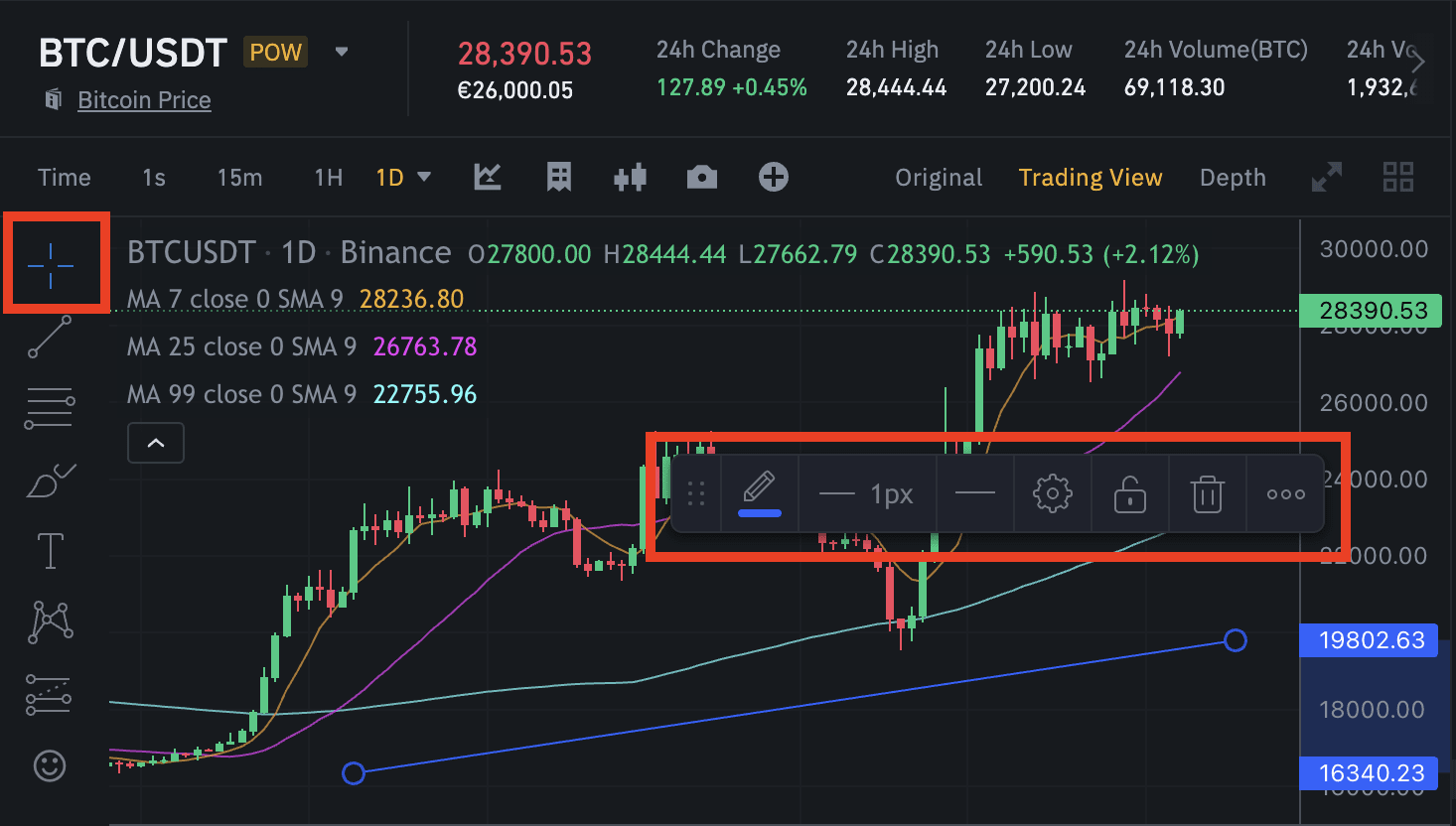
- Advanced analysis: Use built‑in tools like Fibonacci, Ichimoku, or custom Pine Script studies without leaving the chart.
- One‑click order execution: From the same interface, you can send market, limit, or conditional orders directly to Binance Futures.
The synergy isn’t just cosmetic; it can cut the latency between analysis and execution, which matters when you’re juggling 20x or 50x leverage.
Setting Up the Connection
Before the charts light up, you need to link your Binance Futures account to TradingView. The steps are straightforward but demand care, especially around API permissions.
- Create API keys on Binance: Log into Binance, head to the API Management page, and generate a new key. Give it a clear label like “TradingView‑Futures”. Enable “Futures” and “Read‑Only” for market data, plus “Enable Futures Trading” for order placement. Never enable withdrawal permissions.
- Copy the key and secret: Store the secret in a secure password manager; you won’t see it again.
- Enter keys on TradingView: In TradingView, open the “Broker” panel, select “Binance Futures”, and paste the key and secret. Test the connection; a green check means you’re good to go.
- Choose the correct symbol format: For Bitcoin perpetual, type
BINANCE:BTCUSDTin the ticker box. Replace the base‑quote pair for any other contract you wish to trade.
Once linked, you’ll see your account balance and open positions appear on the chart, a visual cue that’s hard to ignore.
Key Charting Tools for Futures Traders
TradingView’s toolbox is vast, but a few indicators tend to shine for futures trading:
- Volume Profile: Shows where most contracts have exchanged hands, helping you spot high‑interest price zones.
- Order Flow Overlay (if you use a community script): Visualizes large market orders that can trigger liquidations.
- Moving Average Convergence Divergence (MACD): Helps confirm momentum shifts, especially useful when you’re deciding whether to add to a leveraged position.
- Funding Rate Tracker: A custom indicator can pull Binance’s funding rate for a contract, reminding you of the periodic cost of holding a position.
Because you can save chart layouts, consider creating a “Futures Dashboard” that includes these studies, your open‑order panel, and a watchlist of the top 10 perpetual contracts you trade.
Placing and Managing Orders Directly from the Chart
TradingView’s order panel mirrors Binance’s order types, but the visual feedback can reduce mistakes.
- Market Orders: Click the “Buy” or “Sell” button on the chart, select “Market”, set your desired contract size (in USDT or coin amount), and confirm. The order fills instantly at the best available price.
- Limit Orders: Click on the price level where you want to enter, drag the order line, and set the limit price. Adjust the quantity and leverage before sending.
- Stop‑Loss / Take‑Profit: After opening a position, right‑click the position line, choose “Add Stop‑Loss” or “Add Take‑Profit”, then drag to the desired level. TradingView automatically updates Binance with the new parameters.
- Conditional Orders (OCO): For a more automated approach, set an “One‑Cancels‑Other” order that pairs a take‑profit limit with a stop‑loss market order. This protects you if the market swings against your position.
Remember that the displayed price on TradingView may differ by a few ticks from Binance’s order book due to network latency. Always double‑check the final price in Binance’s order confirmation screen before hitting “Confirm”.
Risk Management Tips Specific to Futures on TradingView
Leverage magnifies both gains and losses, so disciplined risk controls are non‑negotiable.
- Set a maximum leverage per trade: Many traders cap themselves at 20x or 30x, even though Binance offers up to 125x on select contracts. Lower leverage gives you more breathing room during volatile swings.
- Use position sizing calculators: TradingView’s built‑in calculator (or a simple Pine Script) can compute how many contracts correspond to a 1‑2% equity risk.
- Watch funding rates: Positive rates mean longs pay shorts; negative rates mean the opposite. If a high positive rate persists, consider scaling down long exposure to avoid the recurring cost.
- Trail your stop‑loss: As price moves in your favor, adjust the stop‑loss level using TradingView’s “Trail” option. This locks in profit while still letting the trade run.
- Stay aware of liquidation thresholds: Binance shows a “liquidation price” line on the chart. Keep a comfortable buffer—ideally at least 5%—to prevent forced exits.
Common Pitfalls and How to Avoid Them
Even seasoned traders slip up when mixing platforms. Here are the most frequent issues:
- Over‑reliance on a single indicator: A bullish MACD crossing doesn’t guarantee a safe entry when funding rates are extremely high. Combine multiple signals.
- Ignoring order book depth: Large market orders can cause slippage, especially on low‑liquidity alt‑coin futures. Check Binance’s depth chart before committing sizable contracts.
- Failing to sync time zones: TradingView defaults to the user’s local time, while Binance uses UTC. Align the chart’s timezone to avoid misreading session openings.
- Leaving API keys unsecured: Store them in a password manager and rotate them periodically. If you suspect a breach, revoke the key immediately on Binance.
Frequently Asked Questions
Can I trade both Spot and Futures from the same TradingView account?
Yes. After linking your Binance API, you can switch between spot symbols (e.g., BINANCE:BTCUSDT) and futures symbols (e.g., BINANCE:BTCUSDT_PERP) without re‑authorizing. Just be mindful of the different margin requirements.
Do I need a separate API key for futures trading?
It’s advisable. Creating a dedicated key for futures limits exposure if you ever need to revoke permissions, and you can keep spot trading on a different key for added safety.
How often does the funding rate update, and can TradingView show it live?
Funding rates on Binance refresh every eight hours. Community‑built scripts can pull the current rate via Binance’s API, displaying it as a label on the chart so you never miss a change.
Is there a way to backtest a futures strategy on TradingView before going live?
Absolutely. Write or import a Pine Script that mimics your entry and exit rules, then use TradingView’s built‑in strategy tester. Keep in mind that backtests don’t capture real‑world slippage or funding costs, so treat the results as a guide rather than a guarantee.