How to Transform Your Voice Live with a Free AI Voice Changer
Ever wished you could sound like a cartoon character during a video call, or mask your voice for a podcast without breaking the bank? Real‑time AI voice changers make that possible, and many of them are completely free. Below is a practical guide that walks you through what the technology does, which features matter, and how to get started without a steep learning curve.
What Is Real‑Time AI Voice Changing?
At its core, a real‑time AI voice changer records your speech, runs it through a neural network that alters pitch, timbre, or other acoustic properties, and then streams the transformed audio back to your application—all within a fraction of a second. Unlike traditional pitch shifters that sound robotic, modern AI models mimic the nuances of human speech, preserving natural intonation while swapping the “identity” of the voice.
Key Features to Look For
- Low Latency: Anything above 150 ms starts to feel laggy, especially in conversations.
- Voice Library: A diverse set of presets—robot, child, elderly, celebrity‑style—helps you find the perfect match.
- Customizable Parameters: Ability to fine‑tune pitch, formant, and resonance gives you a personal touch.
- Cross‑Platform Support: Works with Windows, macOS, and popular streaming software (OBS, Streamlabs).
- Privacy Controls: Local processing (no cloud upload) keeps your recordings private.
Top Free Tools Worth Trying
Not all free voice changers are created equal. Here are three that consistently receive positive feedback from creators and gamers alike.
1. Voicemeeter Banana + VoiceMod Free
This combo pairs a virtual audio mixer (Voicemeeter Banana) with the free tier of VoiceMod. While VoiceMod’s paid version offers more presets, the free version still provides decent robotic and gender‑shifted tones. The mixer lets you route audio from any source, making it flexible for Discord, Zoom, or streaming.
2. Clownfish Voice Changer
Simple, lightweight, and completely offline. Clownfish sits in your system tray, intercepts microphone input, and offers a handful of classic effects—helium, deep, and even a “monster” setting. Its strength lies in ease of use; you can toggle effects with a single keystroke.
3. MorphVox Junior
MorphVox’s free “Junior” edition includes a modest catalog of voices and background soundscapes. It runs on both Windows and macOS, and its interface clearly labels latency, so you can monitor performance while you speak.
How to Set Up and Use a Free Real‑Time Voice Changer
Below is a step‑by‑step checklist that works for most Windows setups. macOS users can follow similar paths, swapping Windows‑specific apps for their macOS counterparts.
- Download and Install: Grab the installer from the official site—avoid third‑party download portals to stay safe.
- Create a Virtual Audio Device: Open Voicemeeter Banana (or the built‑in virtual mic on the tool you chose) and set it as the default recording device in Windows Sound Settings.
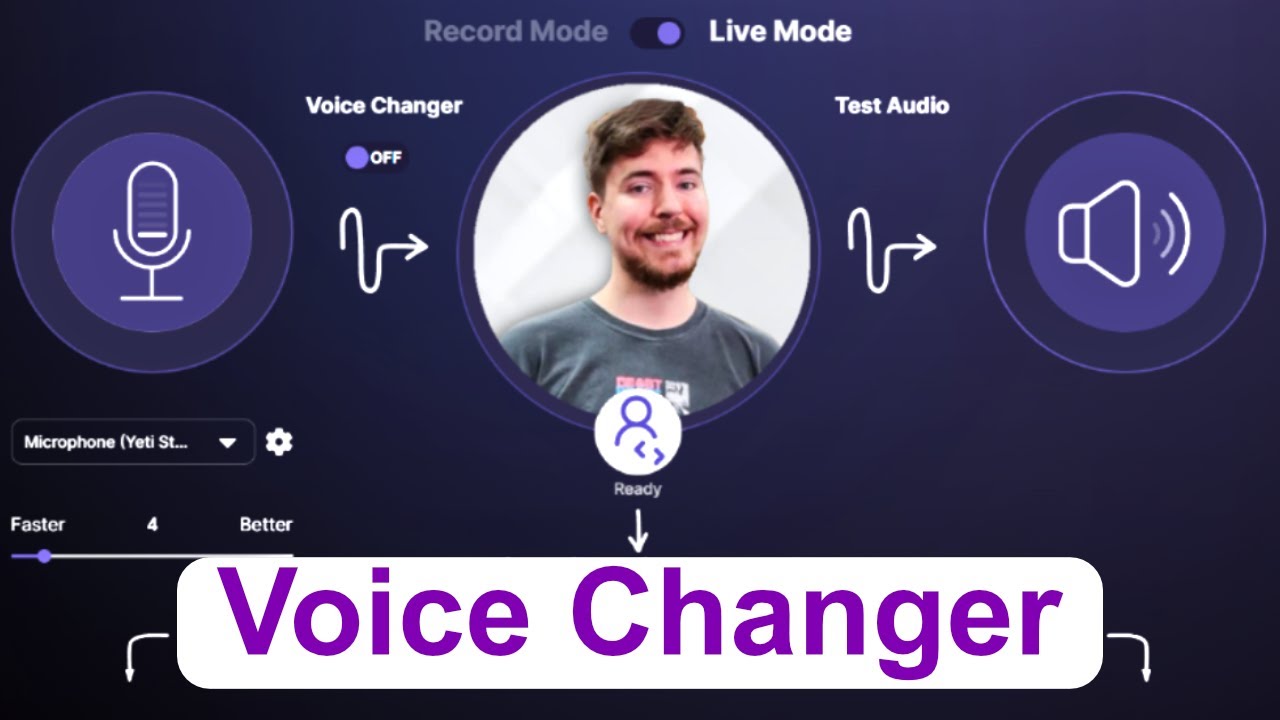
- Configure the Voice Changer: Launch the voice changer, select the virtual device as the input source, then pick a preset or customize your own.
- Test the Output: Use the built‑in “Test Mic” feature or open a voice recorder to ensure the transformed audio is audible and the delay feels natural.
- Integrate with Your App: In Discord, Zoom, or OBS, change the microphone selection to the virtual device you configured. Speak; the app will receive the altered voice.
Tips for Getting the Best Results
- Speak clearly and at a moderate pace—extreme mumbling can confuse the AI model.
- Use a decent headset or USB microphone; low‑quality input will amplify artifacts.
- Adjust the “formant shift” rather than just pitch when aiming for gender changes; this keeps the voice sounding natural.
- Take short breaks if you notice latency creeping up; some tools accumulate processing load over time.
- Combine subtle background sounds (café noise, rain) for added immersion, but keep the volume low enough not to mask your speech.
Common Pitfalls and How to Avoid Them
Free tools are tempting, yet they sometimes come with quirks.
Latency Spikes: If you experience lag, lower the sample rate in the audio mixer settings (e.g., from 48 kHz to 44.1 kHz).
Audio Distortion: Over‑boosting pitch can create a chipmunk effect. Balance pitch and formant sliders gradually.
Software Conflicts: Running multiple virtual audio drivers simultaneously can cause “device not found” errors. Stick to one virtual mic at a time.
When to Upgrade to a Paid Version
If you find yourself needing more than a dozen presets, higher fidelity, or advanced scripting (e.g., automatic voice switching on cue), a paid subscription might be worthwhile. However, for casual gaming, occasional streaming, or just having fun on video calls, the free options listed above usually suffice.