How to Turn Off VoiceOver on an iPhone 7 Quickly
Accidentally activating VoiceOver on an iPhone 7 can feel like you’ve switched to a different device altogether. The spoken feedback is helpful for accessibility, but when you just want the screen to behave normally, the extra taps and gestures become frustrating. Luckily, the process to disable it isn’t hidden behind a maze of menus. This guide walks you through the steps, offers a few handy shortcuts, and explains what to do if the usual method isn’t responding.
Spotting VoiceOver Before You Start
VoiceOver changes how you interact with the iPhone:
- The screen reads out every button, icon, and text you tap.
- A single tap selects an item; a second tap activates it.
- Three‑finger swipes scroll instead of the usual one‑finger swipe.
If you notice any of these quirks, you’re probably dealing with VoiceOver.
Standard Method: Using Settings
The most straightforward way to turn VoiceOver off is through the Settings app. Follow these steps:
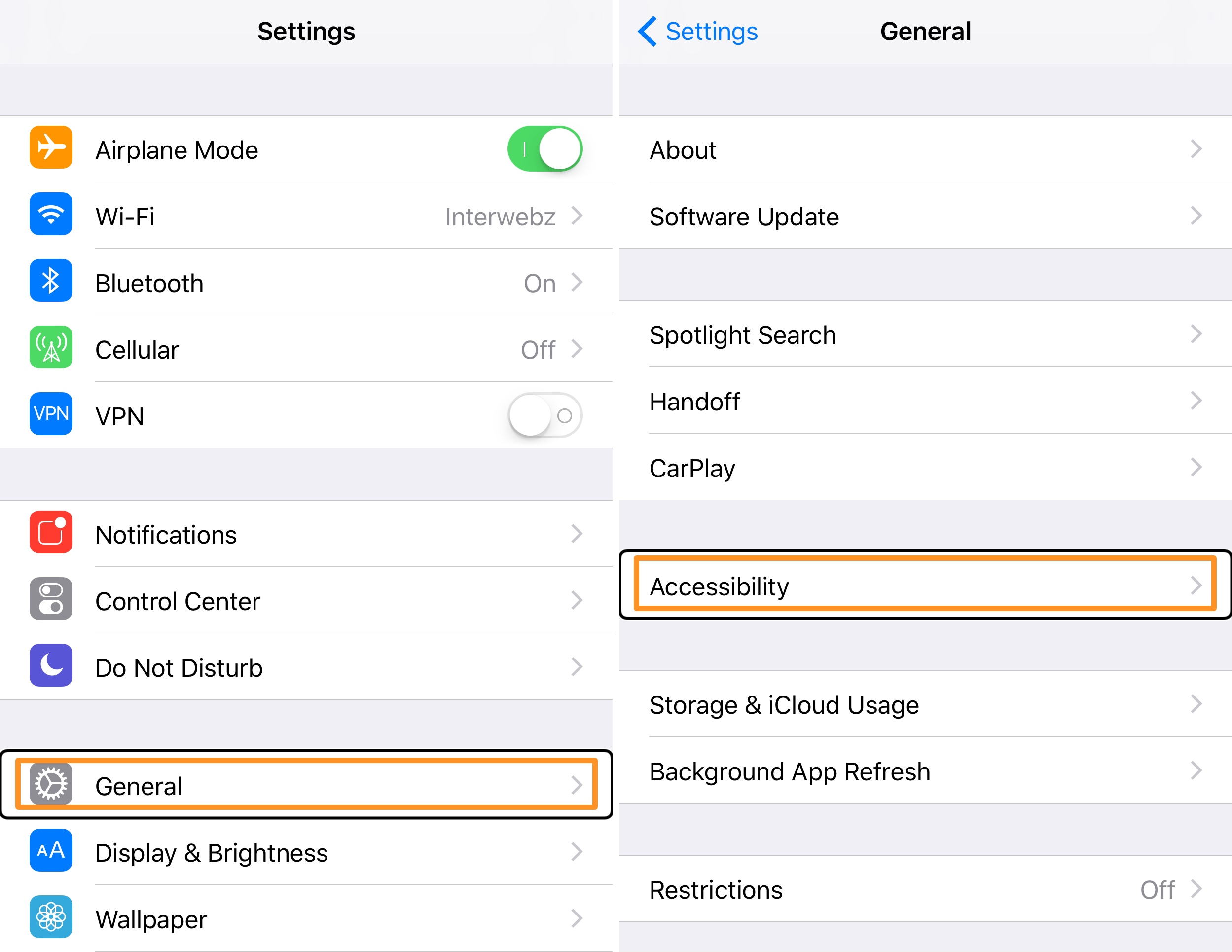
- Locate the Settings icon on your home screen. (It looks like gray gears.)
- Tap Accessibility. If VoiceOver is active, remember: tap once to select, then double‑tap anywhere on the screen to confirm.
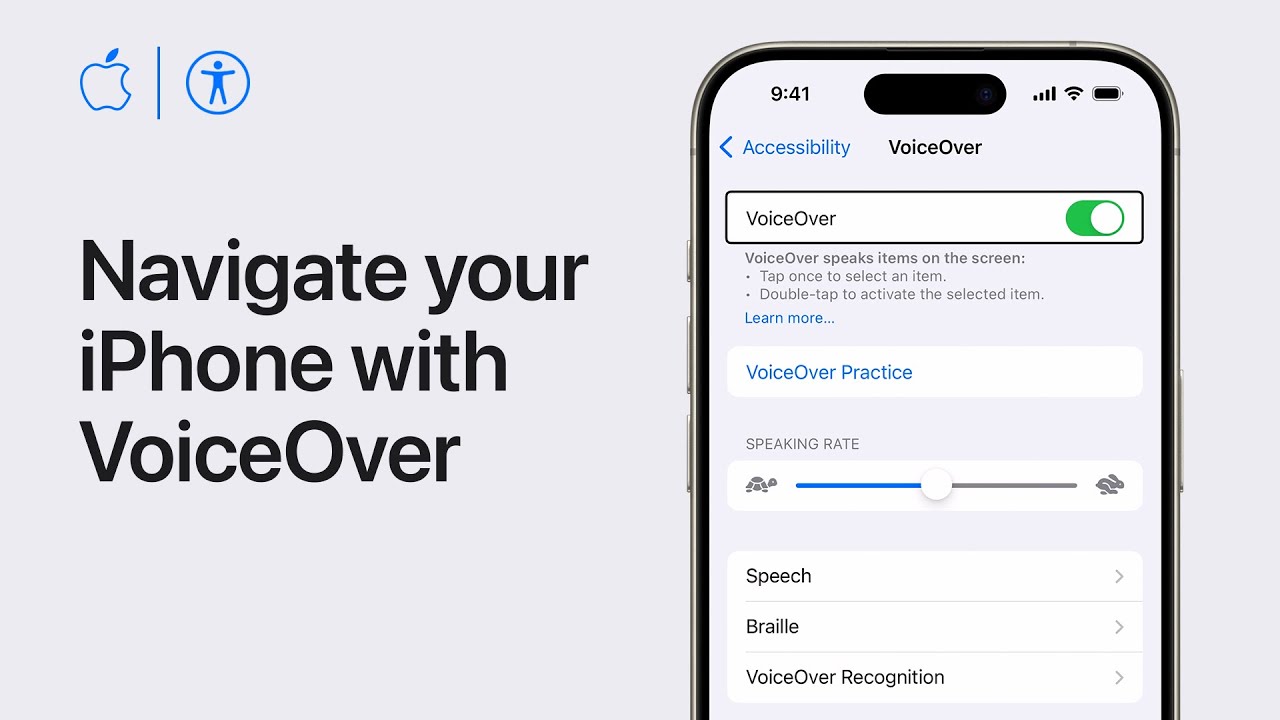
- Choose VoiceOver from the list.
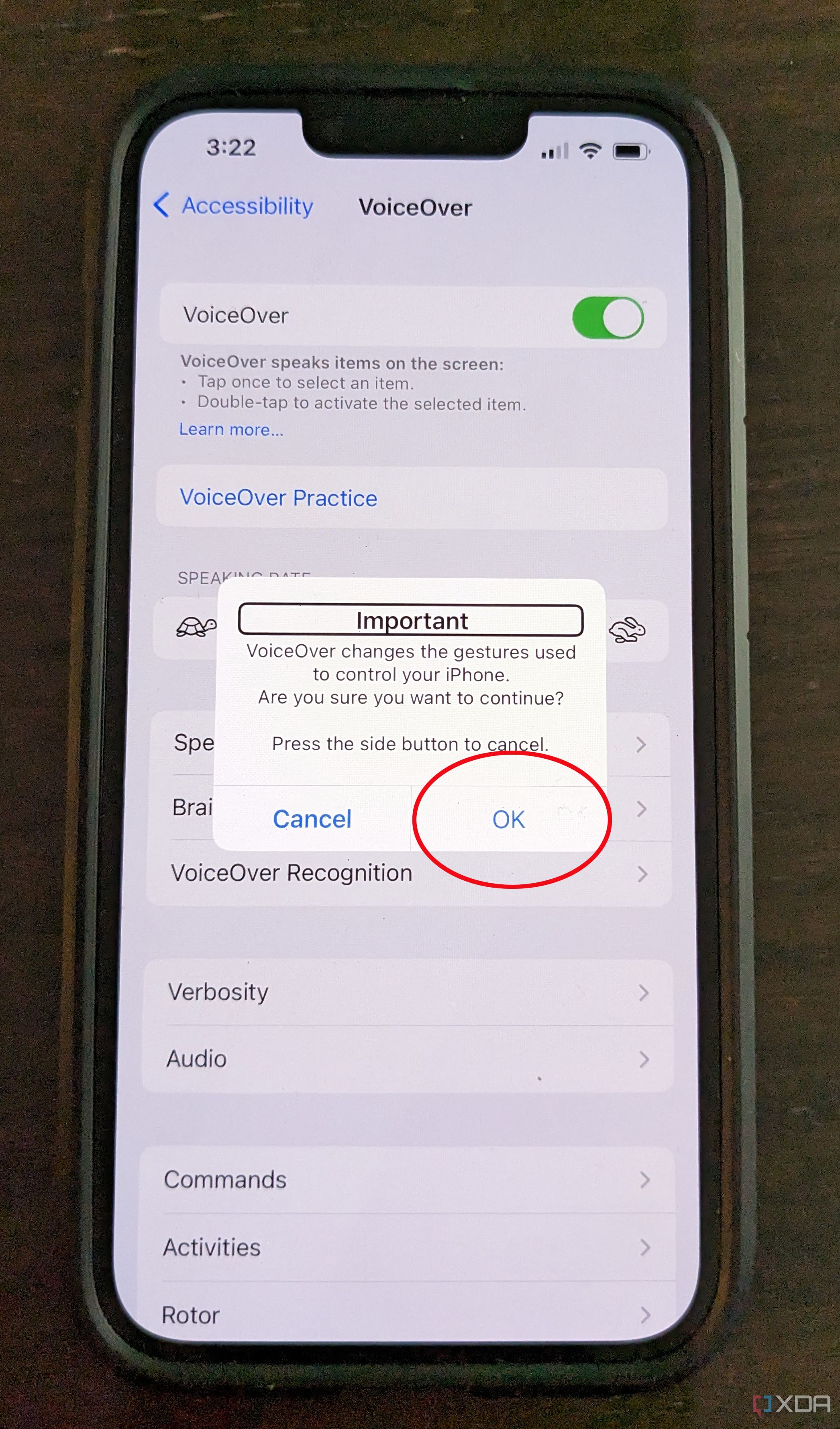
- Toggle the switch at the top to the off position. The switch will turn grey when disabled.
That’s it—your iPhone should return to normal touch behavior immediately.
Shortcut When You’re Stuck: Triple‑Click Home Button
If navigating the menus feels like a chore, iOS includes a quick shortcut:
- Press the Home button three times in rapid succession.
- This toggles VoiceOver on or off, provided the shortcut was enabled beforehand.
To enable this shortcut for future use, go to Settings > Accessibility > Accessibility Shortcut and select VoiceOver. After that, the triple‑click will always be at your fingertips.
What to Do When the Screen Is Unresponsive
Sometimes VoiceOver can freeze, making it hard to access Settings. In that case, try a forced restart:
- Press and hold the Power (Sleep/Wake) button and the Volume Down button together.
- Keep holding for about 10 seconds, until the Apple logo appears.
- Release both buttons and let the phone boot up.
The reboot often clears the glitch, and you can then follow the standard method.
Using Siri as an Alternative
If you prefer voice commands, Siri can handle the job:
- Activate Siri by holding the Home button or saying “Hey Siri.”
- Say, “Turn off VoiceOver.”
- Siri will confirm the change, and the spoken feedback stops immediately.
This works even if you can’t see the screen clearly, making it a handy backup.
Preventing Accidental Activation
VoiceOver can be triggered unintentionally with a triple‑click of the Home button. To avoid future surprises:
- Go to Settings > Accessibility > Accessibility Shortcut.
- Uncheck VoiceOver, or select a different function for the shortcut.
With the shortcut reassigned, a triple‑click will no longer toggle VoiceOver.
Quick Recap: The One‑Minute Fix
When VoiceOver shows up on your iPhone 7, you have three reliable ways to shut it down:
- Navigate: Settings → Accessibility → VoiceOver → toggle off.
- Shortcut: Triple‑click the Home button (if pre‑enabled).
- Siri: “Hey Siri, turn off VoiceOver.”
Pick the method that feels fastest in the moment, and you’ll be back to normal tapping in seconds.