How to Turn Your Android Phone Into a Reliable Wi‑Fi Hotspot
Why Use Your Android as a Hotspot?
When you’re on the go and the nearest café Wi‑Fi is overloaded, your Android can become a lifesaver. It essentially acts as a miniature router, sharing its mobile data with laptops, tablets, or even another phone. The convenience is hard to beat, especially during travel or in a pinch when a traditional network isn’t available.
Preparing Your Device
Before diving into the settings, make sure a few basics are covered. A decent signal strength is crucial—try to be in an area with at least three bars. Also, keep an eye on your data plan; tethering can chew through megabytes faster than you expect.
- Charge your phone to at least 30 % to avoid sudden shutdowns.
- Update Android to the latest version—newer releases often improve hotspot stability.
- Consider disabling battery‑saving modes that might throttle background data.
Step‑by‑Step Setup
The process is straightforward, but a few hidden menus can trip newcomers.
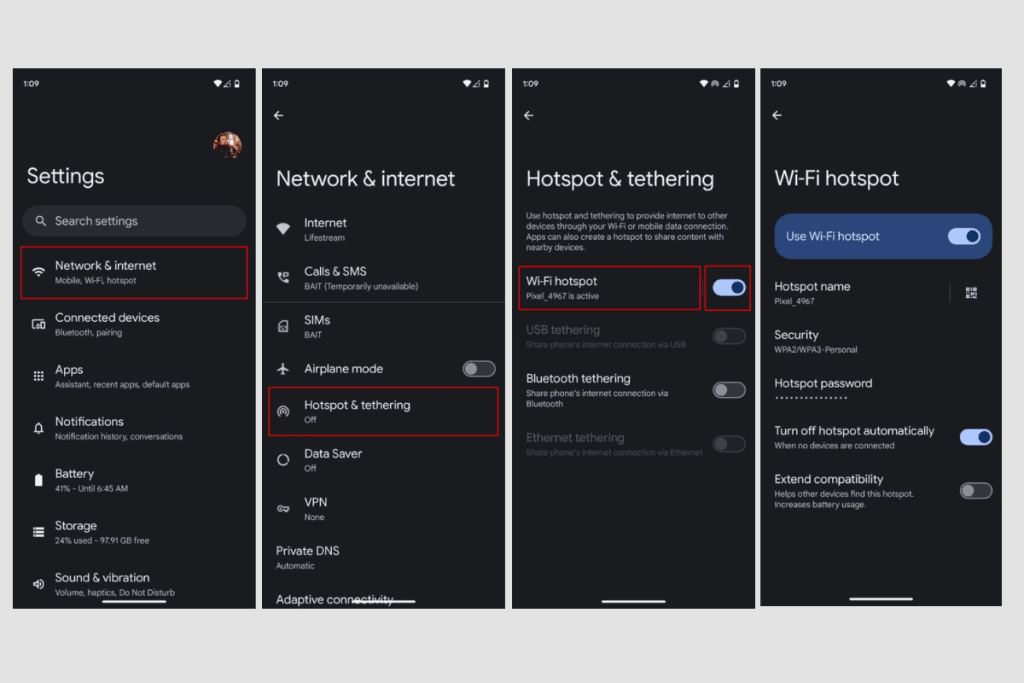
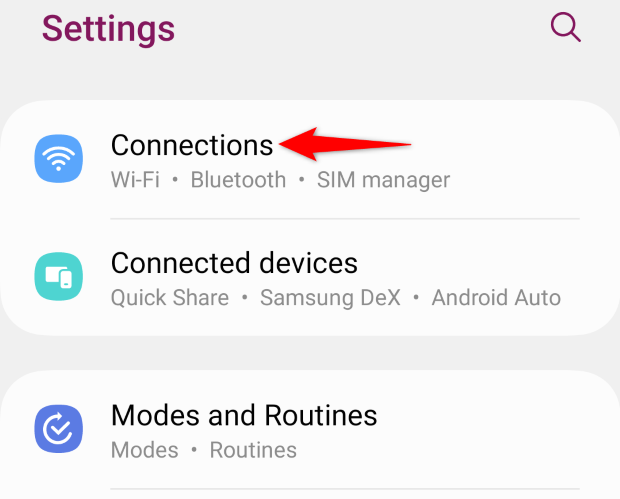
- Open Settings. Look for “Network & Internet” or a similar heading.
- Tap “Hotspot & Tethering.” On some skins it might be called “Mobile Hotspot.”
- Enable “Wi‑Fi Hotspot.” A toggle will appear; switch it on.
- Configure the network name (SSID) and password. Choose something memorable but not overly simple.
- Set the hotspot band. If your device offers 2.4 GHz and 5 GHz options, pick 5 GHz for less congestion—provided your client devices support it.
- Save and connect. Your phone will display the hotspot details; pull up the Wi‑Fi list on the other device and join.
That’s essentially it. Once connected, you should see a small icon indicating active tethering. If you’re using a laptop, you might notice a “limited connectivity” warning at first—just give it a moment.
Customizing Network Settings
Android lets you fine‑tune a few parameters, which can make a noticeable difference.
- Maximum connections. Limit the number of devices to avoid overloading the link.
- Data limit. Some versions let you cap the hotspot’s usage, preventing surprise overages.
- Timeout. Set an auto‑off timer; for instance, the hotspot can shut down after 30 minutes of inactivity.
These options are often tucked under “Advanced” or “Configure hotspot.” Adjust them according to your needs, especially if you’re sharing with multiple friends.
Changing the Password Quickly
If you suspect the password has been compromised, you can change it on the fly without turning the hotspot off. Just return to the hotspot settings, edit the password field, hit “Save,” and the next device that tries to connect will need the new code.
Tips for Better Performance
Even a well‑configured hotspot can suffer from lag or drop‑outs. Here are a few practical tricks.
- Position your phone wisely. Elevate it on a table rather than keeping it in a pocket.
- Use a USB cable for tethering. When Wi‑Fi gets crowded, a wired connection offers steadier throughput.
- Turn off background apps. Streaming services or automatic updates can steal bandwidth from the devices you’re sharing with.
- Prefer 5 GHz for nearby devices. It yields higher speeds but has a shorter range, which is fine in a small room.
Troubleshooting Common Issues
Even with all the steps followed, hiccups happen. Below are some quick checks.
- No devices can see the hotspot. Restart Wi‑Fi on the client device or toggle the hotspot off and on again.
- Connected but no internet. Verify your mobile data is active; sometimes carriers suspend data when tethering is detected.
- Frequent disconnections. Reduce the number of connected devices, or switch from 2.4 GHz to 5 GHz if interference is the culprit.
- Battery draining fast. Enable “Power saving” for the hotspot if your Android version offers it, or keep the phone plugged in.
When all else fails, a simple reboot of the phone often clears residual glitches. If the problem persists, checking your carrier’s tethering policy can reveal hidden restrictions.